Business Tips
How to Schedule Landscaping Crews: Routes, Recurring Visits, and Rain Days
One crew is easy to schedule. You know the route because you built it, you know which customer wants Thursdays, and when it rains you push everything a day and call the two people who will notice.
The second crew is where it breaks. Now there are two whiteboards, or one spreadsheet with two tabs, and the person who knows the Tuesday route is not the person driving it. A rain day means moving forty stops instead of fifteen, and by the time you have moved them the phone is ringing about the one you missed. Add a fertilization program with five rounds, a couple of installs with fixed start times, and a snow contract for the winter, and the schedule becomes the job.
This guide is about how to schedule landscaping crews once you have more than one, using the tools we build. It covers the two kinds of crew day and why they need different calendars, the weekly route you should only have to solve once, recurring visits and the two honest ways to set them up, what to do with a rain day, program rounds, storms, and what the crew sees on the phone. Each section walks through a specific situation with the actual mechanics, on the same property this blog has already mowed, bid, and invoiced: Cedar Ridge Office Park, and the two-person crew that services it.
Two kinds of crew days
Start with a distinction most scheduling advice skips, because it decides everything after it. There are two kinds of crew day, and they want different calendars.
An install crew has appointments. It is booked at one property from 9:00 to 11:30 and at another from 1:00 to 4:00, and the customer was told a time. A mowing crew has a list. It has fourteen lawns on Tuesday, in an order, and nobody at stop nine was told a time because the honest answer is “after stop eight.” Forcing the second kind into a clock-time calendar means inventing fake start times for fourteen lawns and then ignoring them. Forcing the first kind into a stop list loses the one thing the customer cares about.
In our system that choice lives on the crew, not on each visit. Every crew has a Time Based setting. Set it to Yes and the crew’s work appears on the Daily Dispatch calendar with clock times, in day, week, month, and agenda views. Set it to No and the crew’s visits land on a date with a stop number instead, managed on the Route Management page. Most companies with three or more crews run both: route crews for the recurring work and one time-based crew for installs and enhancements.
| The work | Crew setting | Why |
|---|---|---|
| Weekly mowing and maintenance | Route | Drive order beats arrival time |
| Plow loops in a storm | Route | Same thing, at 4 a.m. |
| Installs and enhancements | Time based | The customer was told a time |
| Fertilization rounds | Route | A window, not an appointment |
| Estimates and site walks | Time based | You are meeting someone |
Get this one setting right per crew and the rest of this guide works. Get it wrong and you will spend the season fighting the calendar. The scheduling overview in our help center has the longer version, and the crew setup article shows where the setting lives.
Use case: the weekly mowing route you only solve once
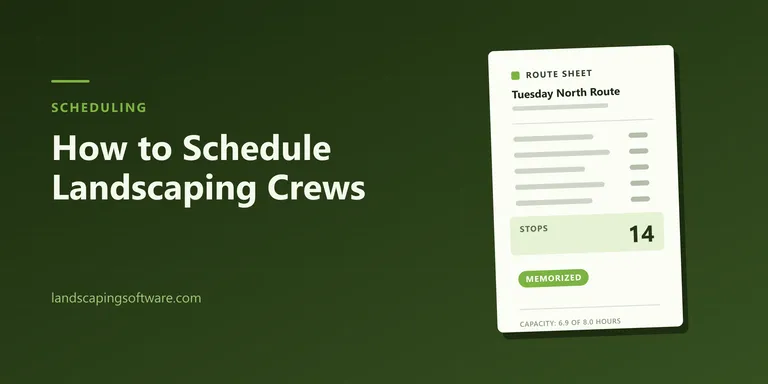
Cedar Ridge Office Park gets 28 weekly mowing visits a season under the contract we bid earlier this year, a 90-minute stop for the two-person crew. It sits on Crew 2’s Tuesday with thirteen other properties. The question every Monday is not whether those fourteen get mowed. It is what order, and whether the order the crew drove last week was any good.
Here is how that day gets built once. (Which properties belong on Tuesday in the first place is a separate decision, covered in our lawn care route planning guide.)
- Load the day. On Route Management, pick Tuesday’s date and Crew 2, then click Load Route. The fourteen stops appear as cards, with the crew’s depot as the start and finish point. Any visit that has never been ordered shows as Not ordered instead of a stop number.
- Order the stops. Two options. Drag the cards, or use the up and down arrows, and click Save Route when the order looks right. Or click Suggest Best Route and let the mapping service work out an efficient driving order out from the depot and back. You see the current order and the suggested one, each with its drive time and miles, and the savings between them. Click Apply suggestion and the cards fall into the new order, with every stop that changed position tagged as moved. Nothing is saved until you click Save Route, so a suggestion you do not like costs nothing. Either way, the order changes and nothing else. It does not move dates, assign times, or change crews.
- Fix what the map got wrong. The optimizer does not know that the gate at stop six is locked until 8:30 or that the HOA at stop eleven complains about mowers before nine. Drag those two and save. This is the part worth ten minutes, because you are about to freeze it.
- Memorize it. Click Memorize Route and name it. The default suggestion is the crew’s name plus “Route”; call it Tuesday North Route instead so it means something in October. The template stores the stop order and belongs to that crew.
- Next Tuesday: apply and go. Load the date and crew, pick Tuesday North Route from the Memorized Route dropdown, and click Apply Template. The stops fall into the saved order, a customer added since last week sorts to the end where you can slot it in, and you save the route. The stop numbers flow through to the crew’s phone as the day’s route.
That is the whole loop. The route puzzle for Crew 2’s Tuesday gets solved once in April, and every week after that it is a template, a glance, and a save. The route management article has each button’s behaviour, including what to do when a stop’s address cannot be located.
One caveat we would rather you hear from us: if the mapping service cannot find a stop’s address, it does not guess. You get no suggestion at all, and that stop’s card is marked “Address could not be located.” It almost always means a bad address on the job site. Fix the address, not the route.
Use case: does Tuesday actually fit?
Fourteen stops is a number. Whether it is a day is a different question, and the moment it gets asked is usually when the office says yes to one more.
Before you commit a route, click Check Capacity. It adds up the estimated hours of the loaded stops and compares them to an eight-hour crew day, then tells you where you stand: within capacity, near it once you pass 90 percent, or over it by a stated number of hours. Two things to know. It uses a standard eight-hour day for every crew rather than a per-crew setting, and it is advisory: nothing stops you from adding the fifteenth stop. It is a guardrail on the screen, not a lock.
Here is Crew 2’s Tuesday as it grows. Cedar Ridge is 1.5 hours; the residential lawns around it are 25 minutes each.
| Tuesday as built | Est. hours | Check says |
|---|---|---|
| Cedar Ridge plus 13 lawns | 6.9 | Within capacity, 86% |
| Add two lawns | 7.7 | Near capacity, 96% |
| Add three lawns | 8.2 | Over by 0.2 hours |
Read that against your own crew, not the eight. The pricing guide worked out that a dense route delivers about 5.5 on-site hours out of a paid eight, and drive time is the difference. A Tuesday reading 86 percent on the screen is, for a crew that averages 5.5 on the ground, already full. The same guide shows what that costs: the same crew, the same paid day, and $104.73 per billable hour on a dense route against $144.00 on a scattered one. An overstuffed Tuesday drifts the other way. The crew runs late, stops twelve through fourteen get rushed or skipped, and Wednesday inherits the leftovers. Both failures start with a day that did not fit and nobody checked.
For the season-level view, the built-in Capacity and Routes report shows scheduled hours against capacity per crew for any day, with a utilization figure and the routes that ran long. Read its travel column as an estimate rather than a measurement; it assumes a fixed share of the day is driving, because the system does not track the trucks.
Use case: recurring visits, and the two honest ways to set them up
Most of a maintenance company’s visits are recurring. Cedar Ridge is mowed weekly for 28 weeks and bed-detailed every other week for 14. There are two ways to put that on the calendar, and they behave differently later, so it is worth choosing on purpose.
The first way is a repeating appointment. Schedule one visit, open the Recurrence editor, and give it a pattern: weekly, every second week, specific weekdays, monthly, ending on a date or after a set number of visits. Saved Schedule Templates hold a pattern you use often, such as weekly for 28 visits, so a new mowing customer gets the same pattern in one pick instead of building it again. The series shows as one repeating appointment. When you edit it the calendar asks whether you mean this date or the whole series, and completing a visit only ever completes that date. Every date also gets its own photos, checklist, and history, so week nine’s before-and-after shots are not week one’s.
The second way is a service plan. The customer’s recurring agreement carries the same kind of pattern, plus a default crew, a default start time, and a default stop number. On the Season Planner you pick the source season and the target season, tick the plans, and click Renew Selected. The system creates the job in the new season and generates the first eight weeks of visits as individual visits, each with the crew and stop number already on it. Existing dates are never duplicated, so re-running it is safe. This is also the annual roll-forward: last year’s plans become this year’s jobs and this year’s first eight weeks in one screen. The generate visits article covers the steps; note that the target season has to exist first.
Which one should you use? The repeating appointment is faster to set up and fine for a small book. The service plan takes more setup and pays for itself the first time it rains, for a reason the next section explains.
Use case: the rain day
It rained all Tuesday. Crew 2 did not mow anything. Wednesday’s route is full. What now?
On a whiteboard this is forty minutes of erasing. In the system it is one tool, Rain / Delay Shift, on the Route Management page.
Pick the crew. Enter the number of days to shift: 1 moves everything a day later, 2 moves it two days, and a negative number pulls work earlier. Click Preview. Before anything changes, the system reads back exactly what will happen: how many visits will move, the date span they currently sit in, and by how many days. The Shift Visits button only unlocks after a preview has run for that number, and changing the number locks it again. Click it and the shift happens as one batch, with a history row per visit recording the old and new dates.
Now the rules, because a batch tool with rules you do not know is worse than a whiteboard:
- It shifts every open visit for that crew on every date, not just the day you loaded. That is the point. Tuesday moves to Wednesday, Wednesday to Thursday, and so on, so the week slides instead of piling up. If you only want one day moved, drag those visits on the calendar instead.
- Completed and skipped visits stay put. Work that happened is not rewritten.
- Repeating-series appointments are not moved. A series is one appointment that repeats, and sliding the whole pattern by a day would change every future date, so the tool leaves it alone and you reschedule those dates from the calendar. Visits that were generated individually, from a service plan or a program round, are separate visits and do shift. This is the rain-day reason to prefer the service plan for your core routes.
- It counts calendar days. Shift Friday by one and it lands on Saturday. If your crews do not work weekends, shift by three.
- It stays inside the season. A visit that would land past the season’s end date does not move.
- It does not check whether the new day fits. Wednesday was already full; now it has Tuesday’s stops too. Run Check Capacity on the new days and move the overflow by hand.
The last step is not in the software. Cedar Ridge’s property manager expected a mower on Tuesday and should hear from you before they notice. Our free weather delay notice is a two-paragraph letter for exactly this, and the service day change notice covers the permanent version when a route gets rebuilt.
The dashboard also watches the forecast for you, a little. When the chance of precipitation for today or tomorrow reaches 60 percent, a weather alert appears at the top of the home screen with a link to review route shifts. It moves nothing on its own. Your team decides a rain day is a rain day; the alert just makes sure the question gets asked before the trucks roll.
Use case: timed installs on the Daily Dispatch calendar
Now the other kind of crew. Crew 3 does installs and enhancements: a paver walkway on Monday and Tuesday, a planting job Wednesday morning, an irrigation repair Thursday at 1:00 because the homeowner works from home and asked for the afternoon.
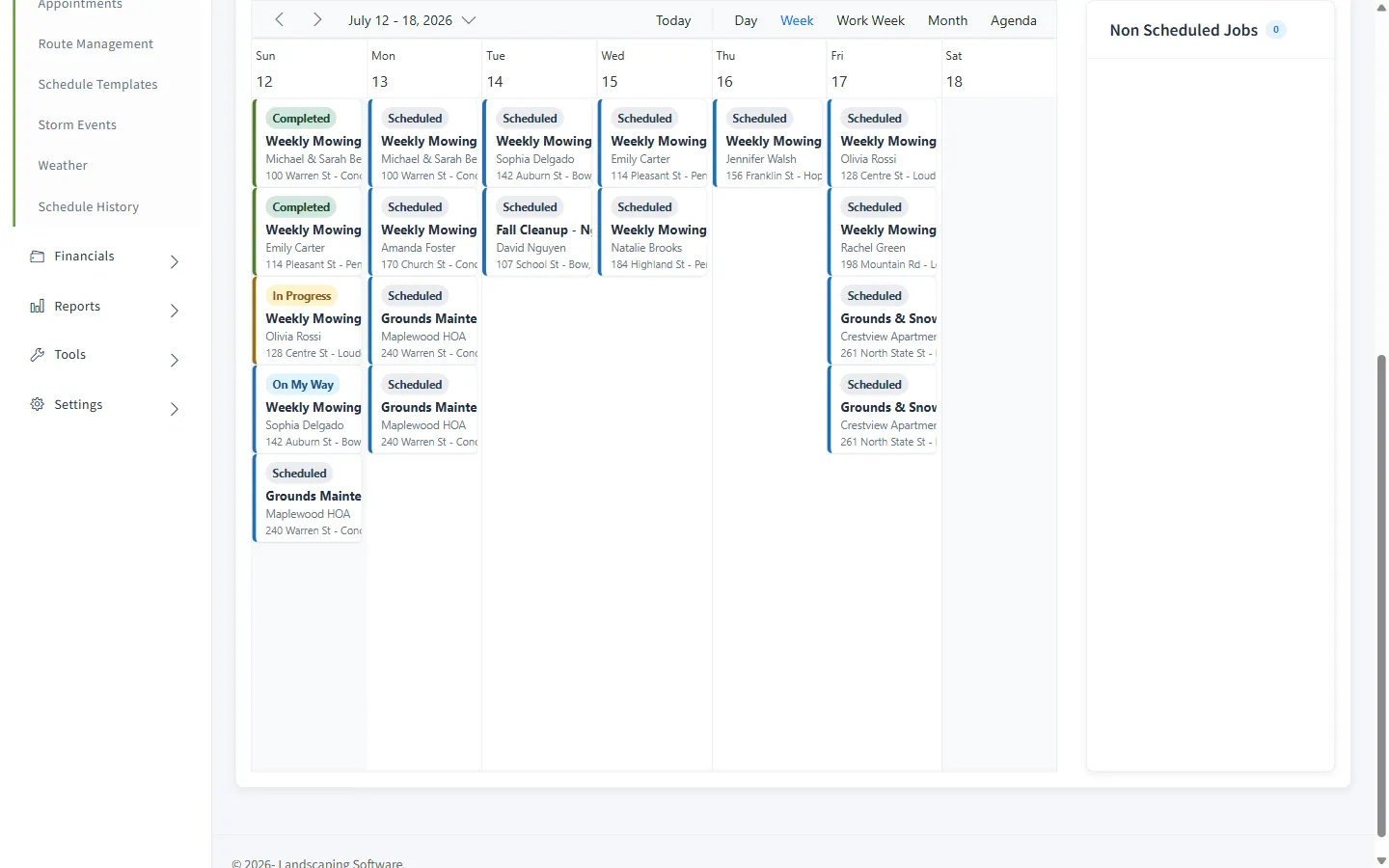
That crew lives on the Daily Dispatch calendar. Pick the crew and the day, and its appointments show with real start and end times. Switch to week or month view to see the load ahead, or agenda view on a phone. There are three ways a visit gets onto it:
- Drag it from the sidebar. Every job with work that has not been scheduled yet waits in the Non Scheduled Jobs panel beside the calendar, with the customer, the address, and a proof-of-work pill on each card. Drag a card onto a day and time, confirm the details, and it is on the board and off the list.
- Click an empty slot. The date and time fill in; you pick the job.
- Schedule from the job or customer page. This opens the Create Appointment form, which is also where the crew double-booking check lives: if Crew 3 already has an appointment at that date and time, the form says so and asks for a different crew or time.
A few calendar rules are enforced rather than suggested. An appointment starts and ends on the same day. It cannot run longer than eight hours; a two-day walkway is two appointments, one per day, which is also what the crew’s phone wants. Moving or resizing appointments on the calendar is saved as one batch, and if a change collides with something a coworker just did, the whole gesture is rolled back and the board refreshes rather than saving half of it.
Two honest notes about the board. It shows one crew at a time, so moving a visit from Crew 3 to Crew 2 happens from the job’s page, not by dragging across columns. And it reflects the field the next time you load it, not live; more on that below. The calendar scheduling article walks the whole form.
Use case: a five-round fertilization program
Fertilization and plant health care fit neither calendar cleanly. A round is not an appointment, and it is not a weekly stop either. It is a window: round 2 happens sometime between May 5 and May 23, on every enrolled property, once.
So that is how it is modelled. A program belongs to a season and has rounds, and each round has a number and a date window. Customers are enrolled through their jobs. When the window opens, you open the program and click Generate for that round, or Generate All Visits to do the whole program at once. The system creates one visit per enrolled job, placed on today if today is inside the window and on the window’s first day if not, at 8:00 a.m. for two hours, ready to be ordered onto the route crew’s day like any other stop. Re-running generation never duplicates a visit for a job that already has one, so enrolling a customer mid-round and generating again is safe.
Two rules that catch people. The season must be Active, not Planned; generation into a Planned season skips with a message instead of silently doing nothing. And a round whose window has already closed is skipped for the same reason. Both messages name the round and say why, so you are not guessing.
When a treatment needs a second pass, mark the completed visit as needing re-treat from the job’s appointments list and generate the re-treat visit. It lands seven days later by default, never in the past, linked to the original visit. The program rounds article has the round setup, and the programs and seasons page shows the round dashboard.
Use case: the storm
Winter is the fourth kind of day, and it does not wait for a schedule. When the 2-inch trigger is met, someone creates a storm event: a name, the type of storm, the snow season it belongs to, the start time, and the trigger depth. With the generate-visits box checked, saving it creates one visit for every active snow job in that season, at 6:00 a.m., on the plow crew each job is assigned to. Cedar Ridge’s lot is one of them. Load the plow crew’s day on Route Management, apply the memorized storm route, and the truck has its order. The storm keeps its own summary of visits completed and skipped, and completing the storm closes it out. We wrote about pricing that work at length, and the storm events article covers the clicks. Storm events are a Professional and Premier feature; the routing underneath them is on every plan.
What the crew sees, and what comes back
None of this matters if the crew is still working from a text message.
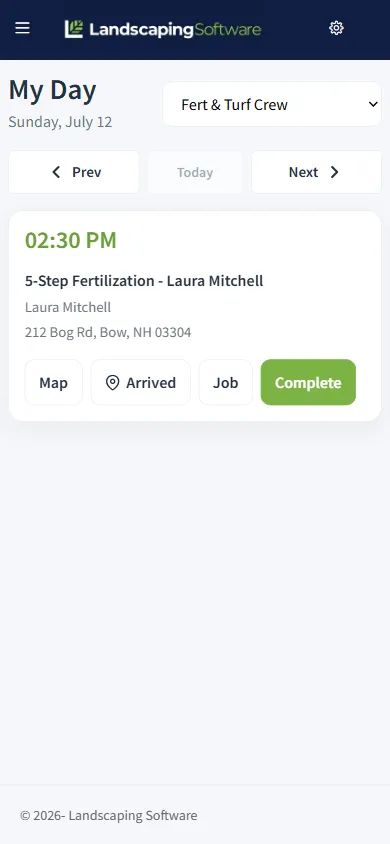
On the phone, each crew opens its day and gets the list: stops in route order, with the customer and the address, and Map, Arrived, Job, and Complete on every stop. From there the visit moves through statuses the office can read: On My Way, In Progress, Completed, or Skipped with a reason. If your company requires it, a visit cannot be marked Completed until the checklist is done and an after photo is attached, and the rule is enforced on the server, not just in the app. Photos, checklist answers, and the signature are tied to that visit on that date; a recurring customer’s week nine does not borrow week one’s evidence.
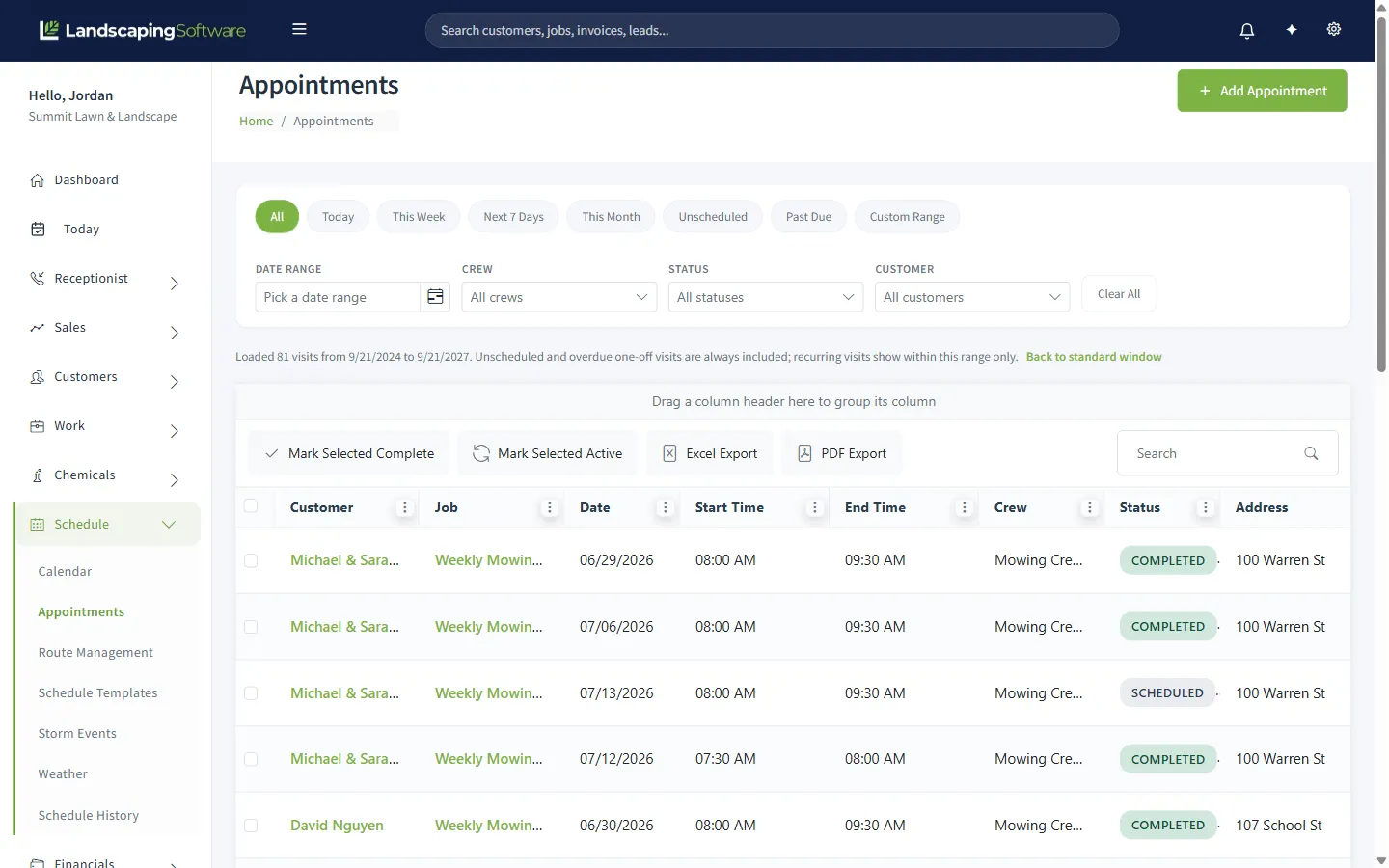
Back at the office, those statuses land in the same schedule the dispatcher is looking at. They appear the next time the board or the Appointments grid loads. There is no live ticker, and we would rather say that plainly than have you wait for one. What you get instead is a record. Every visit has a History button showing who changed it and when, including field updates, route reorders, template applies, and rain shifts. The Appointments grid has one-click filters for Today, This Week, Unscheduled, and Past Due, bulk complete and revert for the day the crew forgot to tap, and a route number column so you can see the order the day was driven in.
The dashboard opens on Today At A Glance: jobs today, active crews, and a Needs crew assignment count that links straight to the route planner, plus Today and Tomorrow appointment lists and a proof-of-work summary that opens itself when something is flagged.
And the customer? Once a visit is completed, they get a work-completed email: one per visit, never more than one per customer per day, including only the photos someone at your office chose to share. The crew’s uploads are never customer-visible by default. Completed visits also flow into per-visit and batch billing, which is where the schedule stops being a cost and starts being revenue. Once the schedule is steady, our landscaping marketing calendar shows how to fill the slow weeks and ask for reviews.
What a scheduler will not fix
Software is rarely the bottleneck in a scheduling problem. Four things it will not fix:
- Unpriced routes. A scattered route that loses money loses it in an efficient order. Density is a sales decision made at quoting time, and the pricing guide is where that argument lives.
- A crew that will not touch the phone. Statuses, photos, and skip reasons come from the field. If the foreman marks everything Completed in the truck at 5:00, you have a record of 5:00. The fix is a five-minute conversation and a required after photo, not a feature. Put the expectation in writing before the season starts: our foreman job description template and employee handbook template give you a place to do it.
- Skipping the setup. The Time Based setting on each crew, a depot address so optimization has somewhere to start, an Active season so rounds can generate. All of it takes an afternoon. None of it can be skipped.
- Geography. If your customers are spread across three counties, the optimizer will find the best order through three counties. It cannot make them closer. Only the next fifty sales can.
Where we fit
You are reading this on a vendor’s blog, so here is the plain version.
Everything above is how our scheduling and routing works today, described as it behaves rather than as we would like it to. Route crews and time-based crews on one scheduler. Suggest Best Route, Memorize Route, Apply Template, Check Capacity, and Rain / Delay Shift on the Route Management page. Repeating appointments and service-plan generation for recurring work, program rounds for treatment programs, storm events for snow. A crew app that shows the route in order and sends statuses and photos back. History on every visit.
What we do not have: appointment reminder or on-the-way texts to customers, customer self-booking in the portal (the portal shows invoices, estimates, and the service plan, not a calendar), and live GPS tracking of the trucks. If any of those is the reason you are shopping, better to know now. Scheduling and routing are on every plan, storm events are on Professional and Premier, and pricing is published.
And if you run one truck and thirty lawns, you do not need any of this yet. Your route is in your head and it is probably fine. Come back when the second crew starts asking which order to drive.
Frequently asked questions
How do you schedule recurring lawn care visits?
Two ways, and the difference matters. You can create one appointment that repeats on a pattern such as weekly, every other week, or chosen weekdays, and then complete or edit each date on its own. Or you can put the customer on a service plan with the pattern attached and generate the visits from it, which creates a separate visit for each date. The second way costs a few more clicks up front and pays for itself the first time weather moves a week, because separately generated visits can be shifted in bulk while a repeating series has to be rescheduled from the calendar.
What is the difference between route scheduling and calendar scheduling?
Calendar scheduling gives every visit a clock time, which suits installs and enhancement work where the customer expects a crew at 10:00. Route scheduling gives every visit a date and a stop number instead, which suits mowing, maintenance, and plowing where drive order matters more than arrival time. The right setup runs both at once: a time-based crew for installs and route crews for the recurring work, each on the view that fits.
What happens to the landscaping schedule when it rains?
The crew that lost the day gets its open visits pushed forward together instead of one at a time. In our system that is the Rain / Delay Shift tool: pick the crew, enter the number of days, preview exactly how many visits move and across which dates, then confirm. Completed and skipped visits stay where they are. The follow-up is a short note to the affected customers, which is why a weather delay letter belongs in your templates.
How does route optimization work for lawn care crews?
Load one crew and one date, then ask for a suggested order. The tool works out an efficient driving loop from a start point, usually the crew depot, and shows the current order and the suggested one side by side, with drive time, miles, and the savings. Nothing changes until you apply the suggestion and save the route. Most companies run it once when a route is new, tune the order by hand, and then memorize the result as a named template so the same order is applied every week without re-solving it.
Can scheduling software tell you if a crew day is overbooked?
Yes, within limits. A capacity check adds up the estimated hours on the loaded route and compares them to a standard crew day, then warns you when the day is over or close to full. It is advisory, so you can still add the stop. What it cannot know is your actual drive time or a crew that runs fast, which is why the check is a guardrail on the screen and not a substitute for knowing your routes.