Programs & seasons · Professional and Premier

Lawn Care Program Software for Treatment Rounds and Seasons

Lawn care program software is software that turns a multi-step treatment plan into dated rounds, puts a visit on the schedule for every enrolled property inside each round’s window, and bills the round when it is done. Ours is built into the same system that holds your customers, jobs, crews, chemical logs and invoices: a program is the product you sell, a job is how a customer joins it, and the rounds do the rest. Available on the Professional and Premier plans.

Start your 14-day free trial Get in touch

14-day free trial · No credit card required

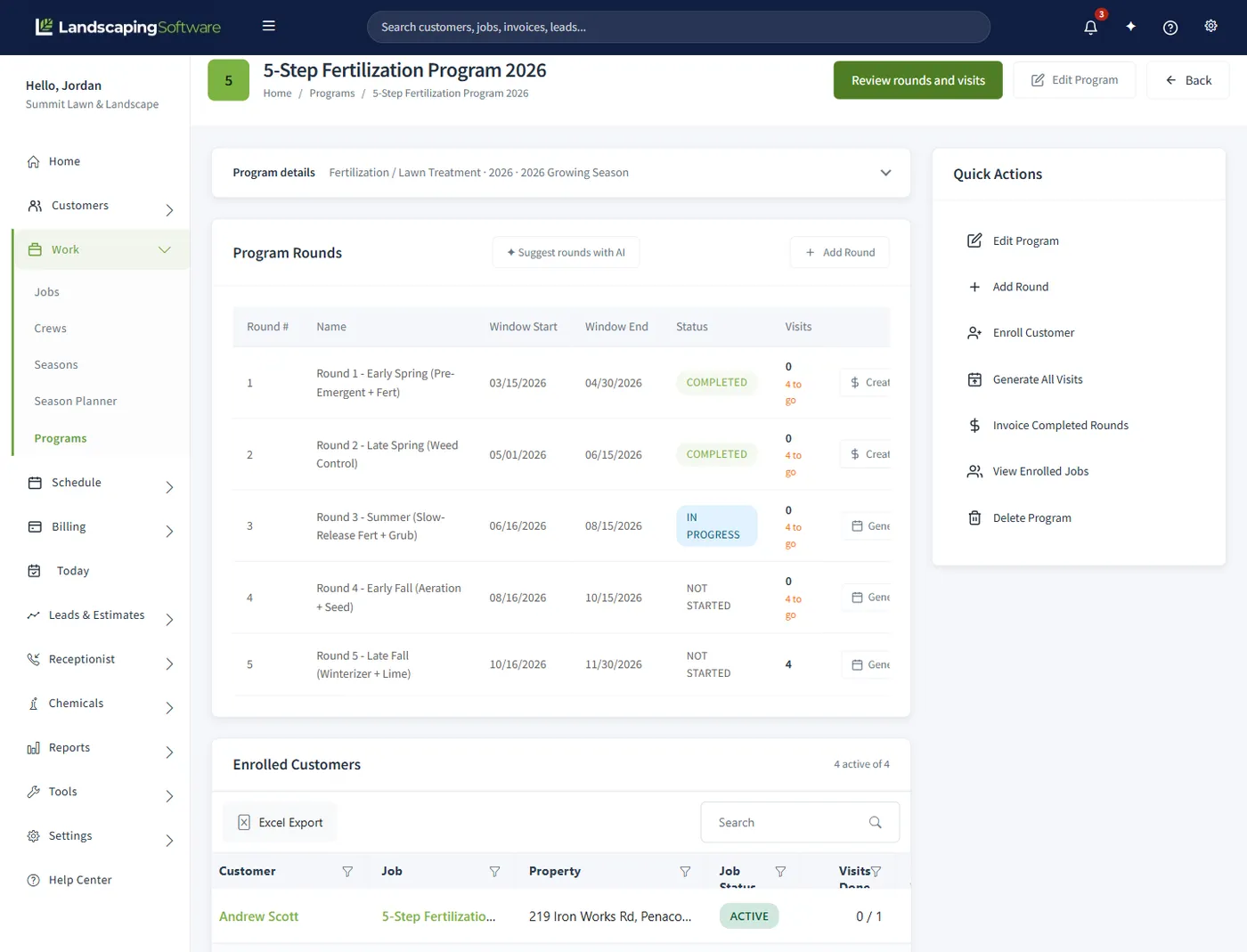
Program summary for a five-step fertilization program, with each round's date window and status and the enrolled customers with their properties and visits done

The problem

Five rounds, two hundred lawns, one spreadsheet.

A five-step program on a spreadsheet works in March: a row per customer, a column per round, a date typed in as each one is done. By June the customer who signed in May is on a sticky note, nobody is sure whether Round 2 finished on the north side of town, and the window for Round 3 opens while you work that out.

Then the billing does not match the work. The May customer is invoiced for five rounds, a late round is invoiced twice, and the missed treatment turns up when the customer calls about the weeds. A generic recurring schedule does not fix it, because a treatment program is not “every six weeks”. Round 2 has to happen between certain dates, the price is for the round, and next year it all happens again with the dates moved forward. Here the rounds carry the windows, the jobs carry the price, and the software keeps them in step.

How it works

Season, program, rounds, jobs, visits, invoices.

Seasons and programs define the year, jobs enroll customers, and rounds generate visits. Seven steps from an empty account to a billed round.

  1. 1

    Create the season

    Under Work, Seasons, add a season named with the year (“Summer 2026”), pick its type, set the real operating window and leave it Planned while you set up. Overlapping seasons are allowed.

  2. 2

    Build the program and its rounds

    Under Work, Programs, add a program named with the year, pick a type, link the season, then start from a template or add rounds: a number, a name, a window start and end, and notes.

  3. 3

    Enroll properties

    Click Enroll Customer on the Program Summary. Tick the properties, choose a new or existing job for each, set how the enrollment is billed, review which rounds each property gets, and click Enroll.

  4. 4

    Activate the season and generate visits

    Activate the season from its summary, then click Generate visits on a round. Choose how to spread the visits, pick the crew, preview the plan and click Create Visits. They land on Schedule, Calendar.

  5. 5

    Work the round

    As visits are completed the status advances overnight: In Progress when the window opens, Completed when every visit is done or the window closes. The Program Summary shows where every round stands.

  6. 6

    Bill the round

    A completed round shows Create invoices: one invoice per customer, priced from the job’s accepted estimate. Invoice Completed Rounds does every completed round at once and skips any already invoiced.

  7. 7

    Renew for next year

    From Customers, Renewals, renew the program first, then its customers with an optional price increase. The new program has the same rounds with every window shifted a year.

  8. Test with one job first

    Enroll one or two properties, generate one round, and check the calendar before enrolling the whole list. Re-running generation never duplicates a visit.

Programs and rounds

A program is the year’s plan. A round is one step of it.

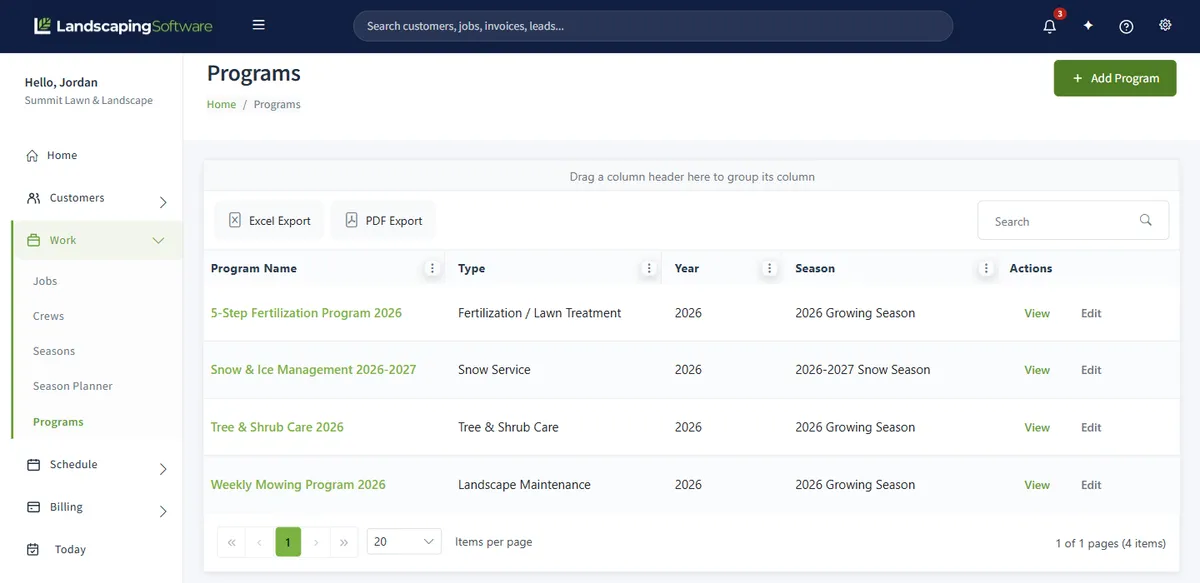
A program is a multi-round service plan for one year, “Fertilization 2026”, with a program type, a year and optionally its season. Fertilization and PHC ship as program types; add your own, such as Aeration. Rounds are the steps: each has a round number, a name, a window start and end, optional notes for whatever your applicator writes there, and a status. Visits for a round are placed inside its window and nowhere else. Start From Template fills every round in from an industry template, such as a 5-step lawn treatment, with the windows mapped onto your year.

Customers join through jobs, one job per property per program. The enrollment wizard creates those jobs for many properties at once, from the program, from a customer’s Programs tab or from Add work. It shows which round each property starts at (“Starts at Round 2; 4 of 5 rounds apply”) before anything is saved, and leaves out rounds whose window has already ended. Programs and rounds carry no price; the job does, and the wizard says so when a new job starts without one.

A program in practice

Round 1: Early Spring Pre-emergent

Mar 15 to Apr 15

Completed

Round 2: Late Spring Weed Control

May 1 to May 31

Completed

Round 3: Summer Feed and Spot Spray

Jun 15 to Jul 15

In Progress

Round 4: Early Fall Recovery

Aug 25 to Sep 25

Not Started

Round 5: Late Fall Winterizer

Oct 15 to Nov 15

Not Started

An illustration; your rounds come from your template or your own setup. Statuses advance overnight as windows open and work completes.

Programs list with four programs and their program type, year and season

Seasons

The season decides whether work goes out at all.

A season is the dated container for one service year: “Summer 2026”, May 1 to Sep 30, with a type from Spring, Summer, Fall, Winter and Snow or one you add. Programs, jobs and storm events link to it, and its status controls what the system will do. Only an Active season dispatches work: program visits, storm visits and the Renewal Wizard’s visit generation all need it, which keeps next year’s planning off this year’s calendar.

The lifecycle is Planned, Active, Suspended, Ended, moved with buttons on the Season Summary. Set up in Planned, activate when crews start, suspend for a mid-season stop such as a drought restriction (scheduled visits stay, and Resume clears the pause), and end only when the year is wrapped up, because Ended is permanent. An overnight process ends an Active season past its end date; it never activates one. Every status change is kept in an audit trail.

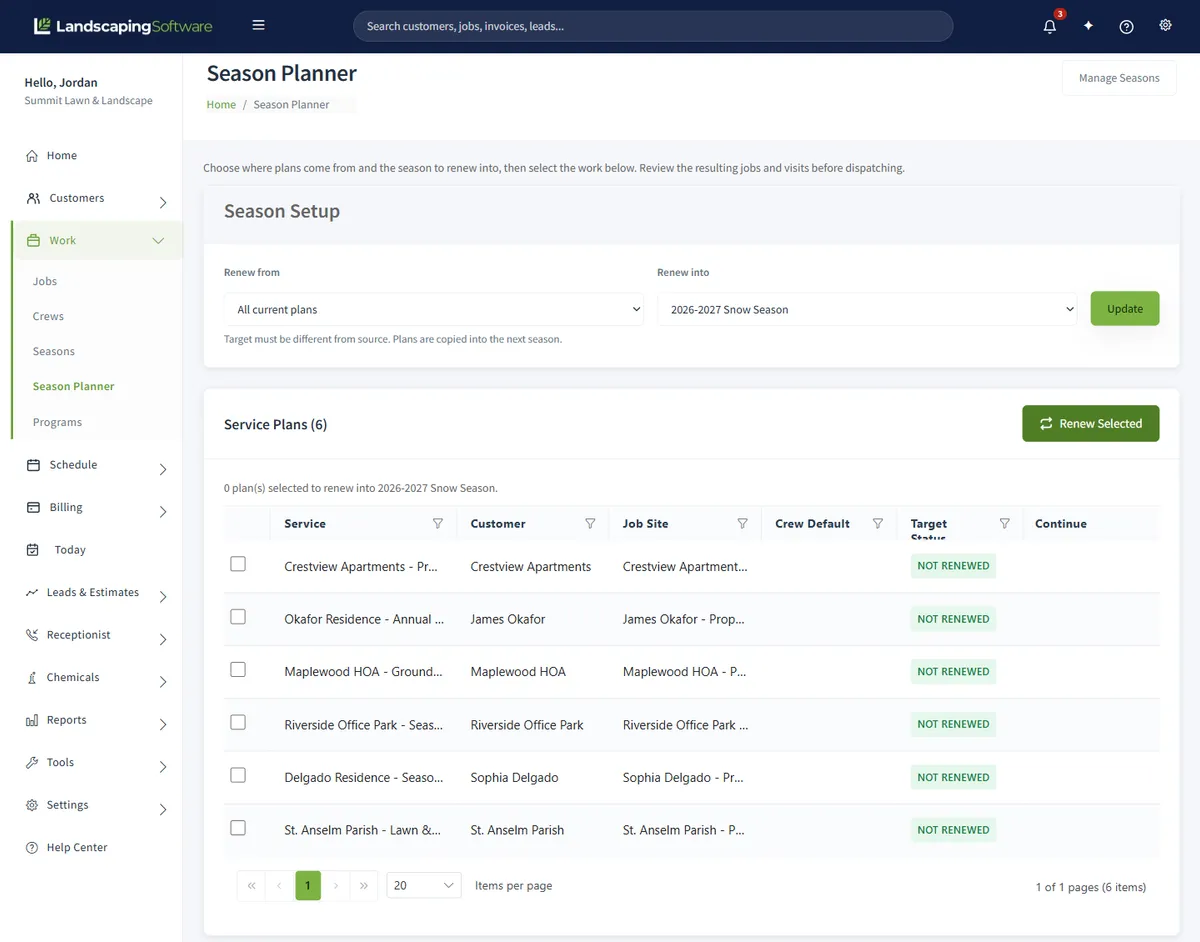
In the autumn, the Season Planner under Work rolls a whole book of work from one season to the next. Pick the source and target seasons and it lists every service plan with its customer, job site, default crew and whether it is ready to carry. Tick the rows and click Renew Selected: next year’s jobs are created in the target season with their first weeks of visits already scheduled.

What each status means

Planned
Setup mode. Link jobs and programs; visit generation is skipped.
Active
Running. Rounds generate visits, storms dispatch, renewals can generate next year’s visits.
Suspended
Paused. New visits are blocked; scheduled visits stay. Resume returns it to Active.
Ended
Closed out, permanently. Its jobs and programs become candidates on the Renewals lists.

A season with jobs, programs or storm events attached cannot be deleted.

Season Planner renewing service plans from one season into the next, listing each plan's service, customer, job site, default crew and target status

Running a round

One round, every property, inside the window.

Click Generate visits on a round, or Generate All Visits to plan every round not already Completed. The visit planner offers three choices. Spread across days fills each work day up to the crew’s stops per day and keeps nearby properties together, so each day is a tight route. All on one day puts every visit on the date you pick. Unscheduled creates them without a date for you to place by hand. Pick the crew, set the start date, stops per day, work days, day start time and minutes per visit, and click Preview Plan to see which customers land on which day before anything exists. If a customer was enrolled since the preview, nothing is created and the planner shows the updated plan instead.

Round statuses advance overnight. A round whose window has opened moves to In Progress; it moves to Completed when every visit is done or the window end has passed, so a past-window round is closed out even with visits open. Set a status by hand to re-open a round or close one early. Below the rounds, the Program Summary lists every enrolled job with its visits done and next visit, and every visit in every round, which you can sort, filter and group by round.

How the planner places visits

  • One visit per job per round. A job that already has a visit in the round is left alone, so Generate is safe to press twice.
  • Only the round’s window is used, never a day before today. Blackout dates and non-work days are skipped.
  • Visits the crew already has on a day count toward that day’s stops per day.
  • Customers that do not fit before the window closes are created as unscheduled, not dropped, and the preview says so.
  • A round whose window is entirely in the past is skipped with a notice. It never creates back-dated visits.

A re-treat repeats work the job already billed, so re-treat visits are never billed automatically. Invoice one by hand if you are charging for it.

Billing a program

The invoice matches the round that was done.

How a program is billed is set per job, when you enroll the property, with Invoice automatically on by default and payment terms in days. Each job is billed one way: a visit covered by a round or monthly invoice is not billed again per visit, and round billing skips jobs that bill per visit or monthly. Jobs in a program cannot use On Job Completion billing, because programs bill by round.

Per round

A completed round shows Create invoices: one invoice per customer, priced from the job’s accepted estimate, and the rounds of a job add up exactly to its estimate. Invoice Completed Rounds sweeps the program and skips rounds already invoiced.

Per visit

Each completed visit is invoiced at the job’s product and service lines, as it is completed when Invoice automatically is on, or in a batch. A job with no priced lines bills nothing; the wizard flags it with “no price yet” and Add pricing.

Monthly fixed

The accepted estimate is invoiced on the 1st of each month the job is active. The run never bills a job twice for the same month.

Seasonal prepay

One invoice, drafted by the office when the job is completed. Never batch-billed and never automatic.

Every generated invoice lands on Billing, Invoices & Payments under the Not sent chip, exactly like one you typed. Nothing is emailed until you send it, and once sent the customer can pay online through the customer portal. See Invoicing & Payments.

Next year

Renew the program, then the customers, in that order.

Once a season is Ended, or a program is from a past year, it shows up under Customers, Renewals. Renew programs first: the new program is a copy with the same rounds, every window shifted to the target year (cross-year and leap-day windows adjust automatically), all rounds reset to Not Started, and the year in the name updated. If next year’s season does not exist yet, the wizard creates it.

Then the customers. The new program’s summary offers Renew enrollments from last year’s program: every property that was enrolled, with its current price and a proposed price. Enter a percent increase to fill every row, override any row, untick anyone not coming back, and each new-year job is created in one pass. Or renew the jobs from the Renewals list with an annual price uplift of up to 50% and a renewal proposal PDF per customer. Renewed jobs link to the renewed program, so their visits land in the new year’s windows. Each job and program renews once, so nothing is duplicated, and a customer who says yes late is still on the list. For standing agreements, Contracts & Renewals adds a contract with a per-round pricing model that rolls its term forward on its own.

What a program renewal carries

  • Every round, with its window shifted to the target year
  • Round statuses reset to Not Started
  • The year in the program name updated
  • Last year’s enrollments, offered for re-enrollment with a percent increase
  • Nothing back-dated: next year’s visits are generated once the new season is Active

Setting up next year before any round has visits or invoices? Edit Program, change the Year and tick Also move the round dates to the new year.

By trade

Programs for treatment work. Seasons for everything.

Multi-round treatment work uses a program with rounds. Event-driven winter work uses a season only. Simple recurring work, weekly mowing on a flat monthly bill, can skip both and schedule visits directly on the job, though linking the job to a season keeps year-end renewals much easier.

Fertilization and weed control

A 5-step lawn treatment template gives you the rounds and windows on day one. Enroll the properties, generate a round at a time, bill each round as it completes, and every treatment visit asks for its chemical log. The fertilization software page covers the whole treatment company.

Aeration and seeding

Add an Aeration program type and run a short program, a spring round and a fall round, each with a window wide enough for the weather. Per-round billing means the fall invoice goes out when the fall round completes.

Plant health care and pest control

PHC and Pest Control ship as program types. The round notes hold what your applicator wants in front of them, the Chem Log filters by program and round, and a restricted-use product requires an applicator license number before a log will save.

Snow seasons

Winter work is event-driven, so it uses a season only, with a Snow or Winter type, and no program. Storm Events generate the visits, one per active snow job per storm, and the season must be Active for a storm to dispatch.

Compared

Spreadsheet, generic scheduling app, or this.

Three ways to run a five-round program.

Comparison table
Question Spreadsheet Generic scheduling app LandscapingSoftware Programs
The round’s date window A column heading. Nothing enforces it. A repeating appointment, usually every N weeks; varies. A window per round. Visits are only placed inside it; a past window is skipped.
Putting a round on the calendar By hand, one customer at a time. Often one job at a time; varies by app. One click per round for every active enrolled job, spread across days up to the crew’s stops per day.
A customer who joins in May A new row, if someone remembers which rounds apply. A recurring job you set up by hand; varies. Enrolled through the wizard, starting at the next open round.
Billing the round Reconstructed from the sheet into your billing tool. Per appointment or per month, usually; varies. One invoice per customer per completed round from the accepted estimate, or per visit or monthly.
Next year Copy the sheet, retype the dates. Edit each recurring job’s dates; varies. Renew the program: same rounds, windows shifted a year, last year’s properties offered with a percent increase.
Cost Free, paid in missed rounds. A separate subscription; varies. Included in the plan price on Professional and Premier.

A spreadsheet still works for twenty lawns and one applicator. The question is what happens at two hundred, with a second truck, when the person keeping the sheet is also the one spraying.

What it will not do

It does not decide for you. It keeps up with you.

The decisions stay yours: when the season starts, which customers are in, what goes on the lawn, and when an invoice goes out. The software takes everything that follows: the visits, the round status, the draft invoices and next year’s copy.

On purpose

  • It never activates a season for you. A banner says when a Planned season has reached its start date; the click is yours.
  • It never emails an invoice on its own. Generated invoices are drafts under Not sent until you send them.
  • Programs and rounds carry no price. The price lives on each job.
  • It never creates back-dated visits. A round whose window has passed is skipped with a notice.
  • Re-treat visits are never billed automatically. A re-treat repeats work the job already billed; invoice it by hand if you charge for it.
  • It does not tell you what to apply, how much or when. The round notes hold what your licensed applicator writes there.

Pricing

Programs and seasons on Professional and Premier.

Programs & Rounds, Seasons & Season Planner, Renewals, Contracts and Chemical Tracking are included in the monthly price on Professional and Premier. Scheduling, jobs and visit generation are on every plan, including Essential.

Plans, prices and whether Programs and Seasons are included
Plan Price Programs & seasons Crews
Essential $99 a month Not included Up to 2 crews
Professional $229 a month Included Up to 10 crews
Premier $399 a month Included Unlimited crews

New accounts start on a 14-day free trial, no card needed, so you can set up a season, a program from a template and one test enrollment before you pay. See the pricing page for every feature by plan.

Works together

One program, from template to renewal

Fertilization software

The whole treatment company in one system: programs, chemical logs, round billing and renewals.

Invoicing & payments

Round, per-visit and monthly invoices land as drafts under Not sent, then get paid online.

Contracts & renewals

The Renewal Wizard with a price uplift, or a contract that rolls itself forward every year.

Step by step in the help center: set up seasons and programs, manage rounds and generate visits, enroll properties, the season lifecycle, the Season Planner, batch billing and the annual renewal. For a treatment company end to end, see fertilization software.

Questions

Lawn care program software FAQ

What is lawn care program software?

Software that runs a multi-step treatment plan as dated rounds instead of one-off appointments. You build the program once with a date window per round, enroll each property through a job, and the software places a visit for every active enrolled job inside each window, advances the round as work is done, bills the round, and copies the program into next year.

What is a program round?

One step of a program with its own date window: “Round 1: Early Spring Pre-emergent”, Mar 15 to Apr 15. It has a number, a name, a window start and end, optional notes and a status. Visits are only ever placed inside the window. Statuses advance overnight: In Progress when the window opens, Completed when every visit is done or the window closes.

How do customers join a program?

Through a job, one per property per program. The enrollment wizard finds the properties, creates a job for each or enrolls one they already have, sets how it is billed, and shows which rounds each property gets before anything is saved. A property enrolled mid-season starts at the next open round.

Why did nothing generate?

Almost always the season. Visit generation only runs when the program’s season is Active; Planned, Suspended and Ended seasons are skipped with a notice. Otherwise no active job is linked to the program, or the round’s window is entirely in the past, which the planner skips rather than create back-dated visits.

How is a program billed?

Set per job when you enroll. Per visit bills each completed visit from the job’s product and service lines. Monthly fixed invoices the accepted estimate on the 1st of each month the job is active. Seasonal prepay is one invoice drafted when the job is completed. Jobs billed by round get one invoice per customer when a round completes, priced from the accepted estimate.

Does it email the invoices?

No. Round, per-visit and monthly invoices are drafts under the Not sent chip on Billing, Invoices & Payments. Nothing reaches the customer until you send it.

Do I have to build the program from scratch?

No. Start From Template on the Add Program form creates the program with every round pre-filled from an industry template, such as a 5-step lawn treatment, with the windows mapped onto your year. Then edit the rounds like any other.

What does a season do?

A season is the dated container for one service year, “Summer 2026”. Programs, jobs and storm events link to it, and only an Active season generates program or storm visits. Seasons move Planned, Active, Suspended, Ended. Activation is always your click; an overnight process ends an Active season once its end date passes.

How does the program roll into next year?

Renew it from Customers, Renewals. The new program has the same rounds with every window shifted to the target year, cross-year and leap-day windows adjusted, all rounds reset to Not Started, and the year in the name updated. Its summary then offers Renew enrollments from last year’s program, with a percent increase you can override per property.

Does a treatment visit connect to the chemical log?

Yes. Completing a program visit without a chemical log asks you to confirm, and the visit is flagged as missing its log. The Chem Log register filters by season, program or round, and the Chemical Dashboard shows each round’s visits done with a log, done without one, and not done yet.

Which plans include programs and seasons?

Programs & Rounds and Seasons & Season Planner are on the Professional and Premier plans (Professional $229 a month, Premier $399 a month). Scheduling, jobs and visit generation are on every plan, so Essential can still schedule recurring work on the job; programs add the windowed round lifecycle, round billing and the annual rollover. New accounts start on a 14-day free trial, no card needed.

Build the program once. Run it every year.

14-day free trial · No credit card required