Scheduling & dispatch · Included on every plan

Landscaping Scheduling, Dispatch and Crew Routing Software

Landscaping scheduling software is the system that turns each customer’s jobs into dated crew visits, puts them on a calendar or a route, and records what happened on site. Ours gives a time-based crew a drag-and-drop calendar and a route crew an ordered stop list, hands each crew a Today view to run the day from, and shifts a whole crew’s week when the rain wins. Included on every plan.

Start your 14-day free trial Get in touch

14-day free trial · No credit card required

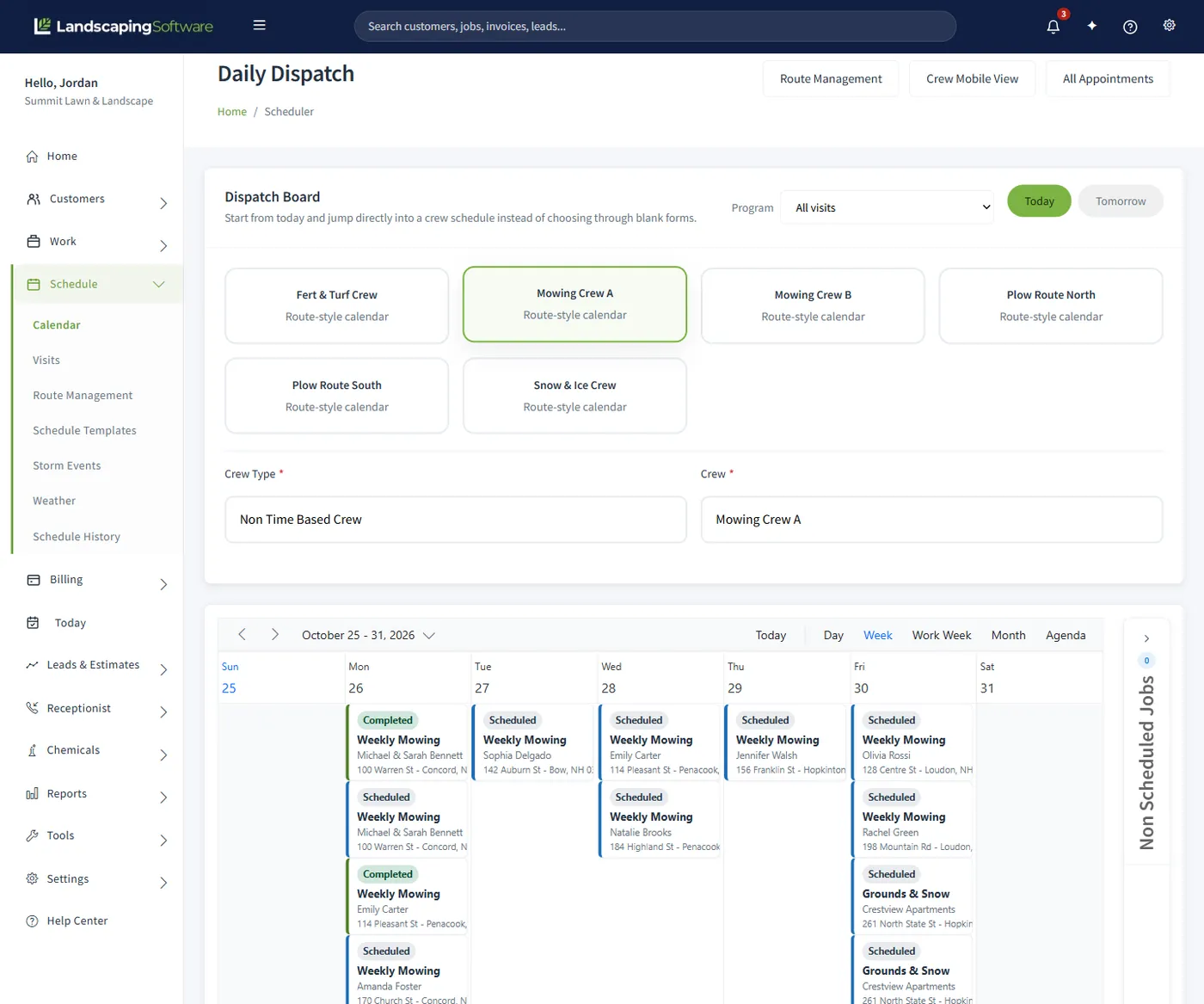
Daily Dispatch with six crew cards above Mowing Crew A's week calendar, each visit marked Completed, In Progress, On My Way or Scheduled

The problem

The whiteboard knows the plan. Nobody knows what happened.

Most landscaping schedules live on a whiteboard in the shop and a photo of it in the crew group text. It works until Tuesday rains. Then thirty visits get erased and rewritten, the foreman gets three different versions by text, and one lawn on the old board never makes it onto the new one.

That missed visit is the expensive part. A visit nobody completed and nobody moved does not complain. It generates no invoice, it shows up on no report, and you find out when the customer calls in June asking why they are paying for a cut they did not get. Multiply that by a season, across every crew, and the whiteboard is the most expensive thing in the building.

How it works

From a customer’s job to a crew’s Tuesday, in six steps.

Everything in scheduling hangs off two records: the crew that does the work and the job it is done for. Set those up and the rest is placing visits and running the day.

  1. 1

    Set up your crews

    Every visit belongs to a crew. Each crew has a Time Based setting: Yes gives it an hour-by-hour calendar, No gives it a date-only stop list. Give a route crew a depot address, street and city at least; it is where the route starts and finishes.

  2. 2

    Book the work as a job

    A job is the work order for one customer at one property. Weekly mowing, a fertilization program and snow removal for the same customer are three jobs. Visits are always scheduled against a job, and the job carries the products and services the visit is billed from.

  3. 3

    Put visits on the calendar

    Click Schedule Appointment on the job and set the date, the crew and a recurrence such as weekly or every two weeks. Or create the visit with Schedule Later and drag it from the Non Scheduled Jobs sidebar onto a day. Or generate in bulk: a program round creates one visit per enrolled job inside its window, and renewing recurring jobs into a new season generates a rolling window of visits.

  4. 4

    Order the route

    For a route crew, load the day on Route Management. Drag the stops into order or take the suggested driving order, check the day against an 8-hour crew capacity, and save. Memorize the order once and apply it next week.

  5. 5

    The crew runs the day

    Today shows one crew’s stops in order, with Map, Arrived, Job and Complete on each. In the crew app the crew navigates, marks arrival, completes or skips with a reason, and attaches photos and notes. The office sees it without a phone call.

  6. 6

    Completion flows into billing

    When the last open visit on a job is completed, the job rolls up to Completed. If the job is opted in to per-visit invoicing, completing the visit drafts an invoice for review; nothing is emailed to the customer on its own. When every stop is done, Today offers Bill this day’s visits.

Calendar and dispatch

One dispatch board. Each crew in the calendar that fits it.

Daily Dispatch is the day-to-day hub. Pick Today or Tomorrow, click a crew card, and that crew’s day loads in its own style: a card labeled Time-based calendar opens an hour-by-hour calendar with start and end times, and a card labeled Route-style calendar opens a date-only one. Day, Week, Work Week, Month and Agenda views sit along the top, and on a phone the calendar switches to the Agenda list on its own.

Unplaced work waits in the Non Scheduled Jobs sidebar with a count badge. Drag a card onto a day and the appointment editor opens pre-filled with the job, customer and crew. Drag an appointment to another day or time to reschedule it; the change saves on its own, and completed events turn green, so a glance at the week shows what is done.

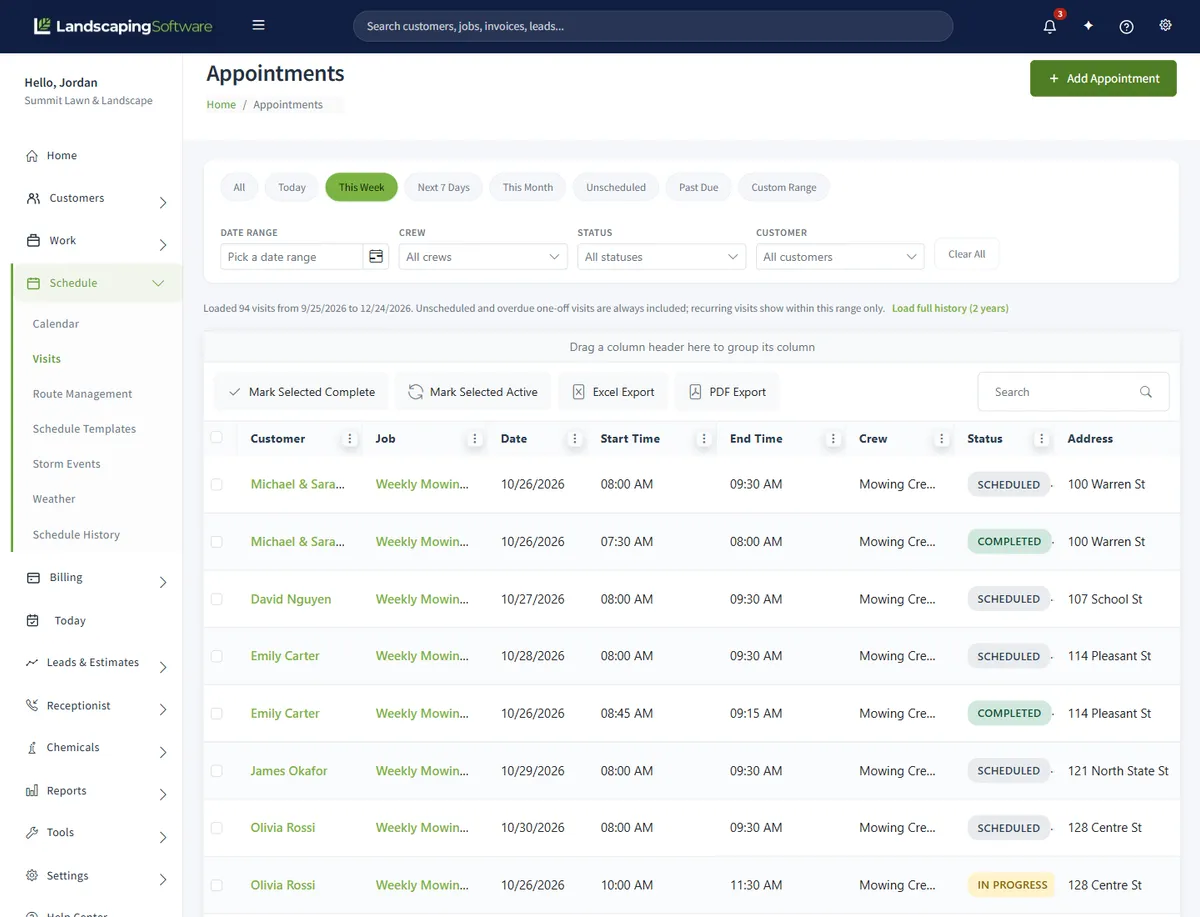
The Appointments list is the other half of dispatch: every visit across every crew and every date in one grid. Chips for Today, This Week, Next 7 Days, This Month, Unscheduled and Past Due combine with Crew, Status and Customer filters, and Mark Selected Complete finishes a batch at once.

Every visit carries a status

Scheduled
On the calendar, not started.
Unscheduled
Created with Schedule Later, waiting in the Non Scheduled Jobs sidebar for a date.
On My Way / In Progress
Set by the crew from the crew app.
Completed
Done, by the crew or by the office with the Complete buttons.
Skipped
The crew skipped the stop, with a reason attached.
Rescheduled
Moved to another day.

A recurring appointment is a series; each date is an occurrence with its own status. Editing or deleting asks whether you mean this event only or the entire series, and recurring work is completed one date at a time from the Appointments list.

Visits list filtered to this week, showing each visit's customer, job, date, time, crew and status, with Mark Selected Complete and export buttons
  1. 1

    Load the day

    Pick a date and crew. The stops appear as cards with a Stop # badge, and a map of the day sits above them when maps are set up on your account, with S and F for the start and finish.

  2. 2

    Order the stops

    Drag a card, use the up and down arrows, or take the suggested driving order. A save bar appears as soon as the order changes; Save Route keeps the whole day in one click.

  3. 3

    Memorize

    Open More actions, click Memorize Route and name it, for example “Tuesday North Route”. It is saved to that crew.

  4. 4

    Apply and go

    Next week: load the day, pick the template from the Memorized Route dropdown, Apply Template, save. The stop numbers flow through to the crew app and the Route # column on the Visits page.

Routes and route memorization

Solve the route once. Apply it every week.

Route Management is the planner for route crews. The same loop of properties repeats week after week, so the stop order is worked out once, adjusted with the local knowledge no map has, then memorized and applied to future days in seconds.

The crew’s depot is the default start and finish, or choose your current location or a custom address for either end. Route preferences set fastest or shortest, a departure time, and roads to avoid, and can be remembered per crew. Suggest Best Route reorders the day by real drive time and distance and shows the savings before you apply it; that is its own feature, covered on the route optimization page.

Before the day is committed, Check Capacity totals the route’s estimated hours against an 8-hour crew day and warns if it is over, so the overstuffed Tuesday is caught on the screen, not at 6 p.m. in the field.

The crew’s day

Today: one crew, one day, in order.

Today is the screen a crew lead works from and the screen the office opens to answer “where are they up to?” without reading the whole calendar. Each stop is a card in order: the start time (or Any time for a route stop), the job, the customer, the address and the description, with four buttons: Map, Arrived, Job and Complete. A finished stop shows Completed in its place, so how far into the day the crew is reads at a glance. If the signal drops, the page saves the tap on the device and sends it when it is back online. When every stop is done, the page offers Bill this day’s visits, which opens batch billing for that day.

The crew mobile app is the field side of the same day: the stop order the office set, directions, Arrived, start, complete or skip with a reason, before and after photos, and notes. The office decides what is on the day; anything not scheduled to that crew on that date is not on their phone. Everything a crew does on the phone writes to the same records the office is looking at.

Visit notes and visit actions

  • Every visit has its own note log, shared between the office and the crew. A note on an upcoming visit alerts the crew on their phones.
  • Pin a job note such as a gate code and it shows above every visit of that job.
  • Each date of a repeating visit has its own notes and its own photos.
  • Complete a visit from the calendar, the Appointments list, the visit’s own page, Today or the crew app. Revert flips it back.
  • Every visit has a History button: every create, move, edit, completion and reorder, with the user and the time.

Weather happens

Rain day? Shift the whole crew in one move.

When weather wipes out a day you do not drag thirty visits one by one. The Rain / Delay Shift on Route Management moves a crew’s open visits by however many days you enter, and it previews first: “This will move 27 visits currently scheduled between 07/06 and 07/18 by 1 day.” The Shift Visits button stays off until a preview has run. Completed and skipped visits stay put, repeating series are left alone, and a timed visit that would double-book its crew stays where it is.

The Weather page puts the forecast next to the schedule so the move happens at 5 p.m. the day before, not 6 a.m. the morning of. It uses your company ZIP code and shows active National Weather Service alerts at the top.

Field conditions

Four kinds of work, each rated Good, Caution or Hold for the next 12 hours with the reason: mowing and trimming; spraying and fertilizing (rain that washes product off, wind over the 10 mph spray limit); planting and irrigation (freezing, snow, heavy rain); concrete and pavers (below 40°F, rain during the cure).

Visits at risk

Every open visit for today and tomorrow, across all crews, is checked against the forecast for its window. Each at-risk visit shows a Caution or Hold badge and the reason, such as “Rain chance up to 70%”, with a Reschedule button that previews the move before anything is saved. Up to 25 are listed, soonest first.

Hourly and daily forecast

Temperature, rain and snow chance and wind for the next 12 hours and for tomorrow, then today and the next two days, with expected snowfall in inches.

Schedule templates

A schedule template is a saved recurrence pattern with a default duration, so “every two weeks, two hours” is picked from a list instead of rebuilt on every appointment. Most companies start with four: Weekly, Biweekly, Monthly and Quarterly. Editing a template changes what future appointments start from and never rewrites the ones already created.

Schedule history

Schedule History is the audit log of every change to the schedule: when, the action in plain words, where it came from, which user, which visit and the fields that changed. Filter by date range, action, user or one visit, and export to Excel. It is the answer to “that visit was on Tuesday, who moved it?”

By trade

Scheduling for every kind of landscape work.

The same scheduler is used differently depending on what you sell.

Lawn care and mowing

A mowing crew is a route crew: fourteen lawns on Tuesday, in order, no clock times. Set the weekly recurrence once, memorize the Tuesday route once, and the week runs on a routine: load the day, apply the route, save. Start each morning on the Past Due chip so a lawn the rain pushed off the list does not sit there unbilled.

Fertilization and weed control

Program rounds generate one visit per enrolled job inside each round’s window, spread across work days with nearby properties kept together. Before a spray crew goes out, Field conditions on the Weather page rates spraying and fertilizing for the next 12 hours, flagging rain that washes product off and wind over the 10 mph spray limit. Completing a treatment visit with no chemical log asks before it goes through. Programs and chemical tracking start on Professional.

Landscape installs and hardscape

An install crew is a time-based crew: booked 9:00 to 11:30 at one property and 1:00 to 4:00 at another, on a drag-and-drop calendar with day, week and month views. One appointment runs up to 8 hours and stays inside one day, so a three-day patio is three visits. The Weather page rates concrete and paver work on its own: temperatures below 40°F and rain during the cure.

Snow and ice removal

A plow loop is a route crew like any other, with a memorized order. Storm events dispatch snow visits outside the normal schedule, and the Weather page is the early warning: National Weather Service alerts such as a winter storm warning show at the top, and the daily forecast shows expected snowfall in inches. Storm events start on Professional.

Compared

Whiteboard vs generic calendar app vs landscaping scheduling software.

Three ways to get a crew to the right lawn on the right day.

Comparison table
Question Whiteboard or spreadsheet Generic calendar app LandscapingSoftware scheduling
Recurring visits Rewritten every week. Repeats, but every date is the same event; varies. A recurrence or a saved template. Each date has its own status, notes and photos.
Crew routes and stop order Whoever drives decides. Not usually; varies. Drag stops into order or take a suggested driving order, memorize it, apply it next week.
What the crew sees A photo of the board in a group text. A calendar invite; varies. Today: their stops in order, with directions, Arrived and Complete.
A visit nobody completed Nobody notices until the customer calls. It scrolls off the screen. It sits on the Past Due chip until it is completed or moved.
A rain day Erase and rewrite. Move each event by hand. Shift a crew’s open visits by a number of days, with a preview of how many move.
Billing link Retyped from the board. None; varies. A completed visit can draft its invoice for review. Today opens batch billing for the day.
Who moved it Nobody knows. Sometimes; varies. Schedule History: what changed, when, who, and from where.
Cost Free, plus the visits that fall through. A separate subscription; varies. Included on every plan, from $99 a month.

A generic calendar still makes sense for a one-truck operation with a handful of customers and no crew to dispatch. The moment a second crew, a recurring route or a rain day enters the picture, the schedule needs to know what a visit is.

What it will not do

The rules the scheduler enforces, on purpose.

A scheduler that lets anything happen is a whiteboard with a login. Most of these limits exist so a crew’s day, a customer’s invoice and the audit log keep telling the same story.

Good to know before you start

  • An appointment stays inside one day and runs at most 8 hours. A longer job is scheduled as one visit per day.
  • The Rain / Delay Shift moves single open visits. Repeating series never move with it; reschedule those from the calendar.
  • A visit that already has its own invoice cannot be moved, rescheduled or reordered.
  • The crew is read-only in the calendar editor. Reassigning one visit goes through the Reschedule window, with a preview before anything moves.
  • A route suggestion needs maps set up on your account and a full depot address on the crew. Without them you order the stops by hand, and everything else on the page still works.
  • Schedule History covers the schedule. Changes to customers, jobs, invoices and estimates are not in it.
  • The Weather page needs your company ZIP code, and the forecast comes from an outside service that refreshes about every 15 minutes.

Pricing

Scheduling and dispatch is on every plan.

Scheduling, routes and route memorization are core platform features, not an add-on. What changes between plans is how many crews you can run, and whether program rounds, chemical logs and storm event dispatch are included.

Plans, prices and crew allowances
Plan Price Crews Scheduling and dispatch
Essential $99 a month Up to 2 crews Included
Professional $229 a month Up to 10 crews Included
Premier $399 a month Unlimited crews Included

Program rounds, chemical tracking and storm events start on Professional. Every plan is billed monthly; there is no annual plan. New accounts start on a 14-day free trial with no card needed, and existing crews are never deleted if you move to a smaller plan. See the pricing page for everything each plan includes.

Works together

Scheduling connects to everything else

Route optimization

Drive-distance stop ordering for a route crew’s day, applied before you memorize the route.

Crew mobile app

The crew’s side of the schedule: stops, directions, Arrived, Complete, photos and notes.

Invoicing & payments

A completed visit can draft its invoice for review, and Today opens batch billing for the whole day.

Read how to schedule landscaping crews for the method behind the screens, and lawn care route planning for deciding which lawns share a day. Step by step in the help center: the scheduling overview, calendar scheduling, the appointments list, route management, Today, visit actions, visit notes, weather, schedule templates and schedule history.

Questions

Scheduling and dispatch FAQ

What is landscaping scheduling and dispatch software?

Scheduling software turns each customer’s jobs into dated visits for a crew and puts them on a calendar or a route. Dispatch is the daily half of that: deciding which crew goes where, in what order, and seeing what got done. Here both live under Schedule: Daily Dispatch for placing work, Route Management for stop order, the Appointments list for finding and fixing, and Today for the crew running the day.

Can I schedule both timed appointments and route-style stop lists?

Yes. Each crew has a Time Based setting. Time-based crews get an hour-by-hour drag-and-drop calendar; route crews get a date-only stop list you order on the Route Management page. Most companies run both at once: a route-style mowing crew and a time-based install crew.

How do visits get onto the schedule?

Three ways. Click Schedule Appointment on a job or customer page and set the date, the crew and an optional recurrence. Create the visit with Schedule Later and drag it from the Non Scheduled Jobs sidebar onto the calendar on dispatch day. Or generate visits in bulk: a program round creates one visit per enrolled job inside its date window, and renewing recurring jobs into a new season generates a rolling window of visits from each job’s recurrence rule.

Does it handle weekly mowing that repeats all season?

Yes. Set a recurrence on the appointment, or pick a saved schedule template such as Weekly or Biweekly, and the visit repeats on its own. Each date is its own occurrence with its own status, notes and photos, and recurring work is completed one date at a time from the Appointments list, where each occurrence is its own row.

How does route optimization work?

Load a route crew’s day on the Route Management page and click Suggest Best Route. A preview shows your current order and the suggested order, with drive time and miles for each, and the savings. Apply it, Undo if you prefer your own, and click Save Route to keep it; nothing is saved until you do. It needs maps set up on your account and a full depot address on the crew. The route optimization page covers it step by step.

What is route memorization?

Once a day’s stop order is the one you want, open More actions, click Memorize Route and name it. From then on the weekly routine is: load Tuesday, apply “Tuesday North Route”, save, done. Templates belong to the crew, so each crew keeps its own library of proven routes. Stops that were not in the template go to the end of the day.

What happens when rain wipes out a day?

The Rain / Delay Shift on Route Management moves a crew’s open visits forward (or back) by a number of days, with a preview first that says how many visits will move and across which dates. Completed and skipped visits stay put, and repeating series are left alone. For a single at-risk visit, the Weather page lists today’s and tomorrow’s visits the forecast puts at risk, with a Reschedule button on each.

What do crews see on their phones?

Their day, as a list of stops in the order the office set: customer, address, the time or Any time, and the description. They tap the address for directions, Arrived when they get there and Complete when the work is done, or skip a stop with a reason. Before and after photos and notes attach to that date’s visit. The office decides what is on the day; anything not scheduled to that crew on that date is not on their phone.

Can I move a visit to a different crew?

Yes, with the Reschedule window. Open it from the visit’s row on the Job Summary, from the Customer Summary or from the Weather page, pick the new crew (and a new day or time if you like), click Preview move to see what changes, then Move visit. For a repeating visit that date alone moves. A visit that already has its own invoice cannot be rescheduled.

How do I find a visit nobody completed?

Open the Appointments list and click the Past Due chip. It shows every open visit whose date has passed. A visit that was never completed and never moved generates no invoice, and nothing else in the product complains about it, so this is the chip to work every morning. The Unscheduled chip is the other one: visits created with Schedule Later that still have no date.

Is there an audit trail for schedule changes?

Yes. Schedule History logs every change to the schedule: when, what happened, where it came from, which user, which visit and the fields that changed. Filter by date range, action, user or one visit, and export to Excel. Each visit also has its own History button on the Appointments list, so “that visit was on Tuesday, who moved it?” is answered in one click.

Which plan includes scheduling and dispatch?

Every plan. Scheduling, routes and route memorization, the Appointments list, Schedule History, Weather and the crew mobile app are on Essential, Professional, Premier alike. Program rounds that generate visits, chemical logs and storm event dispatch start on Professional. Each plan sets how many crews you can have.

Run the week from one schedule.

14-day free trial · No credit card required