How to Manage Program Rounds (Add, Edit, Generate Visits)
Last updated October 24, 2026 · Admins and office staff
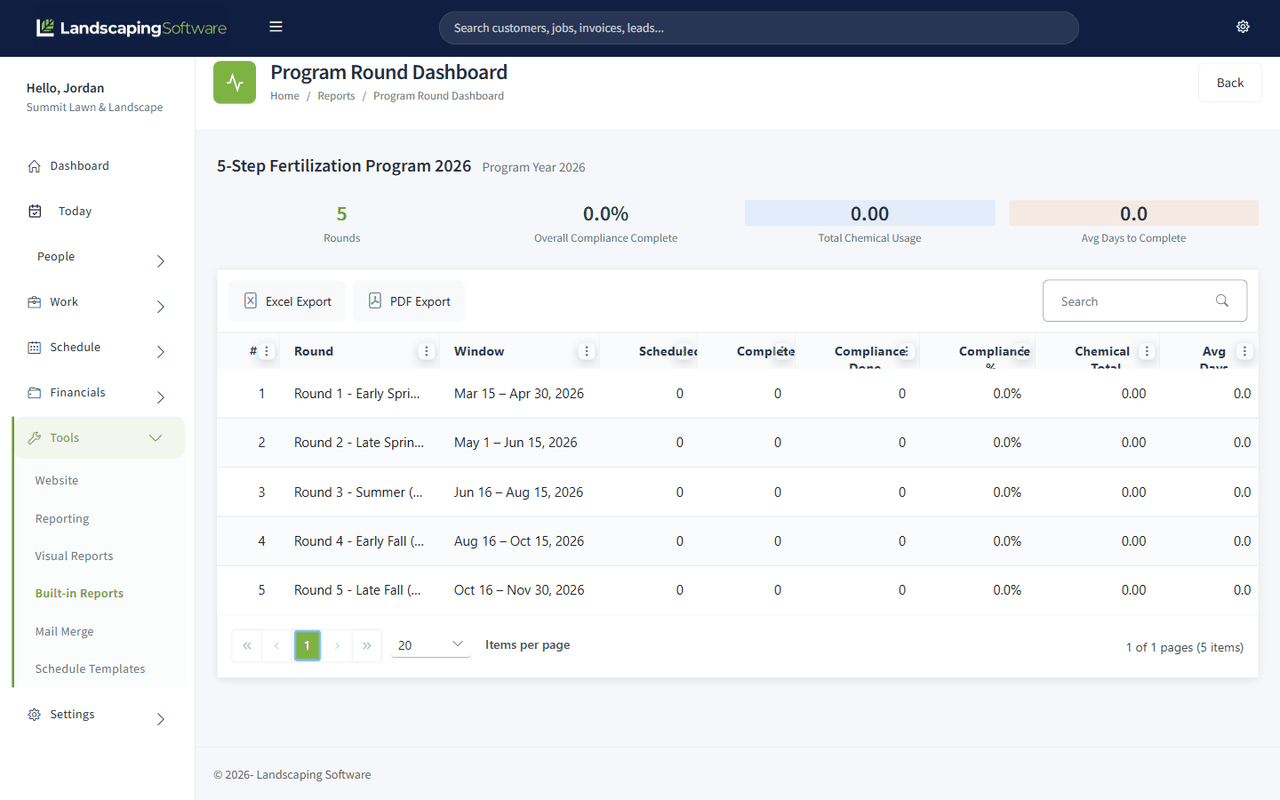
Rounds are the steps of a program — each with a date window that controls when its visits happen (e.g., “Round 1 – Early Spring Pre-emergent”, Mar 15 – Apr 15). This guide covers adding, editing, and deleting rounds, how round statuses advance, and generating visits for one round or the whole program. For the full first-time setup flow (season → program → rounds → jobs → visits), see Set Up Seasons and Programs.
Before you start
- A program created under Work > Programs. All round management happens on the Program Summary page — open it by clicking the program in the Programs list.
- To generate visits you also need:
- At least one active job linked to the program. Use Enroll properties on the Program Summary (see Enroll Properties in a Program), or Link to Program on a Job Summary.
- The program’s season set to Active — generation is skipped for Planned, Suspended, or Ended seasons. See Season Lifecycle.
- If you started the program from a template, its rounds are already filled in — you can edit them like any other round.
Steps
Add a round
- On the Program Summary, click Add Round (in the Program Rounds card header, in Quick Actions, or in the empty state if there are no rounds yet). Right after you create a program, the page shows a Next step bar that offers Add Round, then Enroll Customer.
- Fill in the Add Round dialog:
- Round Number (required, 1 to 999, not used by another round of this program): controls the order visits are generated in.
- Round Name (required, up to 225 characters): e.g., “Round 1 - Early Spring”.
- Description (optional).
- Window Start and Window End (required, between 2000 and 2100): the end date must be on or after the start date. Visits for this round are placed inside this window.
- Notes (optional) — soil temps, weather rules, application details.
- Status — leave as Not Started for a future round (see statuses below).
- Sort Order (optional, 0 to 9999): rounds are listed by sort order first, then round number.
- Click Add Round. You’ll see “Round added successfully!” and the round appears in the Program Rounds table.
Round row actions
Each round’s row shows one main button: Create invoices on a completed round, Generate visits otherwise. Everything else (Generate visits on a completed round, Edit round, Delete round) is in the row’s More menu.
Edit a round
- In the Program Rounds table, open the round’s More menu and click Edit round.
- The same dialog opens pre-filled (“Edit Round”). Change what you need — including manually setting the Status — and click Update Round.
- If you move the dates and leave the Status as it was, the new dates set the status: a round moved to a future window goes back to Not Started, even if the overnight sweep had completed it.
Move all rounds to a new year
To move the whole program to another year (for example a 2026 program you are setting up for 2027), click Edit Program, change Year, tick Also move the round dates to the new year, and save. Every round keeps its days and moves to the new year; a window that runs past December 31 still does. This only works while no round has visits or invoices yet. Otherwise you’re told why, and you can untick the box to change just the year, or renew the program for the new year.
Delete a round
- Open the round’s More menu, click Delete round, then Delete Round in the confirmation dialog.
- The round is removed. (Deleting the whole program also deletes all of its rounds — the delete confirmation reminds you.)
A round that still has visits on the schedule can’t be deleted: “This round has 12 visits on the schedule. Delete them from the scheduler first, then delete the round.”
Round statuses — and how they advance automatically
| Status | Meaning |
|---|---|
| Not Started | The round’s window hasn’t opened yet. |
| In Progress | The window is open, or some visits are done. |
| Completed | All the round’s visits are done, or the window has closed. |
Statuses advance automatically overnight: rounds whose window has opened move to In Progress, and rounds move to Completed when every visit is done or the window end date has passed (a past-window round is closed out even if some visits weren’t completed). You can also set the status by hand in the Edit dialog — for example, to re-open a round or close one early.
Generate visits — one round vs. the whole program
For a single round: click Generate visits on the round’s row. For the whole program: click Generate All Visits in Quick Actions (also offered at the top of the page); this plans every round that isn’t already Completed.
Either way the visit planner opens:
- Choose how to schedule the visits:
- Spread across days (recommended) fills each work day up to the crew’s stops per day, then moves on to the next day. Nearby properties are kept on the same day, so each day is a tight route.
- All on one day puts every visit on the date you pick. (For Generate All Visits, each round goes on its first open work day.)
- Unscheduled creates the visits without a date. They wait in the Scheduler’s unscheduled list for you to place by hand.
- Pick the crew. A program is worked by one crew; the planner pre-selects the crew the program’s visits already use. (Unscheduled visits can be left without a crew.)
- For the dated options, set the start date, stops per day, work days (Monday to Friday by default), day start time and minutes per visit. The planner remembers these for next time.
- Click Preview Plan. You’ll see how many visits land on which days, each day’s customers and time range, and any notices. Open a day to see who is on it.
- Click Create Visits. If anything changed since the preview (a customer was enrolled, a visit was added), nothing is created; the planner shows the updated plan to review instead.
How the planner places visits:
- One visit per job per round. Jobs that already have a visit in the round, on any date, are left alone, so running Generate again is safe and never duplicates.
- Only the round’s window is used, never a day before today. Company blackout dates and non-work days are skipped.
- Visits the crew already has on a day count toward that day’s stops per day.
- Visits are timed back to back from the day start (for example 8:00, 8:30, 9:00 at 30 minutes each). Use the route planner to set the real order.
- Customers that don’t fit before the window closes are created as unscheduled rather than dropped, and the preview says so.
- Properties with no map location yet are grouped by ZIP code. Locations are looked up and saved as you preview, so grouping improves over time.
- Rounds whose window is entirely in the past are skipped with a notice; the system won’t create back-dated visits.
See who is enrolled and every visit
Below the rounds, the Program Summary lists:
- Enrolled Customers: every job linked to the program, with its property, job status, visits done and next visit. Only Active jobs get visits.
- Visits: every visit in any of the program’s rounds, with round, date and time (or Unscheduled), customer, crew and status. Sort by any column, search, filter, or drag a column header (for example Round) into the bar above the grid to group by it.
The Visits column in the rounds table shows how many visits each round has and how many active customers still need one. View Enrolled Jobs in Quick Actions opens the Jobs list filtered to this program.
Invoice completed rounds
Once a round shows Completed, a Create invoices button appears on its row. It creates one invoice per customer for the round’s work, priced from each job’s accepted estimate. Invoice Completed Rounds in Quick Actions does the same for every completed round at once, skipping rounds that were already invoiced. Jobs that bill per visit or monthly are billed their own way and are skipped. See Batch Billing.
A program job billed per visit that was enrolled without a price is flagged: the enrollment result says “no price yet”, and its Job Summary offers Add pricing. Add its product/service lines before its visits are billed.
What happens next
Generated visits appear on Schedule > Calendar, ready to assign to crews and organize with the route planner (Schedule > Route Management). As crews complete visits, round statuses advance on their own, and completed rounds become invoiceable.
Tips & best practices
- Plan all rounds up front (or start the program from a template) rather than adding them mid-season — renewals copy the whole round structure into next year.
- Test with one job first. Link a single job, generate one round, and check the dates on the calendar before enrolling your full customer list. Re-running generation won’t duplicate anything.
- Make windows realistic for weather and crew capacity — visits are only ever placed inside the window.
- Don’t fight the overnight automation. If you manually set a past-window round back to In Progress, the nightly sweep will complete it again. Extend the window end date instead if the round genuinely needs more time.
Troubleshooting
- “Round window start and end dates are required” / end-date warning — both window dates are required, and the end must be on or after the start. The dialog also warns immediately if you pick an end date before the start.
- “No jobs are linked to this program” / “None of the job(s) in this program is Active” — visit generation needs at least one active job linked to the program. Check the job’s status and its program link on the Job Summary.
- “Season ‘…’ is not active. Activate it before generating visits.” — the program’s season is Planned, Suspended, or Ended. Activate it first (Season Lifecycle), then generate again.
- “…: window … has already passed, so it was skipped.” — the round’s window is entirely in the past. This usually means you’re on last year’s program; renew it into the new year instead (Annual Renewal), or extend the round’s window if the dates were simply wrong.
- “Every active customer already has a visit in this round.” — every eligible job already has its visit. Nothing to do.
- “Pick the crew that will do these visits.” — dated visits need a crew. Choose Unscheduled if you want to assign crews later.
- “… did not fit before the window closes” — the window is too short for the stops per day you chose. Raise stops per day, add work days, or place the leftover unscheduled visits by hand.
- A round jumped to Completed even though visits weren’t finished — the window end date passed, so the overnight sweep closed it out. Completed rounds are excluded from “Generate All Visits”; extend the window and re-open the round via Edit if the work is still happening.
- Rounds are listed in a strange order — the table sorts by Sort Order first, then Round Number. Set Sort Order to 0 on all rounds to order purely by round number.
- “This program already has a round 3. Use a different number.”: each round number is used once per program.
- “Round number must be between 1 and 999.” / “Round window dates must be between the years 2000 and 2100.”: fix the field.
- “This round has N visits on the schedule…”: delete or move the round’s visits in the scheduler before deleting the round.
- “No job in this program can be billed by round…”: round billing needs active jobs with an accepted estimate; per-visit and monthly jobs are billed their own way.
Related articles
- Set Up Seasons and Programs (New Company Guide) — the end-to-end setup flow, including program templates
- Enroll Properties in a Program: adding customers’ properties to the program, and renewing last year’s enrollments
- Season Lifecycle — why the season must be Active before visits generate
- Manage Program Types and Season Types — the categories used on the program form
- Roll Seasons and Programs into a New Year — carrying rounds forward with year-shifted windows
- Renewal Reminders and the Renewal Wizard — renewing the jobs enrolled in a program