Invoicing & payments · Included on every plan

Landscaping Billing and Invoicing Software for Lawn Care and Landscape Companies

Landscaping billing software is the part of your business software that turns completed work into invoices and records what customers pay. Ours creates the invoice from the visit, month, round or job you already scheduled, shows you what you have not billed, and lets customers pay by card or bank in your branded portal. Included on every plan.

Start your 14-day free trial Get in touch

14-day free trial · No credit card required

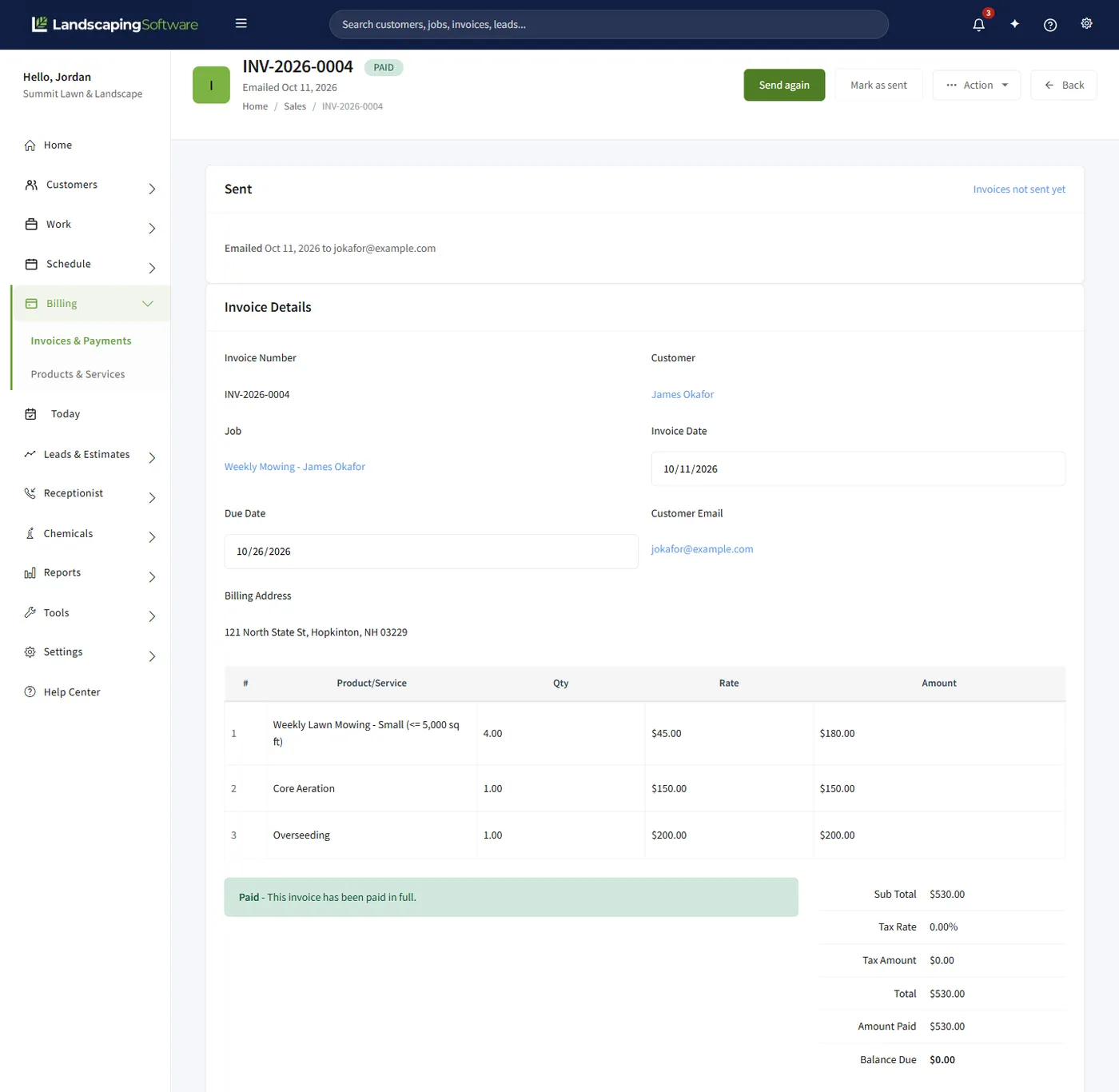
Invoice detail showing when it was emailed, the customer, job, dates, three line items for mowing, core aeration and overseeding, and the totals marked paid in full

The problem

The work got done. The invoice did not.

Work gets done and never invoiced. It is the quietest way a busy season loses money, because nothing on the schedule complains. The crew mowed it and the invoice was going to get typed up tonight. Then there is the check that arrived three weeks ago and still gets a reminder, and the install that collected no deposit because nobody asked. A general invoicing app cannot fix this, because it does not know what your crews did today.

How it works

From completed visit to paid invoice in five steps.

Every invoice, however it was created, lands in the same Invoices & Payments list with a live status, line items and payment history.

  1. 1

    The work gets done

    A crew marks the visit completed in the crew app, or the office does in the scheduler. A round is marked Completed. A one-off job completes with its last open visit.

  2. 2

    The job’s billing mode creates the invoice

    Per Visit bills that visit, Monthly Fixed bills at the start of the month, On Job Completion bills when the job completes, a program round bills one invoice per customer. Or you type one by hand.

  3. 3

    You review it and send it

    New invoices wait under the Not sent chip. Open one, check the lines, and Send invoice emails a PDF. Mailed it instead? Mark as sent records that.

  4. 4

    The customer pays

    Online in your branded portal by card or US bank account, in full or in part, or by check or cash the old way.

  5. 5

    The payment is recorded and the job closes

    A portal payment records itself with an Online badge; a check takes a few clicks. When the invoice is paid in full and the job’s work is done, the job moves to Closed.

Billing modes

Bill the way each job actually works.

Weekly mowing bills per visit. The fertilization program bills per round. The commercial account is a flat monthly number. The patio is one bill when it is finished. Each job carries its own billing mode and invoicing terms, so different jobs for the same customer can bill differently.

Billing modes, when each creates an invoice, what it is priced from and what it suits
Mode When the invoice is created Priced from Good for
Per Visit One invoice per completed visit, the moment it is marked completed. The job’s product/service lines Mowing and anything billed each visit.
Monthly Fixed One invoice per active job at the start of each month. The job’s accepted estimate Flat-rate maintenance accounts.
On Job Completion One invoice for the whole job, once, when it is completed. The job’s product/service lines Installs, cleanups and one-off projects.
Program round One invoice per customer for each completed round, from the program page. The jobs’ accepted estimates Fertilization and plant health care. Programs are on Professional and up.
Seasonal Prepay / Manual Never automatic. Completing the job opens a draft invoice to review. Whatever you type Prepaid seasons, deposits, progress bills.

Automatic invoicing

Turn on Set Job Invoicing on a job, pick its billing mode, and that job bills itself. A Per Visit job is invoiced the moment a visit is marked completed, in the scheduler or the crew app, and a daily sweep catches visits that slipped through, such as bulk storm completions. A Monthly Fixed job is invoiced at the start of each month, never twice for one month. An On Job Completion job gets one invoice when it completes.

Every automatic invoice is a draft under the Not sent chip, and nothing goes to the customer until you send it. Treat Not sent as your outbox.

Each job is billed one way

  • A visit already on a round, monthly or completion invoice is never billed again per visit.
  • A completion invoice is raised once, ever.
  • Re-treat visits repeat work already billed, so they are never invoiced automatically.

Unbilled work

See every dollar of work you have not billed.

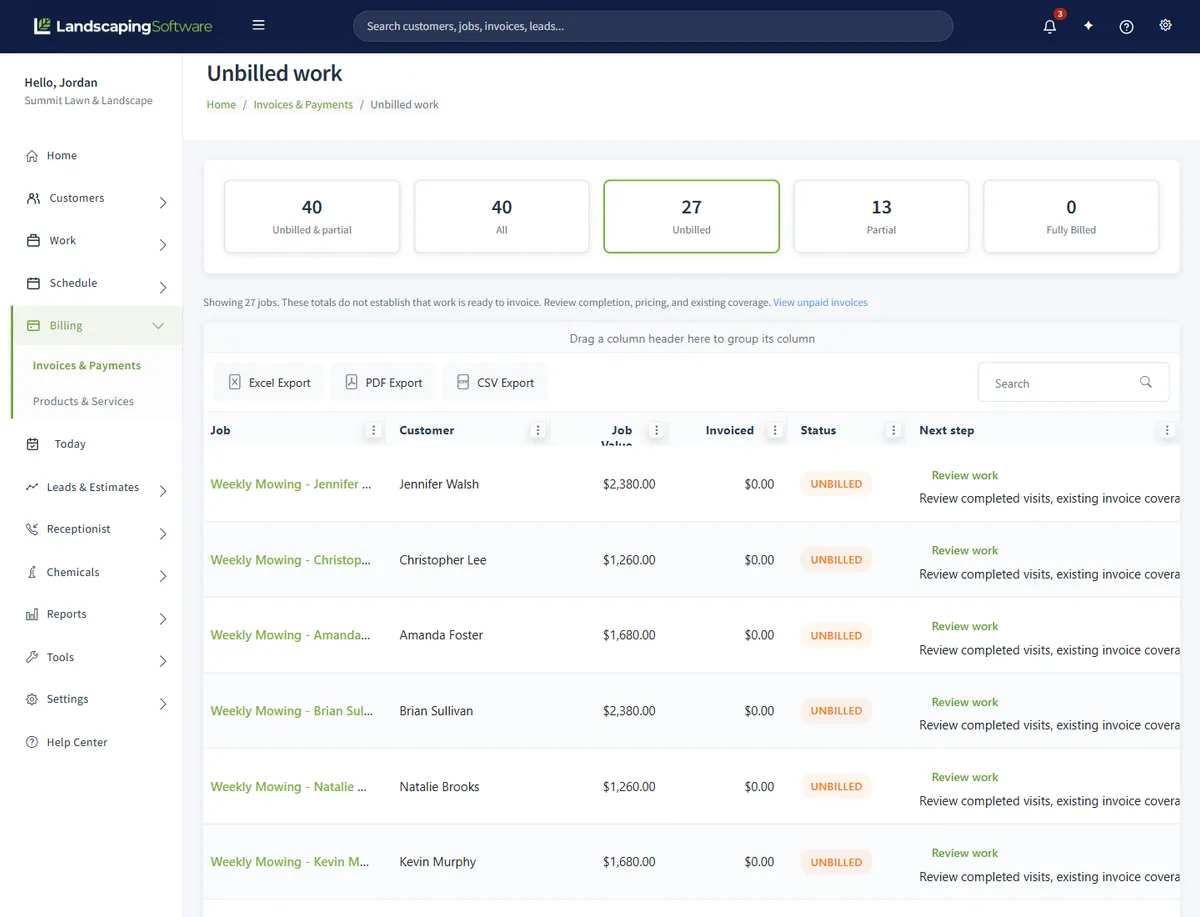
Billing status is computed, never typed. The Unbilled work page lists every job with its value, what has been invoiced against it, and a status: Unbilled, Partial or Fully Billed. The gap between Job Value and Invoiced is the money on the table, and the grid exports to Excel, PDF or CSV for your bookkeeper.

The Unbilled Visits report goes a level deeper: every completed visit in a date range with no invoice, and whether automatic billing will handle it or it needs you, with the reason. Billed something outside the app? Mark as billed takes the visit off the list. The Jobs list also filters by Never scheduled: the job nobody put on the calendar never reaches billing at all.

Batch billing: you press the button

For jobs not opted into automatic invoicing, or as a catch-up. Every run skips work already invoiced, so re-running it is safe.

Generate Visit Invoices
One per completed, not-yet-invoiced visit on Per Visit jobs, with optional dates.
Generate Monthly Fixed
The current month’s invoice for every active Monthly Fixed job, with a list explaining each skip.
Program rounds
Create invoices on a completed round, or Invoice Completed Rounds for the whole program: one invoice per customer, per round.
Unbilled work page with tiles for all, unbilled, partial and fully billed jobs, and a list of jobs showing job value, amount invoiced and an Unbilled status with the next step

Getting paid

Card or bank in your own portal. Checks and cash in a few clicks.

Customers sign in to a portal carrying your logo and colors, open an invoice and click Pay. They pay by credit or debit card or US bank account (ACH), the full balance or part of it. The payment lands on your list on its own with an Online badge and the invoice flips to Paid.

Payments run through your own Stripe account. Payouts go to your bank, there is no platform fee, and you pay only Stripe’s processing fee; on Stripe’s default schedule, card money arrives in about two business days and ACH in five to seven. To net the full invoice, turn on fee passthrough; surcharging is restricted in some states, and the setting carries a warning.

Deposits start on the estimate: a percent of the accepted total or a fixed amount, Required or Requested. The customer signs and pays in the portal in one step, and the money sits on their account as credit until you apply it from the invoice’s Customer deposit on file card. Refunds and disputes happen in your Stripe Dashboard and are recorded here on their own.

Recording money that comes in by hand

Record payment on the list
On any invoice row with a balance, with the date and open balance pre-filled. Pick the method and add the check number as the reference.
Record Payment screen
One check across several of a customer’s open invoices: tick each and type the amount against it.
Receipts and history
Print a receipt from the Payment Summary. Every payment shows in the invoice’s Payment History, and changes are kept in an audit trail.

Statuses stay honest on their own: Open, Overdue, Partial, Paid, Overpaid.

Built in

Billing is downstream of everything else.

This billing lives in the same system as your customers, jobs, visits, programs and crews, so there is nothing to integrate and nothing to retype. The job’s product lines price the per-visit invoice, the accepted estimate prices the monthly and round invoices, and the visit a crew completes in the crew mobile app is the visit that gets billed.

An owner with Mobile Admin Access can even tap Invoice job in the field; the invoice waits under Not sent like any other.

What feeds an invoice

  1. 1

    Jobs and visits

    The schedule says which visits were completed. Per Visit billing starts there.

  2. 2

    Estimates

    An accepted estimate prices Monthly Fixed and round invoices, and carries the deposit terms.

  3. 3

    Programs and rounds

    A completed round bills one invoice per customer across their program jobs.

  4. 4

    Customer portal

    Where the invoice is paid, the deposit is collected and the PDF is downloaded.

By trade

Billing for every kind of landscape work.

Lawn care and mowing

Set the mowing job to Per Visit and price its lines once. Each time the crew marks a visit completed, the draft for that visit is waiting for you. A flat-rate account bills Monthly Fixed from its accepted estimate at the start of each month.

Fertilization and plant health care

A program bills by the round. When a round is marked Completed, Create invoices makes one invoice per customer, priced from each job’s accepted estimate; a job’s rounds add up exactly to its estimate. Programs are on Professional and up.

Installs and hardscape

Require a deposit on the estimate, as a percent or a fixed amount; the customer signs and pays it in the portal. Set the job to On Job Completion and the draft for the whole job is created when the last visit is done. Apply the deposit on file and the customer is billed the balance.

Snow and ice

Storm visits are visits like any other. A plowing job on Per Visit bills each push once it is marked completed, and the daily sweep picks up bulk storm completions. A seasonal contract bills Monthly Fixed, or Seasonal Prepay when you invoice it by hand up front.

Compared

Spreadsheet vs generic invoicing app vs landscaping billing software.

Three ways a landscaping company gets its invoices out.

Comparison table
Question Spreadsheet or word processor Generic invoicing app LandscapingSoftware billing
Where the invoice comes from You type each one from the route sheet. You type each one, or set up a repeating copy; varies. The completed visit, month, round or job, by the billing mode on the job.
Work that never got billed Nothing tells you. Usually nothing; the app does not know what was done. The Unbilled work page and the Unbilled Visits report.
Online payment Not without another tool. Often, through the app’s own processor; varies. Card or bank in your branded portal, through your own Stripe account, no platform fee.
Cost Usually free or part of an office suite. A separate subscription; varies. Included on every plan, from $99 a month.

A spreadsheet still makes sense at a handful of customers, and our free landscaping invoice template is built for it.

What it will not do

Nothing reaches a customer without you.

Automatic and batch invoicing create drafts and email nothing. An invoice goes to the customer when you open it and send it, so a wrong price gets caught on your screen rather than theirs. An invoice created in the crew app follows the same rule.

Also on purpose

  • An invoice with money applied is read-only. Delete the payments first if you truly need to edit it.
  • There is no edit screen for payments. Delete the wrong one and record it again.
  • A payment taken online cannot be deleted in the office. Refund it in your Stripe Dashboard and the refund is recorded here.
  • Each job carries one open manual invoice at a time. Per-visit, monthly and round invoices do not count against that.
  • Accepting an estimate in the office skips the deposit. Only a customer accepting in the portal, or signing on site in the crew app, pays it.

Pricing

Invoicing and payments are on every plan.

There is no billing add-on. Everything on this page comes with Essential, except program round billing, which needs Programs on Professional and up.

Plans, prices and the billing each includes
Plan Price Billing included
Essential $99 a month Per Visit, Monthly Fixed and On Job Completion; manual, batch and automatic invoicing; unbilled work reports; portal payments and deposits.
Professional $229 a month Everything in Essential, plus programs and rounds with per-round billing.
Premier $399 a month Everything in Professional, plus visual report dashboards.

If your subscription ever lapses, your customers can still pay their existing invoices through the portal.

Works together

The work that becomes the invoice

Customer portal

Where customers see invoices, pay by card or bank and pay deposits.

Crew mobile app

Marking a visit completed is what creates the per-visit draft.

Still invoicing by hand? Download the free landscaping invoice template and read how to invoice landscaping customers. The help center has the step by step: the invoicing overview, automatic invoicing, batch billing, finding work you have not billed, recording payments, deposits on estimates and portal payments.

Questions

Landscaping billing and invoicing FAQ

What is landscaping billing software?

Software that turns the work your crews complete into invoices and tracks what customers owe and pay. Here the invoice comes from the completed visit, month, round or job, by the billing mode set on the job, so the schedule and the billing agree.

What billing modes are there?

Per Visit, Monthly Fixed, On Job Completion, program rounds (one invoice per customer per completed round), and Seasonal Prepay / Manual for work you bill by hand. The mode is set per job.

Does automatic invoicing send invoices to my customers?

No. It creates drafts for your review under the Not sent chip, and nothing is emailed until you open one and send it. Batch billing works the same way.

How does batch billing work?

Generate Visit Invoices makes one invoice for every completed, not-yet-invoiced visit on Per Visit jobs. Generate Monthly Fixed makes the current month’s invoice for every active Monthly Fixed job. Each run skips work already invoiced, so running it twice is harmless.

How do I find work I have not billed?

The Unbilled work page lists every job with its value, what has been invoiced and a status of Unbilled, Partial or Fully Billed. The Unbilled Visits report lists every completed visit with no invoice and says whether it will bill itself or needs you.

How do customers pay online?

In your customer portal. They open the invoice, click Pay, and pay by credit or debit card or US bank account (ACH), in full or in part. The payment appears on your list on its own with an Online badge, and the invoice flips to Paid.

Is there a platform fee on online payments?

No. You connect your own Stripe account, payouts go to your bank, and you pay only Stripe’s processing fee. You can pass that fee to the customer where surcharging is allowed.

Can I take a deposit when a customer accepts an estimate?

Yes. Set it on the estimate as a percent of the accepted total or a fixed amount, Required or Requested. The customer signs and pays in the portal, and the deposit sits on their account as credit until you apply it to an invoice.

Can one check cover several invoices?

Yes. The Record Payment screen lists the customer’s open invoices and you enter an amount against each. For one check against one invoice, Record payment on the list row is faster.

Which plan includes invoicing?

Every plan. Invoicing, batch and automatic invoicing, the unbilled work reports and the customer portal with online payments are all in Essential at $99 a month. Program round billing needs Programs, which start on Professional.

Bill every visit you did.

14-day free trial · No credit card required