Business Tips
Landscaping Marketing Calendar: 12-Month Plan
Most landscaping marketing happens in bursts. In March there is a panic because the phone is not ringing enough, so someone writes a rushed email or pays for a yard sign. April fills up, the trucks roll, and marketing quietly stops. By October you realize you never asked the twenty happiest customers for a review.
The fix is not more marketing. It is a landscaping marketing calendar you can read at a glance and a handful of messages that do not get dropped when the trucks are busy. Below is a month-by-month plan, a set of lawn care marketing ideas placed in the month they work best, with one goal, one message and one tactic per month, and a short block in each month showing where to do it in our software. After that come review requests, how to measure what worked, and the parts that stay manual.
Some tactics happen outside any software: a Google Business Profile post, a yard sign, a social photo. We say so in one line and move on. Where our software does something, we describe what it does today, including the limits.
What should a landscaping company do for marketing each month?
A landscaping marketing plan gives every month one goal, one message and one tactic, so marketing keeps going after the spring rush. In short: prepay offers and renewals in winter, cleanup and first mow in spring, upsells and reviews in summer, aeration and snow contracts in fall, and a thank you in December.
| Month | Goal | Send |
|---|---|---|
| Jan | Book spring early | Prepay offer |
| Feb | Keep customers | Renewals, price notice |
| Mar | Fill cleanups | Cleanup, win-back |
| Apr | Start the season | First mow |
| May | Add revenue | Mulch and beds |
| Jun | Prevent quits | Check-in, pest offer |
| Jul | Public proof | Review request |
| Aug | Book aeration | Aeration, lead win-back |
| Sep | Fall programs | Seed, win-back |
| Oct | Winter revenue | Leaf removal, snow signup |
| Nov | Set expectations | Storm readiness |
| Dec | Goodwill | Thank you |
How to use this calendar as a landscaping marketing plan
Two ideas make the rest easy.
Three audiences.
- Existing customers. The cheapest revenue you will earn. They already trust you. Most of the calendar is aimed here.
- Past leads. People who asked for a price and never answered. They raised a hand once, and a polite nudge often finishes the sale.
- Neighbors and new prospects. Everyone who has not met you. This gets the least attention here, because it is the most expensive to win.
One goal per month. A month with three goals produces an email that asks for three things and gets none of them. A second offer belongs in the next month.
Send it the day you planned it. Our mail merge tool does not schedule one-off campaigns for a future date. A campaign sends when you start it, so put the send day on your own calendar and send it that morning.
This plan assumes a northern company with lawn and snow work. In the south, slide the winter months into your growing season. If you only mow, skip the snow letters.
The example numbers below use a made-up company with 180 recurring customers, not results from a real business.
The setup you do once
An hour of setup makes every month of lawn care email marketing faster.
- Enter your company address. Every campaign email carries your company address in the footer, which the CAN-SPAM rules require. The Configure screen warns you if it is missing.
- Know what happens with unsubscribes. Every campaign email carries a signed unsubscribe link and the one-click unsubscribe headers mail providers look for. Unsubscribes, spam complaints and permanent bounces are suppressed automatically, and you can add or remove entries by hand on the Suppressions tab.
- Build the saved segments you will reuse. A segment is a saved audience made of filters combined with AND, with a live preview, and it is worked out again when you send. Under Tools > Mail Merge > Segments, the ones worth building are:
- Active this year: serviced within the last 365 days.
- Lapsed: not serviced in the last 300 days (an example starting point). This filter needs at least one completed visit, so brand new customers with no visits are left out.
- Has a program: has a program of a given type, such as fertilization. Its mirror image, does not have a program of that type, is your upsell list. Program types are the ones you define in the Programs module, which is part of the Pro plan, so these two filters matter most there.
- By area: city, or ZIP code starting with a prefix. There is no neighborhood filter, so use ZIP prefixes for tight areas.
- Contract expiring: service plan or contract expiring within N days.
- Owes money: has an outstanding invoice balance, so you know who should skip the upsell.
- Cold leads: for the Leads type, status and source filters, plus has no estimate yet.
- Copy the gallery templates you plan to use. The template gallery holds 15 prebuilt letters. The Add to my templates button copies one into your own editable templates. Change it to sound like you, and save. The letters run 120 to 220 words, carry no web links, and end on one ask: reply or call.
- Turn on Reviews & Referrals if you are on Pro. Settings > Reviews & Referrals, covered below.
- Check your website quote form. The Website Builder quote form saves every submission as a lead with the source Website and the status New, and emails the address you set. Send a test entry through before spring.
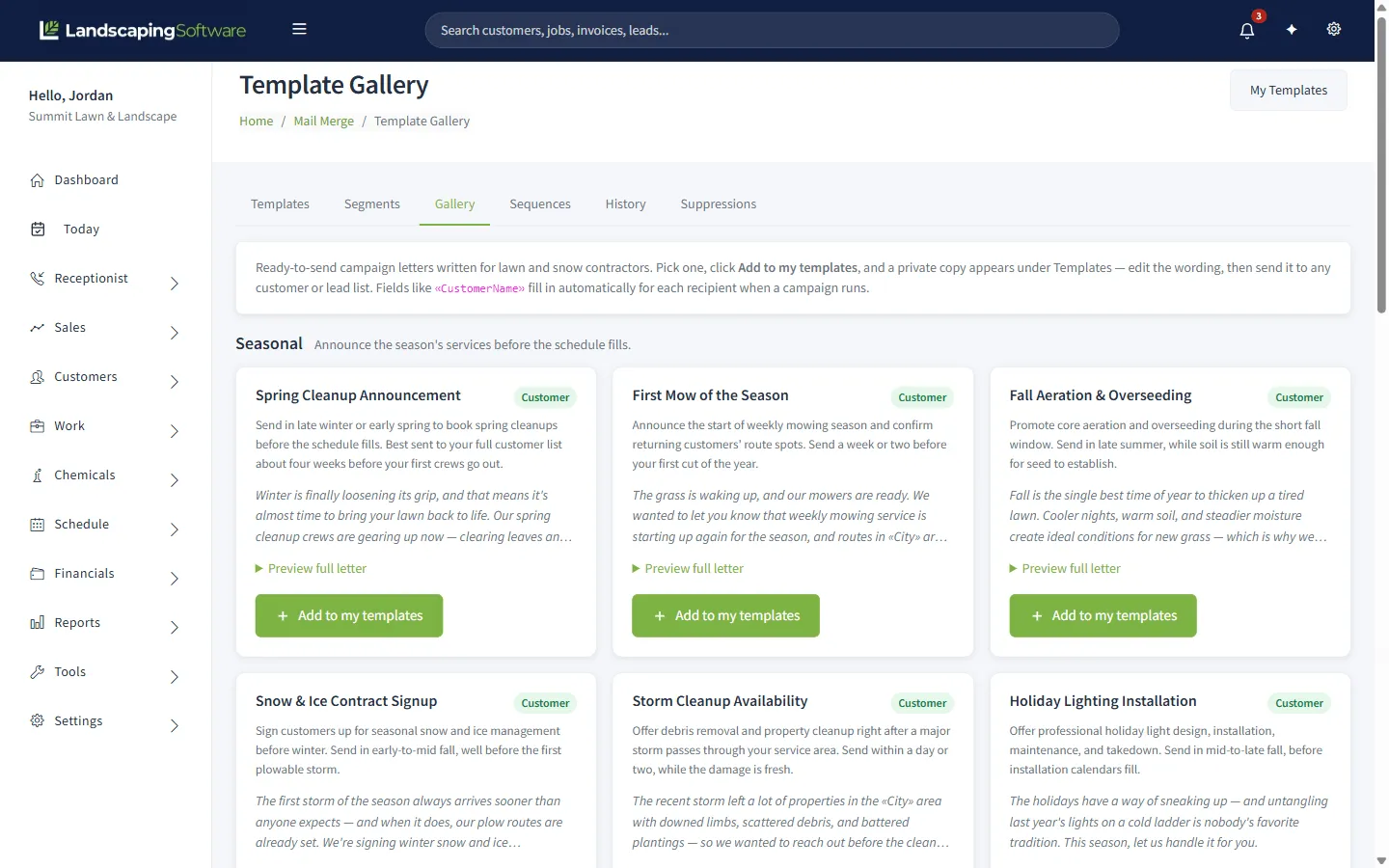
The 15 gallery letters are built into the app. The separate library of 49 free letters on our templates page is a set you copy from the website and paste in. Either way, edit before you send.
January: fill the spring before it starts
Goal: get customers to commit to spring while nobody is busy. Message: book now, and here is the reward for paying early. Tactic: send an early-bird prepay offer to last year’s active customers.
January is quiet for most crews in a northern climate, and a good moment to pull some of the season’s revenue forward. The offer is simple: prepay for the season and receive a discount or a locked-in price. We do not suggest a percentage, because it depends on your margins. Our lawn mowing pricing guide helps you work out what you can afford to give.
Gallery template: Early-Bird Prepay Offer. Edit before you send: the gallery version promises a discount and priority route placement, so change both to match what you will honor.
If you plow, January is also the second half of snow contract signup.
In the software: Tools > Mail Merge > Segments, build or open Active this year. Tools > Mail Merge > Gallery, click Add to my templates on Early-Bird Prepay Offer. Then Configure a run: pick the segment, choose Send as email, and enter a subject. Use Preview with sample data on the template (it downloads a Word file) to check the merge fields, then send that morning. Afterward, History shows Delivered, Opened, Clicked and Bounced counts for the run. Later months say “run it” and mean these same steps.
February: renewals, and the price letter you keep putting off
Goal: keep the customers you already have, at a fair price. Message: your service is up for renewal, here is what continues and here is the new price. Tactic: send the renewal reminder, and the price notice if prices are going up.
Landscaping customer retention starts before spring. If your annual agreements end in spring, February is a natural time to renew them. Nobody enjoys sending a price increase, but a clear notice sent early goes over better than a surprise on the March invoice. Say what changed, what is not changing, and the effective date.
Gallery template: Contract Renewal Reminder. From the free letters library, the Price Adjustment Notice is written for exactly this.
In the software: build the Contract expiring segment (Tools > Mail Merge > Segments), then send the Contract Renewal Reminder to it. On the Pro plan, Customers > Renewals lists what is coming due (the window defaults to 30 days and can be set from 1 to 365), and you select items and open the Renewal Wizard, which can apply a price uplift. The Renewals list only lists; it sends nothing by itself. See the contracts and renewals features for how terms and uplifts work.
March: the spring cleanup push
Goal: get cleanups booked in a two to three week window. Message: cleanup slots are open, and they fill in the order people reply. Tactic: email your active customers, and separately email the lapsed ones.
A spring cleanup promotion works best as two different emails to two different groups. Active customers get the Spring Cleanup Announcement. Lapsed customers, the ones not serviced in about ten months, get the We Miss You Win-Back, a lawn care win-back email, instead, because someone who left needs a different message than someone who stayed.
Gallery templates: Spring Cleanup Announcement and We Miss You Win-Back.
Example (made-up company): of 180 customers, 25 fell out of the last two seasons. The win-back goes to those 25 and the cleanup to the other 155. Two short letters beat one confused one.
In the software: Segments for Active this year and Lapsed, then two separate runs from Tools > Mail Merge. Space the sends by at least a few days. The three-day skip rule is a safety net, not a plan. Also note that Active this year (365 days) and Lapsed (300 days) overlap for anyone last serviced 300 to 365 days ago, so shorten one if you want two clean groups.
April: first mow, and finishing the estimates you sent
Goal: start the season with the schedule full and the estimate pile empty. Message: we are starting, here is when your first visit is expected. Tactic: announce first mow, and follow up the estimates still open.
Estimates sent in March that nobody answered go cold by April, and you will not remember them all. Pull the list of estimates still waiting on an answer and call or email each one. Our Daily Brief email (Settings > Daily Briefs) counts the estimates still waiting and the leads that have gone quiet, which makes a good Monday prompt.
Gallery template: First Mow of the Season. From the free library, New in the Neighborhood works if you are taking on a route near a new customer and want to introduce yourself to the neighbors. You deliver it yourself, since the app sends only to customers and leads you already have.
Outside the software: a Google Business Profile update with your service area and hours. You do that by hand in Google; we do not post there.
In the software: a segment of active customers, then Gallery > Add to my templates on First Mow of the Season, and run it as email. For the backlog, open the Estimates list, filter by status, and follow up yourself. Our estimates feature page covers how customers approve online, and the CRM features cover leads and customers.
May: mulch, beds and the second sale
Goal: add revenue from customers you are already visiting. Message: while we are there, we can refresh the beds. Tactic: offer a mulch and bed refresh to customers who do not have one, and turn on review requests.
May is upsell month. Your crew is already on the property, so the add-on is cheaper to sell than a new customer. Build a segment of active customers who do not have a program of the relevant type and send them the letter.
Gallery template: Mulch & Bed Refresh.
May is also a good month to turn on automated review requests (Pro plan), since every finished visit is a chance to ask. See the reviews section below.
In the software: Segments: serviced within last 365 days AND does not have a program of type Mulch (or whatever you call it). Send from Tools > Mail Merge. Then Settings > Reviews & Referrals: set the trigger and your Google review link.
June: the mid-season check-in
Goal: catch the unhappy customer before they cancel. Message: how is your service going, and is there anything we should fix? Tactic: a short check-in, plus a pest or mosquito offer for the customers who spend summer evenings outside.
Customers who quit rarely complain first. They just do not renew. A plain “how are we doing” email in June is the cheapest retention work in this calendar. Ask them to reply, and read every reply.
Gallery template: Summer Mosquito & Pest Control. The free library’s Mid-Season Service Check-In covers the check-in.
In the software: a segment of active customers, plus a second run by program type or city if the pest offer only applies to some routes. Watch History for bounces. A bounce is an address to fix, which is its own small win.
July: reviews and referrals, and the heat advisory
Goal: turn happy customers into public proof and introductions. Message: if we have done right by you, would you tell a neighbor or leave a review? Tactic: a review request to customers who did not get one automatically, and a referral ask.
The manual letter is for everyone the automation did not reach: customers on the Starter plan, or customers whose last visit was before you turned it on.
Gallery templates: Review Request and Refer a Neighbor. One caution on the second: the gallery letter promises the customer a thank-you. Our software does not track referrals or hand out rewards, so if you keep that line, you keep that promise by hand. Otherwise edit it out before you save.
The Summer Heat and Watering Advisory from the free library is also worth sending. It positions you as the person who knows what the lawn needs.
Outside the software: reply to your Google reviews yourself, and ask a happy customer for a yard sign. Neither happens in our app.
In the software: Settings > Reviews & Referrals (Pro). For the manual send, Tools > Mail Merge with a segment of active customers.
August: get aeration on the schedule early
Goal: book fall aeration and overseeding before the rush. Message: the best window is early fall, and the slots go quickly. Tactic: send the announcement to customers who have not done it, and nudge cold leads.
August is planning month for fall work, and also the month to clear out the lead list. Someone who asked for a price in spring and never answered has probably signed elsewhere, but a short win-back to the ones who did not decline costs nothing.
Gallery templates: Fall Aeration & Overseeding and Lead Win-Back (a Lead type template).
In the software: a customer segment of serviced within last 365 days AND does not have a program of type Aeration. For leads, build a Lead segment using the status and created-before filters, and use Lead Win-Back. Leads type runs go from the Leads grid Mail Merge button or /MailMerge/Configure.
September: fall programs and the win-back
Goal: sell the work that improves next year’s lawn. Message: now is when aeration and seed take best, and we are booking. Tactic: the actual send of the fall program letter, plus one more pass at lapsed customers.
Fall aeration marketing is a two-step send, and September is the second step, for everyone who did not book from the August email. Because the fall program repeats every year, save the segment and the edited template so next September is a few minutes of work.
Gallery template: Fall Aeration & Overseeding again, or We Miss You Win-Back for lapsed customers.
In the software: run it from Tools > Mail Merge with your saved segment and the edited template, and check History for bounces.
October: leaf removal and the snow contract
Goal: lock in winter revenue before the first flake. Message: cleanup dates are open, and snow contract signup closes soon. Tactic: two sends this month, a week or more apart: fall cleanup first, snow signup second.
Snow contracts are easier to sell before the first storm than after it, and the same letter works as a snow contract renewal letter for last year’s snow customers. Priced properly (the snow removal pricing guide shows how), the letter can be short: the trigger depth, the price and the deadline.
Gallery template: Snow & Ice Contract Signup. Edit before you send: the gallery version says contract customers are always cleared first, so change that to match your real service terms. From the free library, Fall Cleanup and Leaf Removal.
Outside the software: a snow flyer for commercial properties is printed and delivered by hand. Our snow and storm features start once the customer says yes.
In the software: two separate runs. Keep a segment of customers who had snow service last year and another of active customers with no snow plan.
November: storm readiness and the holiday work
Goal: get the last signups, and tell customers what to expect. Message: here is how we handle a storm, and here is how to reach us. Tactic: a short storm readiness note you write yourself, and an early holiday lighting offer if you do that work.
Few customers reread a snow contract. A short letter on when you plow, how you decide, and what the customer should do (move the car, mark the edges) prevents the December angry call.
Gallery template: Holiday Lighting Installation. The gallery has no readiness letter, so write that note yourself. The Storm Cleanup Availability letter is for after a storm passes, offering debris removal and property cleanup. Add it now so a copy is ready, and send it within a day or two of a big storm.
In the software: segments by contract type if you have snow programs, otherwise by city or ZIP prefix so each route hears about its own day. This is also the month to check the Suppressions tab and fix bounced addresses before the winter sends.
December: thank them, and start next year’s list
Goal: finish the year on goodwill and gather what you need for January. Message: thank you, and here is what is coming. Tactic: a genuine thank-you, sent to every active customer with no ask attached.
The best marketing email of the year has no offer in it. A thank-you in December makes the January prepay ask feel like part of a relationship, not a cold pitch.
From the free library, the End-of-Season Thank You fits, and Year-End Wrap-Up and Next Season Planning works if you want to preview January.
Outside the software: look at your numbers (below) and decide which of the twelve sends to keep, cut or change next year.
In the software: a segment of active customers, send that morning, then open History and review the year.
Landscaping review requests on autopilot (Pro)
How to ask lawn care customers for reviews comes down to timing and one click, and this is the one send in the calendar that runs by itself. Reviews and the Renewals tools are on the Pro plan ($229) and up, not on Starter, where the manual Review Request letter from July is your option.
On Pro, go to Settings > Reviews & Referrals and set four things.
- The trigger. Disabled (the default), After payment (the invoice is paid in full), After job completion (a visit is completed), or Both.
- Your Google review link. It has to be an https address.
- The ask throttle. Each customer is asked at most once every 90 days by default.
- An optional referral line. This is a line of text in the email footer. It is not a tracked program.
Then it runs by itself, with a sweep every 10 minutes. Turning the feature on does not email your history: catch-up is limited to the last seven days, so you will not blast every customer from last year on day one.
What the customer sees. An email with two buttons. Great records a positive response and sends them to your Google review page. Not so great opens a private form asking for a rating and a comment. An unhappy customer gets a private way to tell you first, while you can still fix it.
What you see. A feedback inbox at /Reviews/Feedback with asks sent, positive and negative clicks, and response rate. You can mark items read and reply by email.
Limits. Review requests are email only. There are no text message requests. And the Reviews block on a Website Builder page shows testimonials you type in yourself; it does not pull from Google.
Separately, Settings > Customer Communications has a work-completed email toggle. When a visit is completed, the customer gets a summary with the service, date, crew notes and any photos you chose to share, at most one per customer per day. That is not marketing, but it reminds the customer each time that you showed up. See reviews and customer communications.
What you still do by hand
Hear it from us now rather than find out in March.
- No scheduled sends. A one-off campaign runs when you start it. Put the send date on your calendar and do it that morning.
- No text messages for marketing. Campaigns and review requests are email. If a customer only answers text, you have to text them yourself.
- No social media or Google Business Profile posting. Post there yourself. It is worth ten minutes a month, and the Instagram guide covers what to post.
- No customer tags. You segment by what the system already knows: city, ZIP prefix, programs, last service date, contract expiry, balance owed. If you want a list the filters cannot describe, filter the Customers grid down to the rows you want and use its Mail Merge button, which takes every row the grid is showing.
- A 5,000 record limit per run. Email runs are sent by a background worker rather than while you wait. Word document runs of five or fewer records finish immediately.
Measuring whether your lawn care marketing worked
You do not need a dashboard. You need four numbers, in this order of usefulness.
- Replies and calls in the two days after a send. Nothing else matters as much. Every gallery letter ends on a reply or a call so you can count them.
- Delivered, Opened, Clicked and Bounced. Open Tools > Mail Merge > History and open a run. You see each as a count for the run, counting recipients rather than events. A high bounce count means bad addresses to fix. Opens are a rough signal only, since mail apps can pre-load images.
- Where leads come from. Every lead has a Source dropdown: Referral, Website, Google Ads, Yard Sign, Phone Call or Angi. Fill it in every time, on every plan. The website quote form fills it as Website, and the AI Receptionist add-on fills it as AI Receptionist.
- Leads by source and win rate. On the Scale plan, Visual Reports > Sales Funnel shows New Leads, Leads Won, Estimate Win Rate, Pipeline Value, the funnel and a Leads by source chart. On Pro, Custom Reporting has a CRM and Leads dataset with the Source column, so you can build the same view yourself. See reporting and dashboards.
We do not measure what an ad costs per lead, or which text on a yard sign brought the call. If you spend on ads, keep that in your own books and compare it to the lead counts above.
Where we fit
You are reading a vendor’s blog, so here is the plain version. A marketing calendar works with any tool, and plenty of companies run it with a spreadsheet and a shared email account. Software changes whether your customer list stays true and whether the follow-up gets done when you are busy. Our mail merge and campaigns tool sends email to customers and leads from saved segments that are resolved at the moment you send, and reports delivery, opens, clicks and bounces per recipient. On Pro, review requests go out on their own, and a Renewals list and wizard help you re-sign customers. Mail merge, segments and the template gallery are on every plan, and pricing is published.
We do not have scheduled one-off campaigns, text message marketing, social or Google Business Profile posting, or customer tags. If any of those is the reason you are shopping, better to know now.
We help new customers get their first segments and templates in place. Get in touch and tell us which month you are in, and we will start there. If you have thirty lawns and a good memory, a paper landscaping marketing calendar is enough for now. Come back when the second crew makes remembering the sends harder than sending them.
Frequently asked questions
How often should a landscaping company send email to customers?
Once a month is a sensible ceiling for campaigns, and most months you will send less. The calendar in this guide has one planned send per month. Our mail merge tool also skips any recipient who got a campaign email in the last three days, so two sends planned too close together cannot pile onto the same inbox. The real rule is that each email should give the customer a reason tied to the season: a booking window, a renewal date, a service they are due for.
What should a landscaping company send customers each month?
One message that matches the month. Winter is for prepay offers and contract renewals, early spring is for cleanup and first mow, late spring is for mulch and bed refresh, summer is for pest control and a check-in, late summer is for aeration and overseeding, fall is for leaf removal and snow contract signup, and year end is for a thank you. Each one names a single service, a single deadline and a single way to reply. Anything that needs more than one ask should be two emails in two different months.
How do you ask lawn care customers for reviews?
Ask right after the customer has just seen good work, and make it one click. In our system, on the Pro plan, you choose whether the request goes out after an invoice is paid in full, after a visit is completed, or both. The email has two buttons. The Great button sends the customer to your Google review page, and the Not so great button opens a private feedback form that only you see. Each customer is asked at most once every 90 days by default, and turning the feature on does not email your old history.
How do you track where landscaping leads come from?
Fill in the Source field on every lead: Referral, Website, Google Ads, Yard Sign, Phone Call or Angi. The website quote form fills it in as Website for you. On the Scale plan, the Sales Funnel report shows new leads, leads won, estimate win rate and a leads by source chart, and on Pro the custom report builder has a leads dataset with the Source column. The habit matters more than the report, because a source that is blank cannot be counted.
Can I schedule a marketing email to go out on a future date?
Not for one-off campaigns. A campaign sends when you start it, so the practical method is to put the send day on your calendar and send it that morning. To make a seasonal send repeatable, keep the saved customer list and the edited template, and next season the same send takes a few minutes.