Snow removal software
The whole winter in one system: storms, contracts, billing and the summer that pays for the trucks.
Snow & storm · Professional and Premier
Snow removal dispatch software is software that turns one storm into a work list for every snow customer, gets that list to your crews in route order, records each push as it is done, and leaves you a record to bill from. Ours is built into the same system that holds your customers, jobs, crews and invoices: declare the storm, and a visit exists for every active snow job in the season. Available on the Professional and Premier plans.
The problem
The forecast said four inches. It is 2am and a foot is on the ground. The plow list is a clipboard in the lead truck, the salt list is in your head, and the office phone is forwarding to your cell. By 6am you have three questions and no answers: who has been plowed, who is calling angry because they have not, and what you are going to bill.
A storm is one event with fifty visits inside it. Most scheduling tools treat each push as a one-off appointment you book by hand, so the storm night becomes a data-entry night and the week after a reconstruction from texts and memory. Storm Events make the decision the one thing you do by hand. You declare the storm; the software makes the work list, hands it to the route planner and the crew app, counts the pushes as they finish, and leaves you a record to bill from.
How a storm runs
A storm does not use programs or rounds. It makes its visits directly from the event, for every active snow job in the winter season you point it at.
Under Schedule, Storm Events, click Create Storm Event. Name it (“Jan 15 Snow”), pick the type (Snow, Ice, Rain or Mixed) and the winter season, set the start (defaults to now) and the trigger depth in inches. Status defaults to Active; use Forecasted to set one up ahead of the weather.
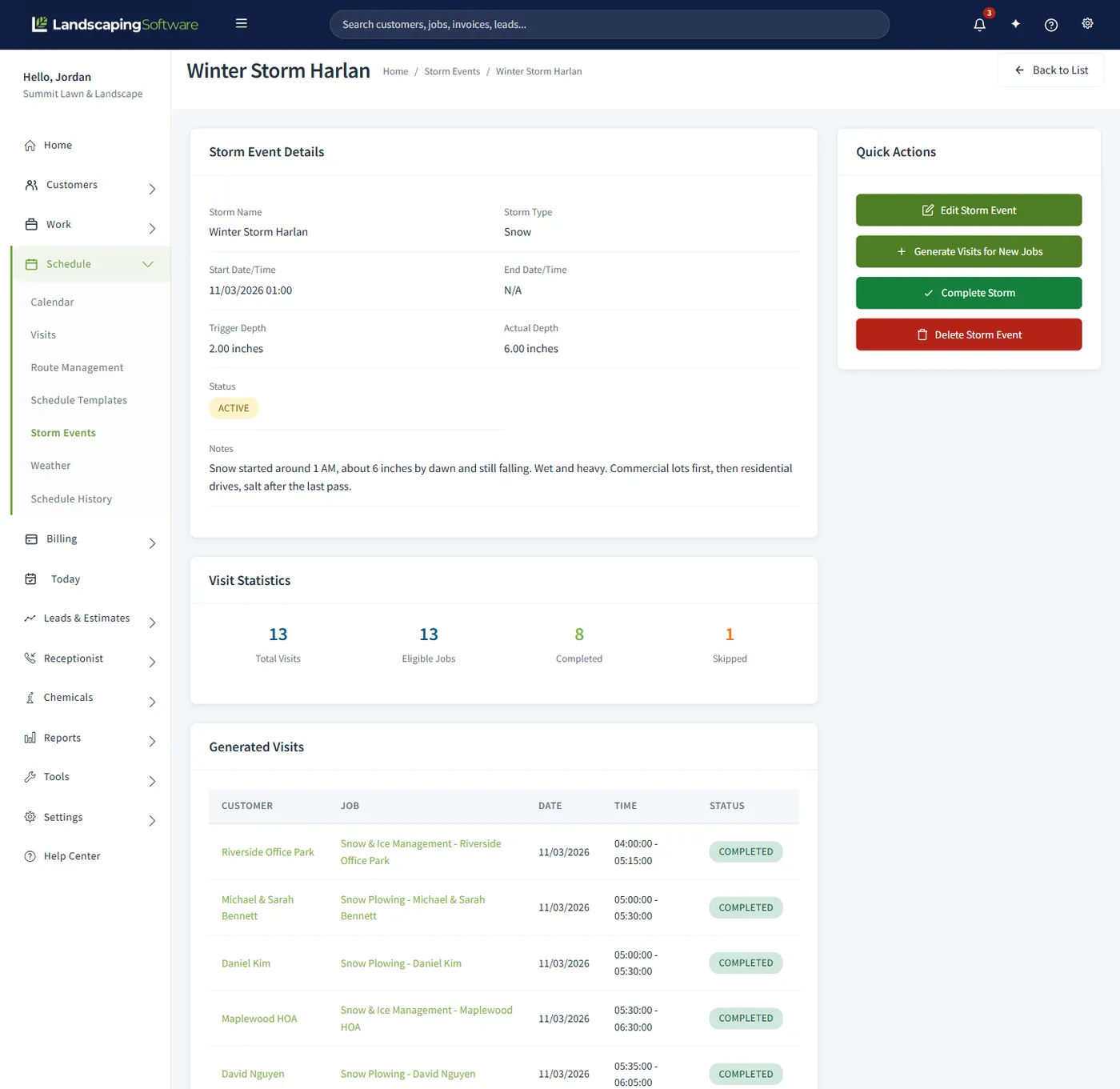
Leave “Generate visits for all active snow jobs” checked and click Create. You land on the Storm Event Summary with a visit already created for every active snow job in that season, one per job per storm. No per-job checklist, no lot missed because it was added in December.
A crew already set on the job carries onto its visit. Anything else you assign from the calendar or the route planner, which the summary links to. Order the stops, or apply the plow route you memorized last storm.
From the crew app, each stop is a card with Map, Arrived and Complete. As crews complete visits, the Completed count on the storm summary climbs. A stop a crew could not do is marked Skipped, with a reason.
When the snow stops, click Complete Storm and enter the actual depth. Any visit not already completed or skipped is marked completed, the end time is stamped, and jobs billed per visit get a draft invoice for each completed push.
Generate Visits is safe to press twice. It skips any job that already has a visit for this storm, so a customer who signs up mid-storm gets one without touching anyone else’s. It works while the storm is Forecasted or Active and its season is Active.
Dispatch board and routes
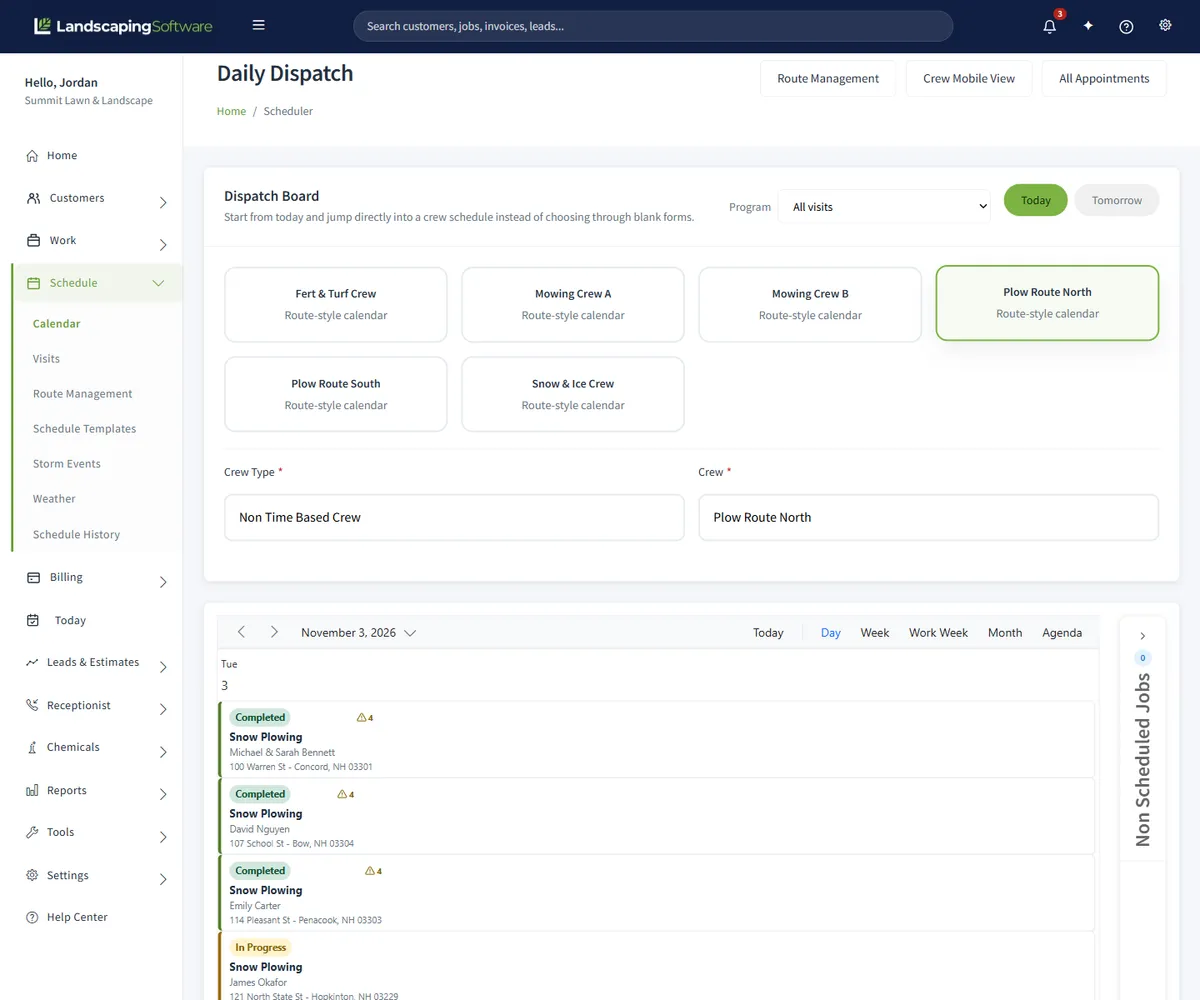
Storm visits land on the Daily Dispatch board under Schedule, Calendar, alongside everything else that day: crew cards for today and tomorrow, a drag-and-drop calendar, and a Non Scheduled Jobs sidebar for work still waiting for a crew and a date.
Plow crews run a route, not a clock, so set them up as route-style crews (Time Based set to No). Their visits land on a date with no times, and you control the stop order on Route Management: load the crew’s day, see the stops on a map, drag them into order or click Suggest Best Route to preview a different driving order, with drive time and miles against the one you have. Save the day in one click.
Then memorize it. Save a crew’s loop as a named template, and next storm load the day, apply the template, save. Stops not in the template go to the end for you to place. Give every plow crew a depot address, street and city at least; it is the default start and finish.
The map and the suggestion need maps set up on your account; the rest works without them.
Crews in the field
A crew lead does not need the whole calendar at 3am. They need their stops in order. Today is one crew’s day as a list of stops, and the screen the office opens to answer “where are they up to?” Each stop shows the job, customer and address, with four buttons: Map opens directions, Arrived records arrival on site, Job opens the full job, and Complete marks the push done. A finished stop shows Completed in its place.
Stop numbers from Route Management flow through to the crew app’s route, and statuses flow back: On My Way and In Progress are set from the crew app, and a Skipped stop carries the crew’s reason, so the office knows “not yet” from “could not get in”. Signal drops in a storm; if it goes while a crew taps Arrived or Complete, the tap is saved on the phone and sent when they are back online. When every stop is done the page says so, with a button to bill that day’s visits.
After the storm
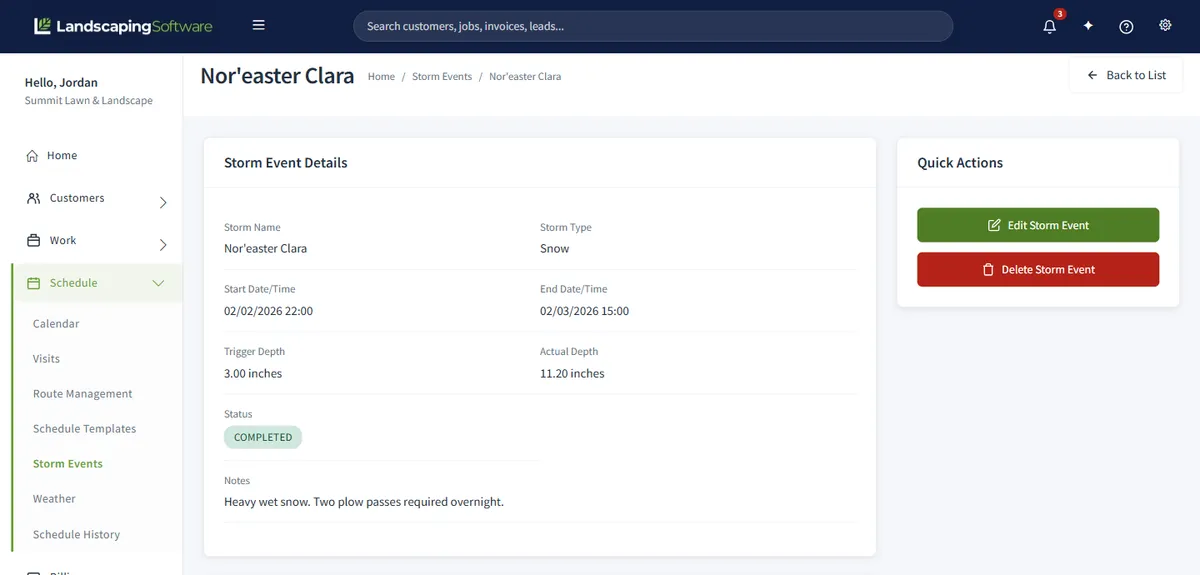
The Storm Event Summary is the record of the night: the storm’s details, Visit Statistics, and a Generated Visits table with every visit’s customer, job, date, time and status, each linked to the customer and the job. The Storm Events list shows every storm of the season with its type, start, actual depth and status.
Billing is per visit, and it is set on the job, not on the storm. Turn on Set Job Invoicing on a snow job, choose Per Visit, and each completed visit creates a draft invoice priced from the job’s product and service lines, due by the job’s invoicing terms. Completing the storm marks the leftover visits completed, and a daily sweep picks up any completed visit that slipped through, including bulk storm completions and offline crew syncs catching up.
Every automatic invoice is a draft under the Not sent chip on Billing, Invoices & Payments; nothing reaches the customer until you send it, and once sent they can pay online through the customer portal. Seasonal-price jobs use Monthly Fixed, one invoice a month from the accepted estimate, or Seasonal Prepay / Manual to bill by hand.
Trigger depth and actual depth are what you want in hand when a customer disputes a push, or when a contract pays by the inch.
Built in, not bolted on
A standalone dispatch app hands you a list to retype somewhere else. Storm Events live inside the system that already holds your customers, properties, snow jobs, crews and invoices, so a storm visit links to the real customer and the real job, and the invoice comes from the lines on that job. Nothing is exported in April and imported again in November.
The forecast beside your schedule, from your company ZIP code. An active weather alert for your area shows as a banner, snow days show the expected inches, and today’s and tomorrow’s open visits are flagged Caution at a 20% snow chance and Hold at 40%, each with a Reschedule button.
The phone rings hardest at 2am. With the AI receptionist add-on, Storm mode means that during an active storm event it expects emergencies and escalates faster. The storm you are dispatching is the storm the phone knows about. A paid add-on, on any plan.
Pick what your crews are doing, such as Watching the forecast, Plowing or All clear, add a note, and your website prints when you last updated it. The board hides itself after 24 hours without an update, so an old “Plowing” never stays up.
Every saved route, batch shift and schedule change is logged with who did it and when. When a crew says a visit disappeared at 4am, this is where you look.
Snow contracts and seasons
Storms attach to a season whose type is a snow or winter type (Snow and Winter ship as defaults), and the season must be Active: a storm in a Planned, Suspended or Ended season makes no visits. So the off-season work is simple. Create the winter season under Work, Seasons, link each snow job to it, and activate it when crews go on call.
Seasons overlap on purpose: a winter and a summer season can share dates, so fall cleanups and the first storm do not fight over the calendar. An overnight process ends an Active season once its end date passes, and never activates one for you. Once a season is Ended, its jobs become candidates on the Renewals list for next winter.
How you price the contract is up to you: per push, per inch, per event or a seasonal flat rate. Our guide to snow removal contract pricing walks through the trade-offs, and Contracts & Renewals, on the same plans as Storm Events, handles multi-year agreements and renewals.
Compared
Three ways to run a storm night.
| Question | Clipboard and group text | Generic dispatch app | LandscapingSoftware Storm Events |
|---|---|---|---|
| Who gets plowed tonight | A list someone keeps by hand. Whoever is missing stays missing. | A job list you build for each storm; varies by app. | One visit for every active snow job in the season, in one pass. |
| A new customer mid-season | A line on the list, if someone remembers. | Usually a job you add by hand; varies. | Link the job to the season and click Generate Visits for New Jobs. Nobody is duplicated. |
| Route order | In the driver’s head. | A map or a list, usually; varies. | Stop order per crew, a suggested driving order, and a memorized route to apply next storm. |
| Where “done” gets recorded | A text to the office, read later. | In the app, usually; varies. | The crew taps Complete, or Skipped with a reason. The storm summary counts both. |
| Billing afterward | Reconstructed from texts and the clipboard. | Often an export to your billing tool; varies. | A draft invoice per completed visit on Per Visit jobs, priced from the job’s lines. |
| The phone during the storm | Rings your cell. | Usually not covered; varies. | AI receptionist Storm mode, a paid add-on, expects emergencies during an active storm event and escalates faster. |
| Cost | Free, paid in sleep. | A separate subscription; varies. | Included in the plan price on Professional and Premier. |
A clipboard still works for three driveways. The question is what happens at thirty, with two trucks, when the person holding the clipboard is also driving one of them.
What it will not do
Nobody wants software deciding at 1am that a storm has started. The Weather page shows the alerts, the snow chance and the expected inches; a person creates the storm event. The software removes everything after that decision: the work list, the dispatch, the counting and the billing record.
Pricing
Included in the monthly price on Professional and Premier. Scheduling, routes, route memorization and the crew mobile app are on every plan, including Essential.
| Plan | Price | Storm Events | Crews |
|---|---|---|---|
| Essential | $99 a month | Not included | Up to 2 crews |
| Professional | $229 a month | Included | Up to 10 crews |
| Premier | $399 a month | Included | Unlimited crews |
New accounts start on a 14-day free trial of the plan picked at signup, no card needed, with Professional preselected, so you can set up a winter season, a few snow jobs and a test storm before you pay. A lawn-only company can switch Storm Events off under Settings, Plan & Features; the menu entry goes and the data stays. See the pricing page for every feature.
Works together
The whole winter in one system: storms, contracts, billing and the summer that pays for the trucks.
The dispatch board, Route Management and memorized routes that storm visits land on.
Answers at 2am, says it is an AI, and in Storm mode expects the call to be urgent.
One crew, one night, in order. Map, Arrived, Complete, and it works when the signal drops.
Step by step in the help center: storm events and snow visits, daily routes, the crew day view, the Weather page, the season lifecycle and automatic invoicing. See also Contracts & Renewals and Invoicing & Payments.
Questions
Software that turns one storm into a work list for every snow customer, gets it to your crews in route order, records each push as it is done and leaves a record to bill from. Here that is a Storm Event: create it, a visit is generated for every active snow job in the season, crews work the visits from the crew app, and completing the storm closes out the rest.
Create the storm event with “Generate visits for all active snow jobs” checked. On save, a visit exists for every active snow job in that season, with the job’s crew already on it. Order the stops on Route Management, or apply the route you memorized last storm.
A season whose type is a snow or winter type, each snow job linked to it and active, and the season activated. Give each plow crew a depot address (street and city at least) and set Time Based to No. Do it in the off-season: at 5am an empty Season dropdown is a hard stop.
Link the new snow job to the winter season, then click Generate Visits for New Jobs on the storm summary. Generation makes one visit per job per storm and skips jobs that already have one, so re-running it never duplicates anyone.
Today: one crew’s stops in order, each with the job, customer and address and buttons for Map, Arrived, Job and Complete. If the signal drops, taps are saved on the phone and sent when it reconnects. A crew can also mark a stop Skipped with a reason.
Per visit, set on the job. Turn on Set Job Invoicing, choose Per Visit, and each completed visit creates a draft invoice priced from the job’s product and service lines. Completing the storm marks the remaining visits completed, and a daily sweep catches any that slipped through. Drafts sit under Not sent until you send them. Seasonal-price jobs use Monthly Fixed or Seasonal Prepay / Manual instead.
The storm records the trigger depth and the actual depth you enter at completion, so the inches are on the record for billing and disputes. The invoice is priced from the job’s product and service lines, so set those to match the contract. Our snow removal contract pricing guide covers per push, per inch, per event and seasonal pricing.
No. The Weather page shows active alerts for your area, the hourly snow chance and the expected inches, and flags today’s and tomorrow’s visits at risk. A person on your team creates the storm event. We would rather say that plainly than imply the software watches the radar.
Edit the storm and change the start date: visits still scheduled on the old day move with it, and the banner says how many. Visits already moved, started or finished stay put. If the storm never comes, set it to Cancelled and the still-scheduled visits come off the crews’ schedules. A storm with started or finished work cannot be deleted, only cancelled, so the record is kept.
Storm Events are on the Professional and Premier plans (Professional $229 a month, Premier $399 a month). Scheduling, routes, route memorization and the crew mobile app are on every plan. New accounts start on a 14-day free trial of the plan picked at signup, no card needed, with Professional preselected.
14-day free trial · No credit card required