How to Use the Customer Activity Inbox
Last updated September 22, 2026 · Owners and office staff
The Customer Activity inbox is what your customers have been doing in the Customer Portal, newest first. Payments, estimate decisions, deposits, failed cards and first logins all land here as they happen, so you find out a customer approved a proposal from your own screen rather than from a phone call three days later.
Open it from the bell in the top bar, or from the View all link on the Dashboard’s Customer Activity card.
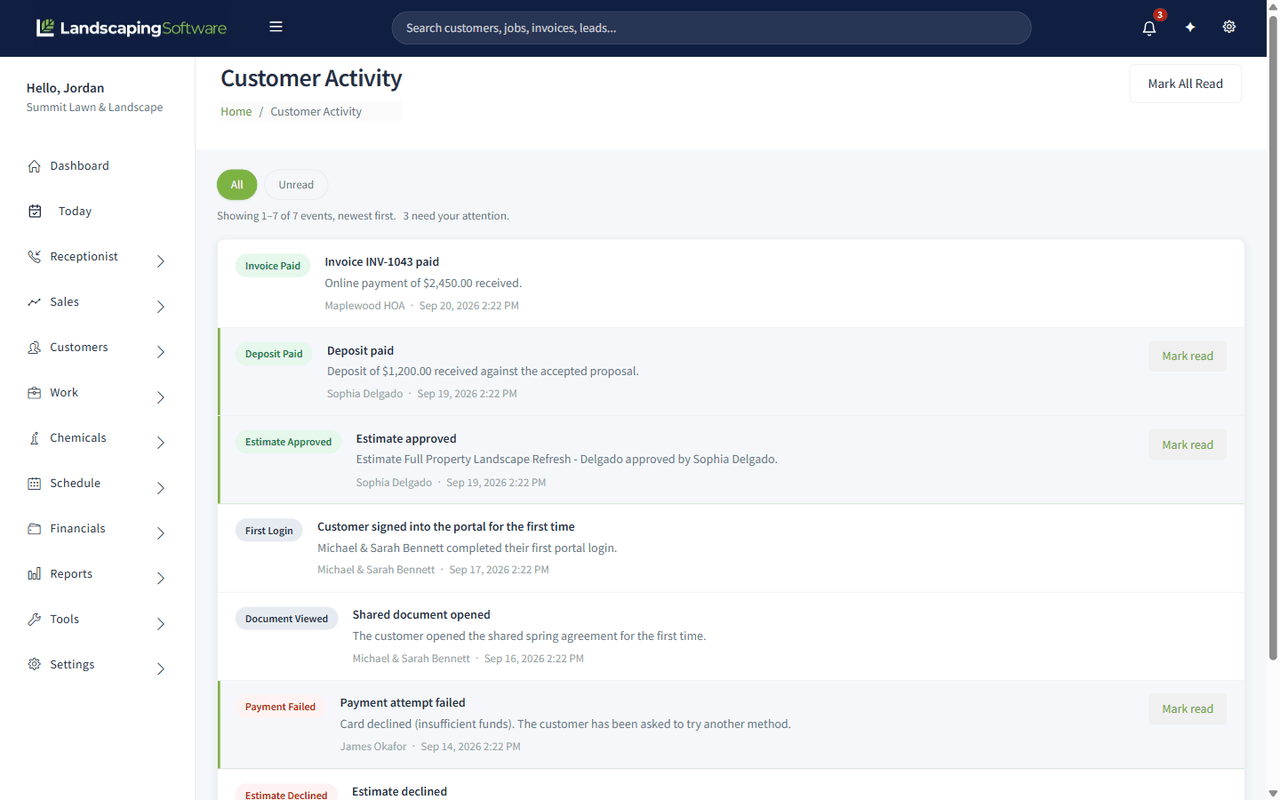
What lands here
| Event | Raised when |
|---|---|
| Invoice Paid | A customer pays an invoice in the portal |
| Deposit Paid | A customer pays the deposit on an accepted proposal |
| Estimate Approved | A customer approves an estimate, with the options they chose |
| Estimate Declined | A customer declines, with their reason where they gave one |
| Payment Failed | A card or bank payment was rejected |
| First Login | A customer signs into the portal for the very first time |
| Document Viewed | A customer opens a shared document for the first time |
Every event carries the customer’s name and a timestamp, so each line reads as a sentence: who did what, when.
Reading and clearing
- The chips at the top switch between All and Unread.
- The line beneath them counts what you are looking at and how many still need attention, for example “Showing 1-7 of 7 events, newest first. 3 need your attention.”
- Unread events are highlighted and carry a Mark read button.
- Mark All Read clears the lot.
- The bell in the top bar shows the unread count from anywhere in the product.
Which two matter most
Payment Failed. A declined card is a customer who thinks they have paid and an invoice that is still open. Nothing else in the product will tell you, because from the invoice’s point of view nothing happened. Work these the day they appear.
Estimate Approved. The customer has said yes. Every hour before you turn it into a scheduled job is an hour of goodwill you are spending for nothing.
First Login is worth a glance for a different reason: it tells you portal invitations are actually landing. A run of invitations with no first logins usually means your emails are going to spam.
What it is not
This is the customer-facing activity feed. It does not log what your own staff do. For that:
- schedule changes are in Schedule History
- contract changes are on the contract’s own timeline