Dashboard Overview
Last updated October 16, 2026 · Owners, admins, and office staff
The Dashboard (Home in the sidebar) is the first page you see after signing in. It is a daily briefing built around three things: getting today’s visits done, following up on leads and estimates, and collecting cash. This article explains every card on the page and where each link takes you.
Before you start
- Any operator account can view the Dashboard. There is nothing to configure.
- The Weather outlook card uses your company’s city and state from Settings > Company Settings. If your address is blank, the card asks you to add it instead of guessing a location.
- Dates, times and “today” follow your company time zone (set under Settings > Company Settings). The greeting, the date in the header, today’s visits and the dates on activity and feedback all use it, so a late-evening check from another time zone still shows your company’s day.
- All money amounts show dollars and cents.
The page, top to bottom
Header
The header greets you by name (“Good morning”, “Good afternoon” or “Good evening”, based on your company’s local time) and shows your company name and today’s date.
On the right are two buttons:
- Fertilizing workspace opens the setup and daily-work hub for a small fertilizing business. See Set Up a Small Fertilizing Business.
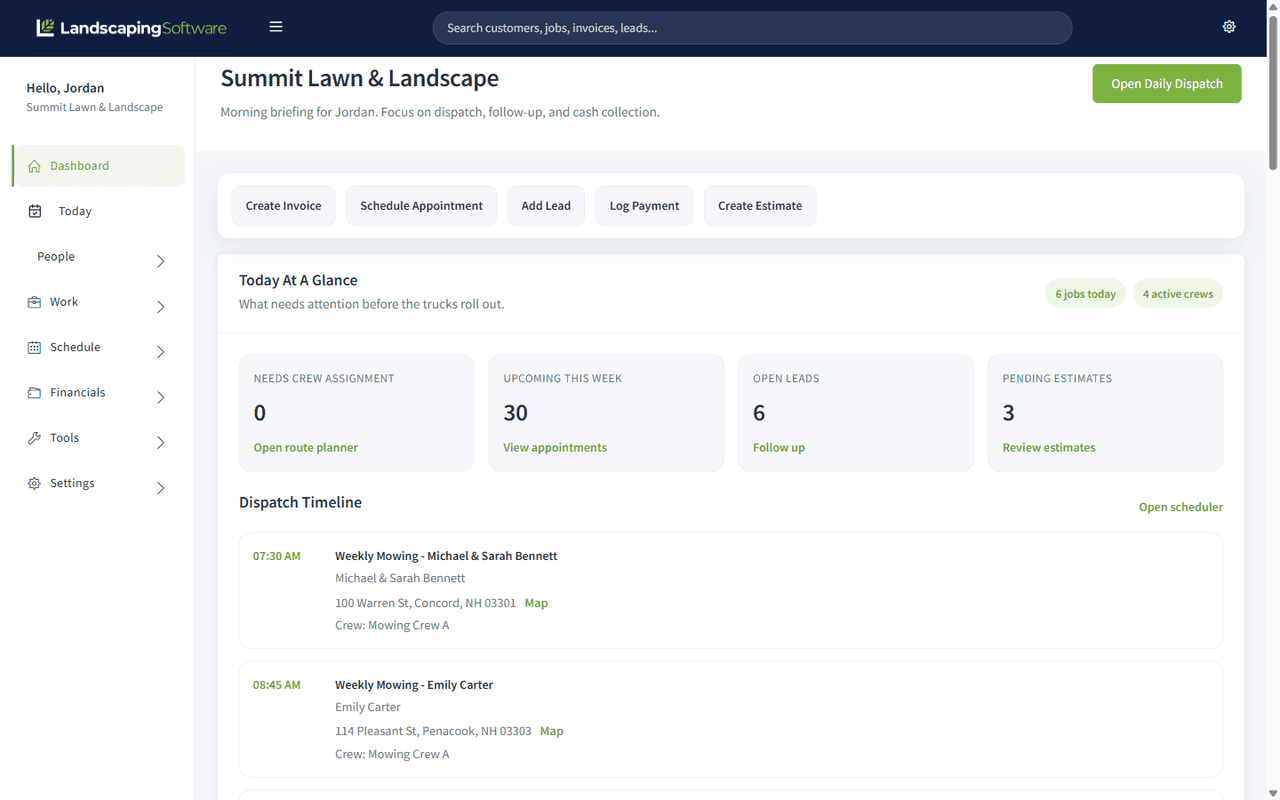
- Open Daily Dispatch opens the scheduling calendar.
Workflow guide
A guide card sits at the top of the page with suggested next steps.
In your first 30 days it is a first-invoice checklist called “Get to your first paid invoice”. It lists every step a first invoice needs, ticks the ones you have already done, and puts a button for the next open step on the right:
- Add your company address and phone
- Set your sales tax rate, or turn sales tax off (a new account starts with sales tax on at 0%)
- Add a service with a price
- Add your first customer
- Add work for that customer
- Create and send the invoice
- Record the payment
A counter shows how many steps are done (for example “3 of 7 done”). The checklist goes away as soon as you record your first payment, or once your company is 30 days old, whichever comes first. After that the card shows the everyday dispatch guide.
You can close the guide with the X in its corner, or hide guide cards product-wide with the Show Workflow Guides switch on the Profile tab of Settings (open Settings > Company Settings or the gear icon; the page opens on Profile) (see Your Profile, Password & Preferences). Hiding guides also hides the first-invoice checklist.
Today at a glance
The large card at the top of the operational view.
- Visits today is the big number. It counts every visit on today’s schedule, including ones already finished. Skipped and rescheduled visits are left out.
- A progress bar under it reads “X of Y complete” with a percentage, so you can see how far through the day your crews are. It only appears when there is at least one visit today.
- Below that: how many active crews you have, and a link showing how many jobs need a crew, which opens Route Management.
On the right, three money figures:
| Figure | What it shows | The chip next to it |
|---|---|---|
| Revenue this month | Payments collected so far this month, with a small trend line of the last six months | The change against last month, as an up or down percentage. Reads “No prior month” when last month had no revenue, or “No revenue yet” when this month has none. |
| Outstanding balance | The total still unpaid across your open invoices, with a small trend line of the balance at each of the last six month ends and today | The change against the end of last month. Going down shows as good news, going up as a warning. A red “N overdue” chip appears when any invoices are overdue. |
| Revenue this year | Payments collected since January 1 | The change against the same stretch of last year (January 1 to today’s date last year). Reads “No prior year” when there is nothing to compare, or “Year to date” when this year has no revenue yet. |
Weather alert strip. When there is a 60% or higher chance of rain or snow today or tomorrow, and you have visits booked in those two days, a strip appears along the bottom of this card: “Weather may affect the next two dispatch days. Review open routes and reschedules.” Click Review route shifts to open Route Management. Rain with nothing booked does not raise the alert.
Quick actions
A row of shortcuts below the hero card:
- Add work (opens the Add work wizard for a new job)
- Create invoice
- Schedule visit
- Add Lead
- Record payment (opens Invoices & Payments)
- Create Estimate
Dispatch timeline
Today’s visits in time order, up to eight at a time. The subtitle tells you how many are shown out of the day’s total.
Each visit shows its start time, the job and customer (click to open the Job Summary), the address with a Map link that opens Google Maps, the assigned crew, and a status pill:
| Pill | Means |
|---|---|
| Scheduled | Booked, not started yet |
| On my way | The crew has said they are heading there |
| In progress | The crew is on site (the pill has a small live dot) |
| Completed | Done; the timeline dot shows a check mark |
| Needs crew | No crew assigned yet, with an Assign a crew link to Route Management |
At the bottom, a Tomorrow line gives a preview of the next day: how many visits are booked and the first two by time and job name. View all visits opens Schedule > Visits.
Pipeline tiles
Four tiles under the timeline, each opening the list behind its number:
| Tile | What it counts | Opens |
|---|---|---|
| Need crew assignment | Jobs not yet given a crew | Route Management |
| Upcoming this week | Visits in the next 7 days, today included | Visits |
| Open leads | Leads still being worked | Leads, filtered to open |
| Pending estimates | Estimates waiting on the customer | Estimates, filtered to pending |
Payments collected
A month-by-month bar chart of cash collected this calendar year. Two chips in its header show jobs completed this month and new customers this month. If no payments have been recorded this year, it reads “No payment activity to chart yet.”
Needs attention
A list of everything waiting on the office. The header gives the total (“N items waiting on the office”) and a red overdue count when there is one. Each row is a link, and rows at zero are shown faded:
- Overdue invoices opens Invoices & Payments filtered to overdue.
- Completed, not billed counts jobs marked Completed that have no invoice yet, and opens Jobs with that filter.
- Accepted estimates to convert counts estimates the customer accepted that have not become a job yet, and opens Estimates filtered to “To convert”.
- Held jobs resuming this week counts on-hold jobs with an expected resume date in the next 7 days.
- Expiring estimates counts open estimates that expire within the next 7 days.
- Completed visits to bill counts finished visits the batch billing run would invoice, and opens the batch billing section of Invoices & Payments. See Batch Billing.
- Jobs missing route assignment opens Route Management.
On a narrow screen (a phone, a tablet, or a small browser window) the two columns stack into one. Needs attention then comes straight after the quick actions, ahead of the timeline, so the office’s to-do list is the first thing you see.
Weather outlook
Current temperature and conditions, plus today’s and tomorrow’s high and low with rain and snow chances, for your company’s city and state.
Proof of work
A summary of what the office can verify from the field today: a ring showing the percentage of reviewed visits with complete proof, the number of visits reviewed, how many have complete proof, and how many are missing an after photo or missing field activity. A red “flagged” chip appears when anything is missing, and recent exceptions are listed with links to the affected jobs.
Active crews
Each active crew with a progress bar for today’s visits: “X of Y done”, or “No visits today”. Click a crew to open its Crew Summary.
Customer activity
What your customers have been doing in the Customer Portal: payments, estimate approvals and declines, and first logins. The subtitle shows an unread count, or “All caught up” when there is nothing new, and View all opens the full activity list. On a brand-new portal it reads “No portal activity yet.”
This is the card that tells you a customer has approved an estimate before they think to phone you about it.
Customer feedback
Private “not so great” feedback collected by review requests, which send unhappy customers here instead of to your public review sites. Shows an unread count and the three most recent comments, with a View all link to the full Feedback page. This card only appears when the Reviews feature is on for your company.
A brand-new account
Until you have at least one customer, job or crew, the Dashboard shows a lighter version: the guide card, an empty dispatch timeline with a Schedule a visit button, a Your numbers card showing $0 placeholders (“Revenue, balances and trends appear after your first invoice”), the Payments collected chart and the Weather outlook card. The Today at a glance card, quick actions, Needs attention, Proof of work and the bottom row appear once you add your first records. See Getting Started.
Global search
The search box in the top bar works from any page, not just the Dashboard. Type at least 2 characters to search across customers, contacts, jobs, invoices, estimates, leads, contracts, crews and products at once. You can also type a phone number in any format. See Global Search for the full list.
Tips & best practices
- Work Needs attention daily. Overdue invoices, completed work that is not billed, and completed visits to bill are the rows that most directly affect cash flow.
- Watch the completion bar during the day. Together with the status pills and the per-crew bars, it tells you which crew is behind without phoning anyone.
- Trust the weather alert. It only appears at a 60%+ chance of rain or snow when you actually have visits booked today or tomorrow.
- Use quick actions instead of digging through menus for one-off work, invoices, leads and payments.
Troubleshooting
- “Add your address in Company Settings to see your local forecast” means your company city is blank. Add your address under Settings > Company Settings.
- “Weather data is currently unavailable” means the forecast service could not be reached. Refresh in a few minutes.
- The date or greeting looks a day off. Check the time zone under Settings > Company Settings. The Dashboard uses your company’s time zone, not your computer’s.
- A visit is missing from Visits today. Skipped and rescheduled visits are not counted. A rescheduled visit shows on its new date.
- Numbers look off for “jobs completed this month”. This counts jobs marked completed whose record was last changed this month, so a late edit to an old job can shift the count.
- The checklist disappeared before I finished it. It ends at your first recorded payment or when the company is 30 days old. Everything it pointed to is still in the sidebar.
- The chart is missing. The Payments collected chart only appears once at least one payment has been recorded this year.
Related articles
- Getting Started: first-time setup path
- Global Search: what the top-bar search finds
- Company Settings: address, time zone, sales tax and invoice header
- Your Profile, Password & Preferences: hide or show the workflow guide cards
- Today’s Work: the crew view for the day
- Scheduling: the calendar and routes the Dashboard links into
- Invoicing: acting on overdue and unbilled work