Customer Portal Overview (Customer Portal)
Last updated October 16, 2026 · Owners, admins, and office staff
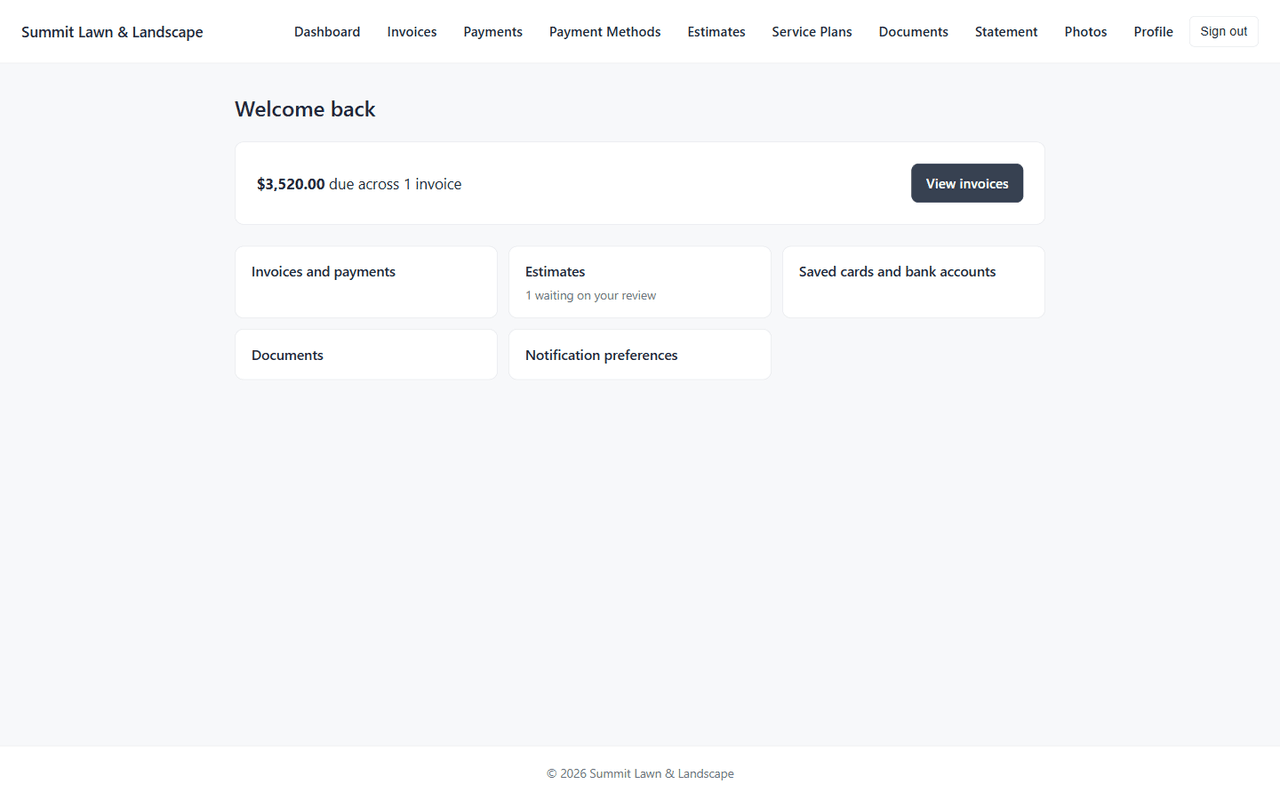
The Customer Portal is a branded, self-service website where your customers (the homeowners and businesses you service) can sign in to view their invoices, pay online, approve estimates, and see documents and job photos you’ve shared with them. It cuts down on phone tag and “can you resend that invoice?” emails. This article is the quick tour of what the portal offers so you can decide what to turn on. To actually turn it on, see Set Up the Customer Portal.
Before you start
- The portal is included on every plan. If you don’t see Customer Portal and Stripe Connect under Settings in the sidebar, check that Customer Portal is switched on in Settings > Plan & Features (Plan & Features). If it is on and the items are still missing, contact support.
- Switching Customer Portal off in Plan & Features takes the portal offline: your customers can’t sign in until you switch it back on, and everything is restored as it was when you do.
- Nothing about the portal is visible to your customers until you enable it and grant access per customer. It is off by default.
What your customers can do
You choose which of these are visible, section by section, in Settings → Customer Portal → Visibility. Turn any section off and both the menu item and the page disappear from your customers’ portal. In the navigation itself, Invoices, Payments, Payment Methods, and Statement share a Billing menu, and Estimates, Service Plans, and Documents share a Plans & Documents menu — a section only nests under its group’s menu once two or more sections in that group are on; with just one on, it shows as its own link.
| Section | What the customer can do |
|---|---|
| Invoices | Browse their invoices and download a PDF of each one. If they have credit on account (for example a deposit not yet applied to an invoice), it shows beside their balance, not subtracted from it |
| Payments | See a history of payments you’ve recorded on their account |
| Payment Methods | Save a credit/debit card or a US bank account (ACH) for faster checkout |
| Estimates | Review an estimate and approve it with an e-signature (and pay a deposit if you require one) |
| Service Plans | See their active plan, term, and renewal date |
| Documents | View and download any document you’ve flagged “Show in portal” |
| Statement | Download a printable PDF statement of invoices, payments, and balance for a date range |
| Photos | See job photos you’ve marked as visible to them |
| Service (the Upcoming visits toggle) | See each property’s next visit, the visits scheduled for the next 60 days, and the last completed visit with the photos you shared from it. A Your next service card appears on their dashboard too. Crew names and notes are never shown |
| Profile | Change their password and set which email notifications they receive |
What your customers cannot do (by design)
- Upload files — the portal is view-only for documents. Customers can’t send you files through it.
- Message you through the portal — there’s no in-portal chat. The portal points them to your support email/phone instead.
- Reschedule or request visits — scheduling stays in your hands.
- Auto-pay is not available yet. Customers can save a card and pay in two clicks, but they cannot set invoices to charge automatically. Don’t promise auto-pay to customers — see Portal Payments and Documents.
How sign-in works, briefly
Your customers sign in with their email and a password. You send each customer a one-time temporary password from their customer record; they set their own password on first sign-in. There’s no public sign-up — access is something you grant. Full walkthrough in Inviting Customers to the Portal.
What happens next
Once you understand what’s on offer, the setup flow is: enable the portal, pick your URL, connect Stripe for payments, add your branding, choose which sections customers see, then invite customers one at a time. Set Up the Customer Portal walks through each step.
Tips & best practices
- Start narrow. Turn on Invoices, Payments, and Estimates first. Add Documents and Photos once you’re comfortable with the flow.
- The portal is fully white-labeled. Customers see your logo, colors, and copy — never LandscapingSoftware’s. Nothing you do reveals which software you run.
- It’s mobile-friendly. Most customers will open it on a phone. Try the customer flow on your own phone before you announce it.
- Customers can add it to their phone’s home screen. The shortcut uses your company name and your portal favicon (or your portal logo if you have no favicon). With neither uploaded, the phone picks its own generic icon; it never shows ours.
- Invite a couple of friendly customers first and get their feedback before you roll it out widely.
Troubleshooting
- I don’t see the portal in Settings: check that Customer Portal is switched on in Settings > Plan & Features. If it is on, contact support.
- Customers suddenly can’t reach the portal: someone may have switched Customer Portal off in Settings > Plan & Features, which takes it offline. Switch it back on to restore it.
- A customer says a section is missing — check that section’s toggle in Settings → Customer Portal → Visibility, and that the customer’s own Portal access enabled is on. See the deeper checklist in Portal troubleshooting.
Related articles
- Set Up the Customer Portal — enable it, connect Stripe, add branding
- Inviting Customers to the Portal — grant access and send sign-in credentials
- Portal Payments and Documents — online payments, fee passthrough, sharing documents and photos, estimate approvals
- Operator setup guide (full) — the detailed end-to-end setup reference
- Branding and white-label (full) — everything you can customize
- Plan & Features: switch the portal on or off, and see what happens if billing lapses
- Known gaps in v1 — an honest list of what the portal doesn’t do yet