Estimate Approval in the Customer Portal: What the Operator Sees (Leads & Estimates)
Last updated October 16, 2026 · Admins and office staff
When you use the Customer Portal, your customers can review, approve (with an e-signature), or decline their estimates online — no phone tag, no paper. This article is written for operators: what triggers portal approval, how a portal-signed or portal-declined estimate appears back in your app, and what actions you have afterward. (The customer-facing walkthrough lives in the portal documentation.)
Before you start
- The Customer Portal must be enabled, with the Estimates section turned on in Portal Settings, and the customer must have portal access.
- The estimate must be linked to the customer (not just a lead) and be past Draft (for example Sent) so it appears in their portal. The portal hides Drafts and won’t let a customer approve one.
- To collect a deposit on acceptance, Stripe and online payments must be configured — see Deposits on Estimate Acceptance.
How it works
The customer’s side (brief)
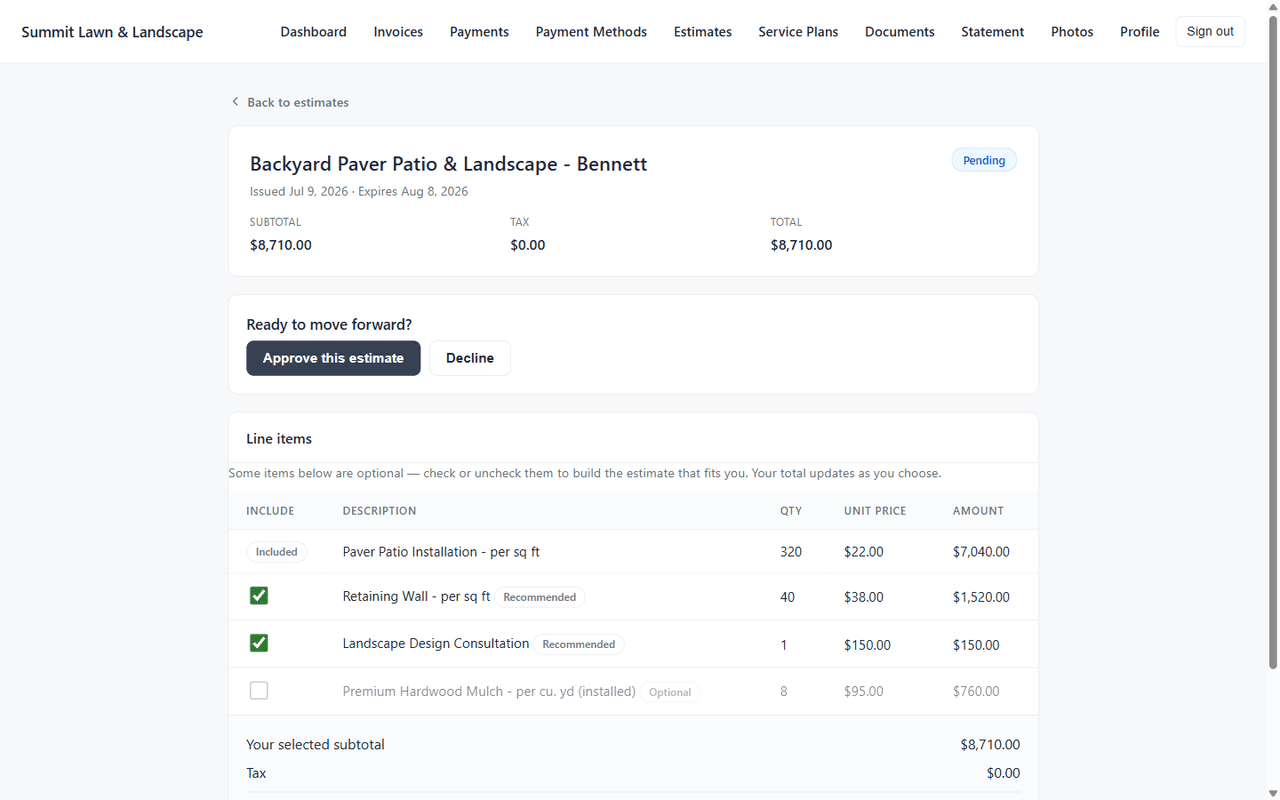
In their portal, the customer sees their estimates, opens one, chooses any Recommended/Optional add-ons, types their name to e-sign, and submits — approving or declining. If the estimate requires a deposit, they pay as part of approving. You don’t do anything to enable this per-estimate; it’s automatic once the estimate is visible to them.
When a customer approves
The moment the customer e-signs, the estimate in your app:
- Flips to Accepted automatically.
- Locks — you can no longer edit line items or change the status manually (it’s now a signed contract record).
- Gains an “Accepted selections” card on the Estimate Summary showing who signed, when (in your company’s time zone), the accepted vs. proposed total, each line marked Included or Declined, and any deposit status.
- Shows under the To convert chip on the Estimates list, and on the dashboard’s Accepted estimates to convert card, until you turn it into a job.
- Notifies you — a merchant activity record is written, and (best-effort, if email is configured) an email goes to your portal support address or company document email saying the estimate was accepted and is ready to convert to a job.
Approval does not auto-create a job. You convert deliberately with Convert to Job, and the job receives only the lines the customer included. This is intentional — you stay in control of scheduling.
When a customer declines
- The estimate flips to Declined automatically and is locked from manual status change.
- The customer’s decline reason (if they gave one) is recorded on the estimate.
- A merchant activity record notes the decline and its reason.
Deposits at approval
If the estimate has deposit terms, the deposit is collected as part of the portal approval:
- Requested deposits are offered after signing; the customer can pay or skip.
- Required deposits mean the customer signs, then pays — the acceptance only completes once payment succeeds. Until then the estimate shows “Signed — awaiting deposit”.
See Deposits on Estimate Acceptance for the full picture, including applying a paid deposit to the eventual invoice.
Steps: the operator follow-up
- Watch for the signal. You’ll get an activity record and (if email is set up) an email when an estimate is accepted. You can also spot it in the Estimates list — the status shows Accepted.
- Open the estimate and review the Accepted selections card: confirm the signer, the included lines, the accepted total, and any deposit.
- Convert to Job: the job is built from the accepted snapshot (included lines only). If the estimate is still attached to a lead rather than a customer, click Create customer and continue first.
- Bill it: later, invoice the job (Review billing on the estimate takes you to the job’s Financials tab), and apply any paid deposit on file to that invoice.
If you need to change a signed estimate
A portal-signed estimate is locked. To make changes:
- On the Accepted selections card, click Void acceptance and confirm.
- This removes the customer’s signature and selections and unlocks the estimate for editing.
- Edit as needed, then re-send it through the portal for a fresh signature.
Voiding can’t be undone, the prior signature (including a drawn signature from an on-site signing) is discarded and the estimate goes back to the totals you proposed. It’s the only way to edit, re-status, or delete an estimate the customer has signed. Voiding is refused in two cases:
- The estimate is already a job: “This estimate has already been turned into a job. Delete that job first, then void the acceptance.”
- The deposit is paid: “The customer already paid the deposit on this acceptance. Refund it in Stripe first, then void.”
What happens next
Portal approval replaces the manual “customer said yes over the phone → I set status to Accepted” step with a signed, timestamped, auditable record, and optionally a paid deposit. From there the flow is the same as any accepted estimate: Convert to Job → schedule → invoice.
Tips & best practices
- Set your notification email. Configure the portal support email (or company document email) so acceptance/decline emails actually reach you — otherwise the activity record is your only signal.
- Don’t edit an estimate after sending it to the portal. If you change it while the customer has it open, their signing attempt is rejected with “this estimate was updated” and they have to reload. Send it clean, then leave it alone.
- Convert promptly after acceptance. A signed estimate isn’t scheduled work until you convert it to a job.
- Read the decline reason. When a customer declines, the reason (if given) is on the estimate — useful for follow-up or a revised proposal.
- Void deliberately. Only void a signed acceptance when you genuinely need to re-quote; it discards a legal-quality signature record.
Troubleshooting
- A customer says they can’t see or open the estimate: check the estimate is linked to their customer record, it isn’t still a Draft, the portal Estimates section is on, and the estimate isn’t expired (expired estimates can’t be signed).
- The estimate is Accepted but I can’t edit it — that’s the lock on signed estimates. Void the acceptance to make changes.
- Status won’t change on a signed estimate — manual status changes are blocked; void the acceptance first.
- Customer is stuck “awaiting deposit” — it’s a Required deposit they haven’t paid. Acceptance completes automatically when they pay; they can return to the portal to finish.
- No email arrived when a customer accepted — email is best-effort and needs a configured support/document email and working email delivery. The activity record is still created regardless.
Related articles
- Options-Based Proposals — customer-selectable lines and the signature snapshot
- Deposits on Estimate Acceptance — collecting and applying a deposit taken at portal approval
- Manage Estimates — statuses, converting to a job, deleting
- Create an Estimate — building the estimate the customer will approve
- Leads Overview — lead-to-customer conversion (needed before job conversion)