How to Use Contracts (Multi-Year Agreements That Renew Themselves)
Last updated October 16, 2026 · Owners and office staff
A contract is a standing service agreement with one customer at one job site: an agreed price, a term with a start and end date, and a rule for what happens when the term runs out. Unlike the Renewal Wizard, which asks you every year which jobs to roll forward, a contract with Auto-renew turned on rolls itself forward, applies the price increase you agreed to up front, and prepares the renewal proposal before you have to think about it.
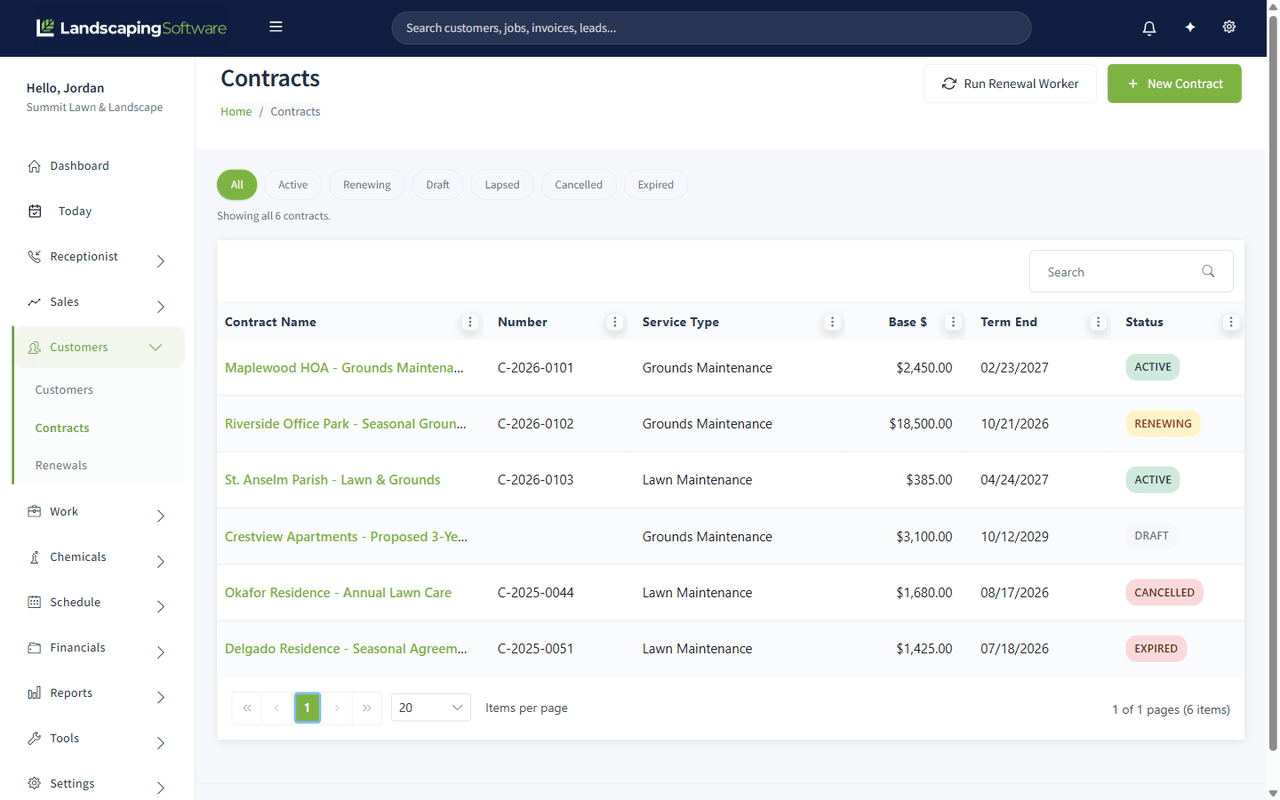
Contracts live under Customers > Contracts.
Contracts or Renewals: which one?
Both exist because they solve different problems. You can use both in the same company.
| Use | When |
|---|---|
| Contracts | The customer is on a standing agreement that should continue every year unless somebody cancels. You want the price increase and the term roll-forward to happen without a yearly decision. |
| Renewal Wizard | Season-driven work where you hand-pick every year which jobs and programs roll into the new season, and you want to review each one. |
| Season Planner | Rolling a whole season’s book forward in bulk. |
Before you start
- The customer and the job site must already exist. A contract is always attached to one job site. See Add a Job Site.
- Decide your pricing model before you create the contract. It is the one field you cannot leave blank, and it changes what the money fields mean.
- Contracts are a plan-gated feature. If you do not see Customers > Contracts, your plan does not include it.
Create a contract
-
Go to Customers > Contracts and click New Contract.
-
Customer & Jobsite
- Customer (required). Picking a customer filters the job site list below it.
- Jobsite (service location) (required). The address the agreement covers.
-
Contract Details
- Contract Name (required, up to 255 characters). What this agreement is, in plain words. For example “Smith Estate - Annual Maintenance”.
- Contract Number (optional, up to 50 characters). Your own reference, for example
C-2026-0142. Each number can be used once in your company. - Description (optional).
- Service Category (optional). Pick a program type to group the contract, or leave it on “None / Pricing-only”.
-
Pricing
Pricing Model What it means Per Visit Billed each time work is done Per Round Billed once per program round Seasonal Flat One agreed price for the season Monthly Flat Billed the same amount every month Time & Materials Billed on actual hours and materials T&M with Cap Time and materials, but never above the cap - Base Amount ($) (required, greater than zero, at most $99,999,999.99, dollars and cents only). The contract value under the model you chose.
- T&M Cap ($). Required on T&M with Cap, up to $99,999,999.99. Only meaningful on the two time-and-materials models.
-
Term & Renewal
- Term Start. The day the agreement begins (a date between 2000 and 2100).
- Initial Term (months). Defaults to 12; 1 to 60.
- Annual Uplift %. The price increase applied automatically at each renewal, 0 to 50. Defaults to 0. This is the field that makes annual price increases happen without a conversation every year, so agree it with the customer when they sign.
- PrePay Discount %. Optional discount for paying the term up front, 0 to 50.
- Auto-renew at term end. Off by default. Turn it on for agreements that should continue indefinitely.
- Renewal Notice (days). Defaults to 60; 0 to 180. How far before the term ends the contract enters its notice window.
-
Click to save. The contract is created as a Draft and you land on its summary page.
A new contract is never active. Drafts do nothing at all until you activate them, so you can set one up in advance and switch it on when the paperwork is signed.
Contract statuses
The status chips along the top of the Contracts list filter by these.
| Status | Meaning |
|---|---|
| Draft | Created but not in force. Nothing happens on a draft. |
| Active | In force. The nightly renewal run watches it. |
| Renewing | Inside the notice window. The customer’s opt-out deadline is set and the renewal proposal has been prepared. |
| Lapsed | The term ended without renewing. |
| Cancelled | Ended early, with a reason on the record. |
| Expired | The term ran out and the contract was not set to auto-renew. |
Click All to clear the filter. The line under the chips always tells you how many contracts you are looking at.
Activate a contract
On the contract summary, click Activate. The contract moves to Active and the event is written to its timeline.
Activate only when the terms are final. Activation is what puts the contract in front of the nightly renewal run. A cancelled or ended contract can’t be activated again (“A cancelled or ended contract cannot be activated. Create a new contract.”).
What the nightly renewal run does
Contracts renew on their own through a background run. It works in two steps, and both use your company’s local dates, not UTC, so the customer gets their full opt-out day.
Step 1: the notice. Any Active contract with Auto-renew on, whose term end falls inside its Renewal Notice (days) window, moves to Renewing. The opt-out deadline is set to the term end date, a “notice fired” event is written to the timeline, and a renewal proposal PDF is generated from the current job so it is ready when you review it.
Step 2: the roll-forward. Once the opt-out deadline has passed, the contract rolls forward. The new term starts the day after the old one ended, runs for the same number of months, and the Annual Uplift % is applied to the base amount.
Run it now, by hand
The contracts list has a Run Renewal Worker button. It runs exactly what the nightly job would run, scoped to your own company, and re-running it is safe. It reports back:
Renewal run complete. Noticed: 2, Rolled forward: 1, Proposals: 2, Errors: 0.
Use it when you want to see the result immediately instead of waiting overnight, or when you are checking why a particular contract did or did not renew.
Read a contract’s summary page
| Panel | What it shows |
|---|---|
| Contract Details | Contract number, service category, pricing model, base amount, annual uplift, prepay discount, term, auto-renew, opt-out date |
| At a Glance | Term end, auto-renew, and the opt-out deadline, so you can answer “when does this roll?” without reading the whole page |
| Timeline | Every event on this contract: created, activated, notice fired, rolled forward, cancelled |
The timeline is the record to check first whenever a customer disputes a price increase or a renewal.
Cancel a contract
- Open the contract summary and click Cancel Contract.
- Enter a Reason. It is required (“Enter a reason for cancelling.”) and stored on the timeline.
- Click Confirm Cancellation, or Keep Contract to back out.
Cancelling stops the renewal run from touching the contract. It does not delete history, and it does not touch invoices that already exist. A cancelled contract stays cancelled: it can’t be reactivated or cancelled a second time. If the customer comes back, create a new contract.
Turn an existing job into a contract
If you already run the work as a job and want to put it on a standing agreement, open the Job Summary and click Convert to Contract in the quick actions.
The job becomes a draft contract, carrying the customer, job site and billing terms across. You still complete the pricing and activate it on the contract page, which is deliberate: the conversion cannot guess your term length or your uplift.
Once a job is linked to a contract, that button is replaced by View Contract, so the job page always tells you whether the work sits under an agreement.
Common questions
Does a contract create visits or invoices by itself? No. A contract holds the agreement, its price and its term. The work is still scheduled through jobs and visits, and billed through invoicing.
What if the customer wants out? Cancel the contract before the opt-out deadline shown on the summary. After the roll-forward has run, the new term is already in force.
Can I change the uplift after signing? Yes, edit the contract. The next renewal uses whatever the field says at the time the run happens, so change it before the notice window opens.
Why did a contract not renew? Check three things in order: is it Active (drafts are ignored), is Auto-renew on, and has the opt-out deadline actually passed? The timeline shows exactly what the run did and when.
The form refuses to save. What do the messages mean?
- “Contract number … is already used.” Pick another number, or leave it blank.
- “Enter the T&M cap for a capped contract.” A T&M with Cap contract needs its cap.
- “Contract amount can have at most two decimals.” / “Contract amount can be at most $99,999,999.99.” Fix the Base Amount.
- “Initial term must be between 1 and 60 months.”, “Annual uplift must be between 0% and 50%.”, “Prepay discount must be between 0% and 50%.”, “Renewal notice must be between 0 and 180 days.” Bring the field into range.
- “The term start must be between the years 2000 and 2100.” Check the year on the Term Start.