How to Use the Appointments List
Last updated October 16, 2026 · Office staff and dispatchers
The Appointments list is every visit across every crew and every date in one grid. The calendar is for placing work; this is for finding it, fixing it in bulk, and answering “what has not happened yet?”
Find it at Schedule > Visits (the page itself is titled Appointments), or click All Appointments on Daily Dispatch.
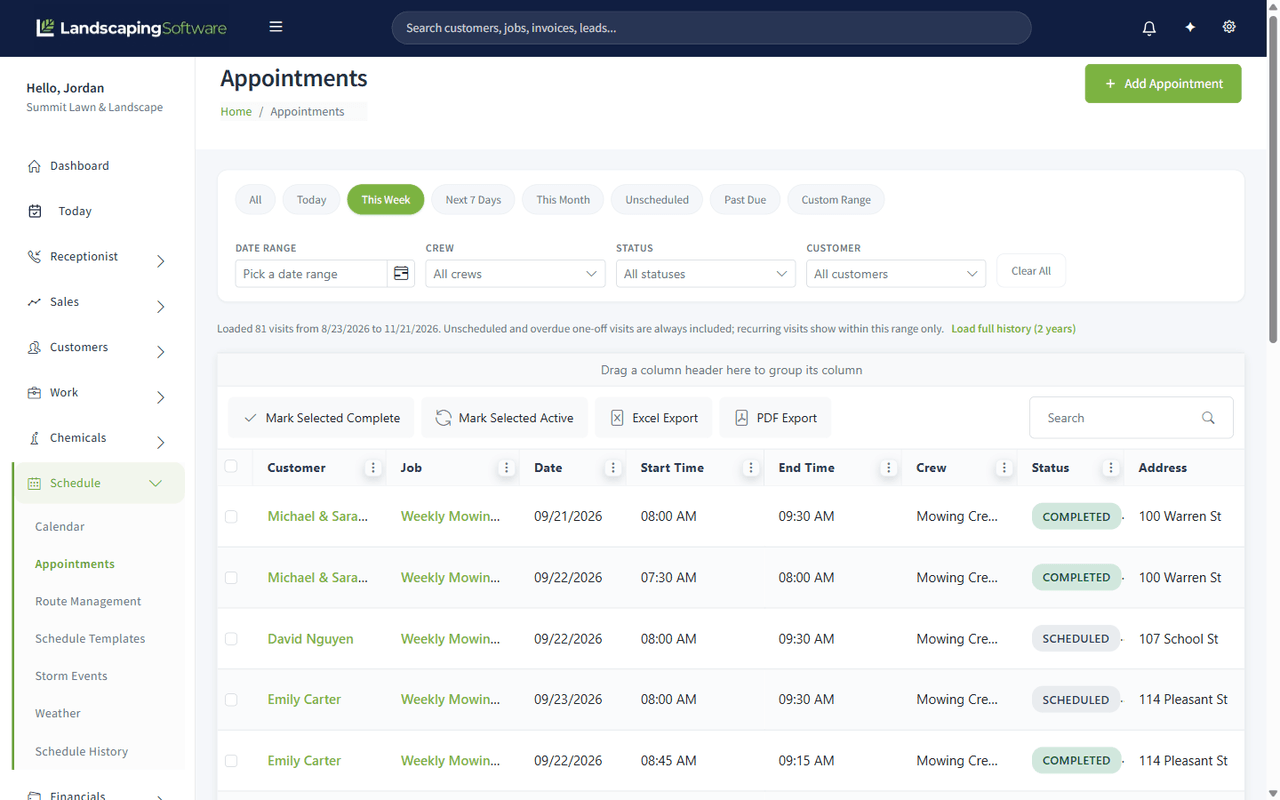
The filter chips
The chips across the top are the fast path. This Week is the default.
| Chip | Shows |
|---|---|
| All | Everything in the loaded range |
| Today | Today’s visits |
| This Week | The current week |
| Next 7 Days | The week ahead |
| This Month | The calendar month |
| Unscheduled | Visits created with “Schedule Later” and still waiting for a date |
| Past Due | Open visits whose date has already passed |
| Custom Range | Your own dates |
Past Due is the one to work daily. A visit that was never completed and never moved just sits there: it generates no invoice, and nothing else in the product complains about it. This chip is where those surface.
Unscheduled is the other one worth a weekly look. Those are jobs somebody meant to place and did not.
The other filters
Below the chips: Date Range, Crew, Status and Customer. They combine with the chips, so “Past Due, Mowing Crew A, Scheduled” is one click and three dropdowns. Clear All resets everything.
What the range note means
Under the filters you will see a line like:
Loaded 81 visits from 8/23/2026 to 11/21/2026. Unscheduled and overdue one-off visits are always included; recurring visits show within this range only. Load full history (2 years)
That is the product being honest about what it loaded. Recurring series are expanded only inside the window, because expanding every occurrence of every series across all time is slow. Anything unscheduled or overdue is always included regardless of the window, so nothing hides. If you genuinely need older visits, Load full history widens it to two years.
Working in bulk
Tick the checkboxes on the left, then:
- Mark Selected Complete — finish a batch of visits at once
- Mark Selected Active — put them back if you completed the wrong ones
Bulk completion runs the same rules as completing a visit one at a time, including automatic invoicing where the job is opted in, so do not use it to tidy up visits that never happened. Use skip for those.
Exports and history
Excel Export, PDF Export and CSV Export take the current filtered grid, not the whole table, so filter first and export second.
Click View on a row for the visit’s details and its visit notes; Review visit in that window opens the visit’s own page (see Visit Actions).
Each visit also carries its own change history. When a crew says a visit moved and nobody knows who moved it, that is answered in Schedule History.