Jobs Overview: How Jobs Connect Customers, Seasons, Programs, Visits, and Invoices
Last updated October 16, 2026 · Admins and office staff
A job is the live work order for one customer at one property. It’s the hub that everything operational hangs off of: appointments (visits) are scheduled against a job, products and services are priced on a job, and invoices are created from a job. If a customer buys three different things from you — weekly mowing, a fertilization program, and snow removal — that’s typically three jobs.
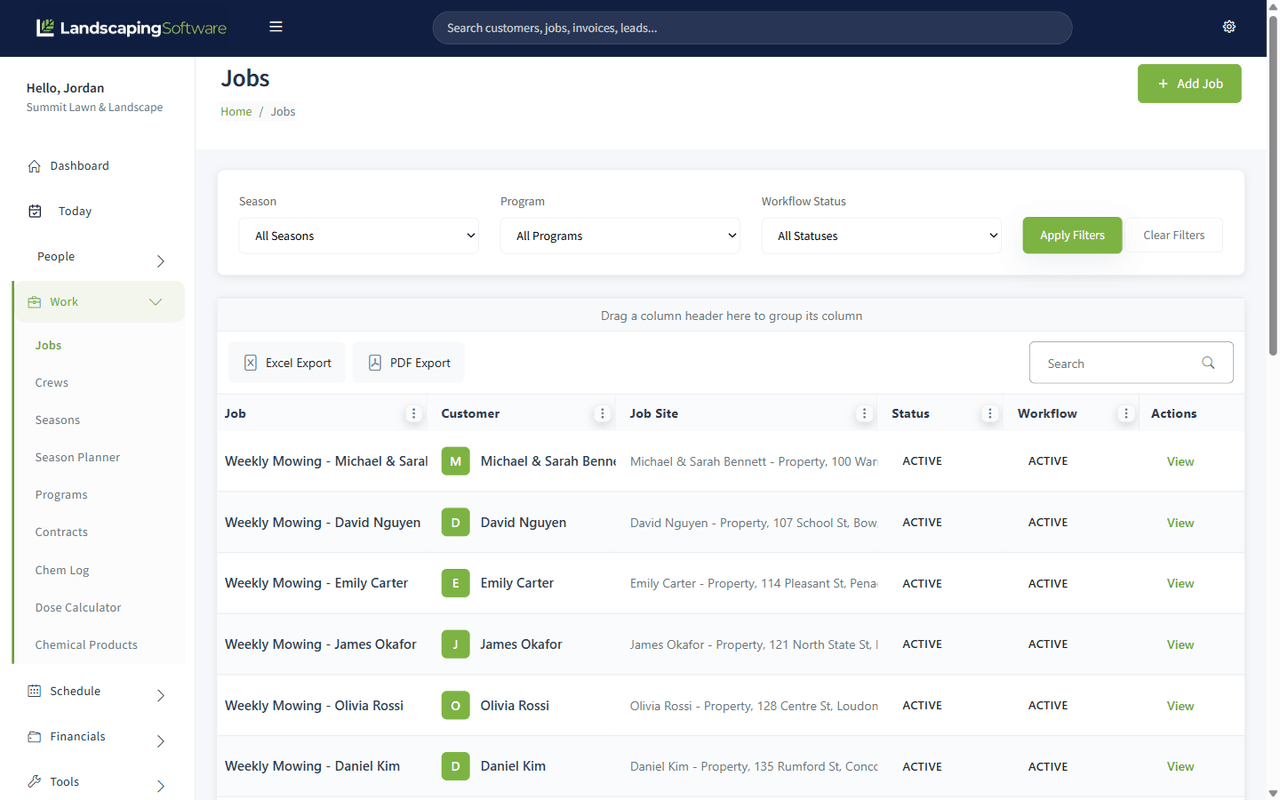
Before you start
- Jobs live under Work > Jobs in the sidebar. New work is booked with Add work, which can create the customer and property on the way. See Add Work.
- Every job requires a customer and one of that customer’s job sites. See How to Create a Customer.
- Seasons and programs are optional on a job but strongly recommended for recurring and multi-round work. See How to Set Up Seasons and Programs.
How a job relates to everything else
| Connected record | Relationship | Where you see it |
|---|---|---|
| Customer | Required. Every job belongs to exactly one customer. | Chosen on Add work (or the full Add Job form); shown on the Job Summary’s Customer & Jobsite card. |
| Job Site | Required. The property the work happens at: one of the customer’s job sites. | Chosen on Add work after you pick the customer. |
| Season | Optional link. Groups the job into a service year (e.g. “Summer 2026”) so filtering, renewals, and visit generation stay inside the right window. | “Season (Optional)” dropdown on create/edit, plus Change Season and Copy to Season quick actions. |
| Program | Optional link. Enrolls the job in a multi-round plan (e.g. “Fertilization 2026”) so visits can be generated round by round. | “Program (Optional)” dropdown on create/edit, plus the Link to Program quick action. |
| Visits (appointments) | A job can have any number of visits on the calendar — added one at a time, on a recurrence, or generated in bulk from program rounds. | The Appointments tab on the Job Summary; also the Calendar and Routes pages under Schedule. |
| Products & Services | Line items attached to the job: what you’re doing and at what rate. Pulled from your catalog under Billing > Products & Services, or typed as description-only lines. | The Product/Services tab on the Job Summary. |
| Invoices & Payments | Invoices are created from the job (manually, or automatically if the job opts in to invoicing). Payments applied to those invoices show alongside them. | The Financials tab and the “At a Glance” totals on the Job Summary. |
| Contract | A job can be converted into a draft service contract. | The Convert to Contract / View Contract quick action on the Job Summary. |
A one-time cleanup can be just a job with a customer and job site — no season, no program. A recurring mowing job should be linked to a season. A fertilization job should be linked to both a season and a program.
Job status vs. workflow status
Jobs carry two related status fields:
- Status (on the create/edit form): Active, Inactive, or Completed. This is the one you set by hand.
- Workflow badge (shown in the job header and the Jobs list): Estimate, Active, Completed, Invoiced, Closed, or On Hold. This tracks the job’s lifecycle — for example, using Place on Hold sets it to On Hold, and marking the job complete sets it to Completed. The Jobs list has a “Workflow Status” filter for it.
How a job moves along:
- Completed: you click Complete Job, set Status to Completed, or the job’s last open visit is completed (in the office or in the crew app).
- Invoiced: a manual invoice with This is the final bill for the job ticked. Automatic invoices, deposit invoices and progress invoices leave the workflow status alone.
- Closed: an invoice is paid in full, the job’s work is done (Completed or Invoiced), and no other invoice on the job still owes money. Deleting the payment that closed it puts the job back to Invoiced.
Only Active jobs are picked up when a program generates visits, so a job that’s on hold or inactive quietly drops out of bulk visit generation.
Billing status (computed, not set by you)
Alongside the workflow badge, every job carries a billing status worked out from what has actually been invoiced against it:
| Badge | Means |
|---|---|
| Unbilled | Nothing invoiced yet |
| Partial | Invoiced, but less than the job’s value |
| Fully Billed | Invoiced at least the job’s full value |
It appears on the Jobs list, on the Financials tab of the Job Summary, and in the Unbilled Jobs report. You never set it; it changes as invoices are raised. See Find Work You Have Not Billed.
Filtering the Jobs list
The Jobs list filters by Season, Program and Workflow Status, and by three filters that exist to catch work falling through gaps:
- Unbilled — jobs with nothing invoiced against them
- Never scheduled — jobs with no appointments at all
- Resuming within — on-hold jobs whose expected resume date is near
Never scheduled is the one to run at the start and end of every season. A job nobody put on the calendar generates no visits, so it never reaches billing and never shows up on any overdue list. It just sits there.
Automatic invoicing (per-job opt-in)
Each job has a Set Job Invoicing toggle. When it’s on, you choose a Billing Mode:
- Per Visit, invoice each completed visit: an invoice is created automatically when a visit is marked completed, priced from the job’s product/service lines.
- Monthly Fixed, one invoice per month: an invoice is created automatically at the start of each month, priced from the accepted estimate.
- Seasonal Prepay / Manual — not batch-billed — nothing is billed automatically; when you mark the job complete, you’re taken straight to a draft invoice to review.
- On Job Completion — one invoice when the job is completed: one invoice for the whole job, priced from its product/service lines, the moment the job completes. Not available for program jobs.
Automatic invoices are created for review on Billing > Invoices & Payments: nothing is emailed to the customer automatically. Jobs with the toggle off are simply invoiced by hand whenever you choose. See Automatic Invoicing.
What happens next
From here, the typical flow is:
- Add work for the customer (or create a job with the full form).
- Add products/services and adjust details on the Job Summary.
- Put visits on the calendar: by scheduling appointments, by enrolling properties in a program and generating visits, or by season renewal.
- Complete the visits; the job completes itself when the last one is done. Invoice from the job’s Financials tab, or let the invoicing opt-in do it.
Tips & best practices
- One job per customer per offering per year. “Harbor View — Mowing 2026” and “Harbor View — Snow 2026-27” should be separate jobs with different seasons.
- Link recurring jobs to a season even when it feels optional. Year-end renewal tools find candidates by season; unlinked jobs are harder to roll forward.
- Put the year in the job name. It keeps the Jobs list readable once you have multiple years of history.
- Use the workflow filter. On Work > Jobs, filtering by Season, Program, and Workflow Status is the fastest way to answer “what’s still open this season?”
Troubleshooting
- A job is missing from a program’s generated visits — check that the job’s Status is Active, that it’s linked to the program, and that the program’s season is Active. See Generate Visits.
- A job shows “On Hold” and crews shouldn’t go — that’s the point: on-hold jobs are flagged in the header and list. Use Resume Job on the Job Summary when work restarts.
- You can’t find a job on the Jobs list — clear the Season/Program/Workflow filters (the Clear Filters link) and use the grid’s Search box.