How to Find Work You Have Not Billed
Last updated October 16, 2026 · Owners and office staff
Work gets done and never invoiced. It is the quietest way a busy season loses money, because nothing on the schedule complains. The product answers this in five places, and they all use the same vocabulary so a job reads the same wherever you find it.
The three billing statuses
Billing status is computed, never typed. It compares what you have invoiced against the job’s total value.
| Status | Rule | Badge |
|---|---|---|
| Unbilled | Nothing has been invoiced against the job | Amber |
| Partial | Something has been invoiced, but less than the job’s value | Blue |
| Fully Billed | Invoiced at least the job’s full value | Green |
A job with no priced line items has no target to hit, so it can never read as Fully Billed no matter what has been invoiced against it. It reads as Partial instead. That is deliberate: a job that was never priced is a job you should look at, not one to mark done.
Deleted invoices do not count toward the invoiced total.
1. The Unbilled work page
Billing > Invoices & Payments, then the Unbilled work chip.
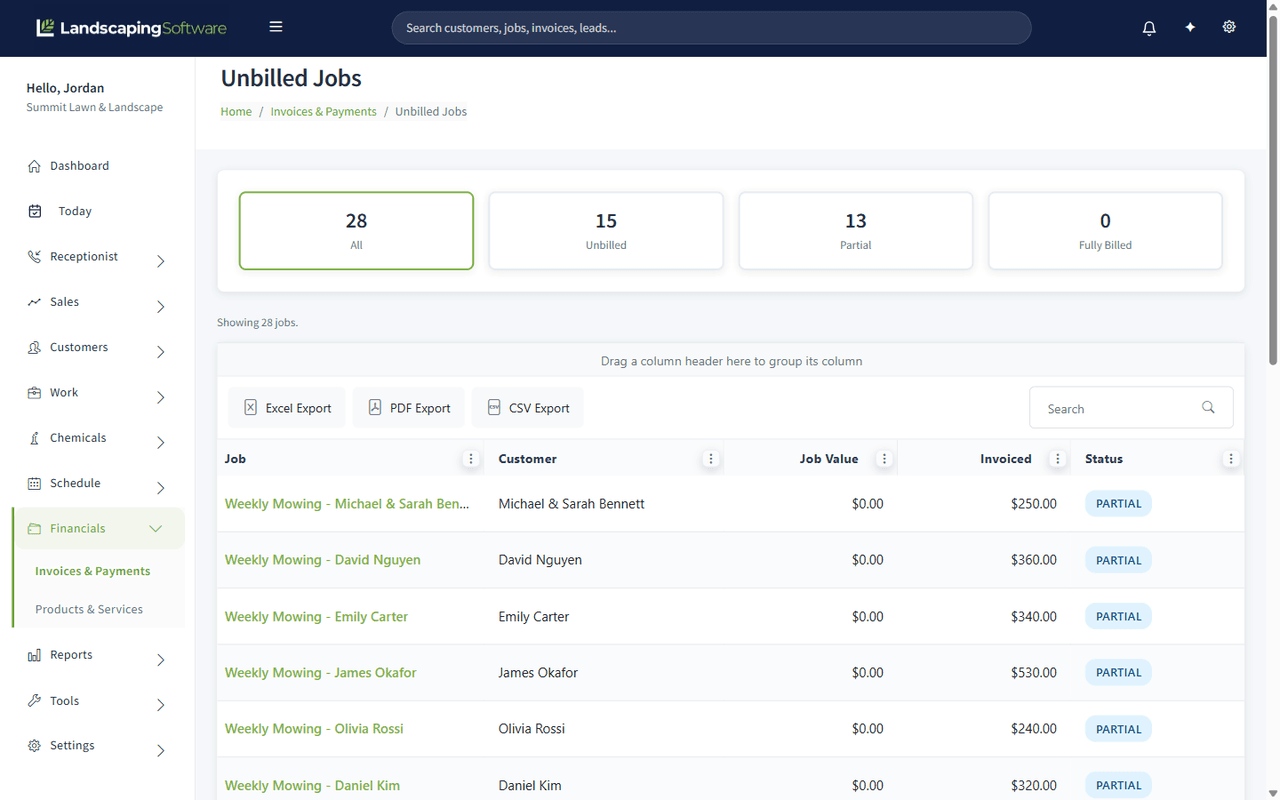
This is the whole-book view: every job, what it is worth, what you have invoiced against it, and where that leaves it.
The tiles
Four tiles across the top: All, Unbilled, Partial and Fully Billed. Click one to filter the grid below it. The selected tile is highlighted.
The tile counts are always tallied over every job, never over the filtered subset, so the numbers do not move when you click between them. If Unbilled says 14, it says 14 whichever tile you are standing on.
The grid
| Column | What it tells you |
|---|---|
| Job | The job name, linked through to the job |
| Customer | Who it is for |
| Job Value | The total of the job’s priced line items |
| Invoiced | What has actually been invoiced against it |
| Status | Unbilled, Partial or Fully Billed |
| Next step | A link to what to look at: Review pricing when the job has no priced value, Review work when nothing is invoiced yet, Review invoices when invoices exist |
The difference between Job Value and Invoiced is the money on the table. Sort by it. The totals do not prove work is ready to invoice; check completion, pricing and existing invoices first.
Export the grid to PDF, Excel or CSV from the toolbar when you want to work the list offline or hand it to a bookkeeper.
2. The Unbilled Visits report
Reports > Built-in Reports, then Unbilled Visits. A customer’s page also links to it (“See all in Unbilled visits”).
This is the visit-level view: every completed visit in a date range that has no invoice. The tiles at the top count the visits, their value (priced from the job’s lines), how many automatic billing will bill for you, and how many need manual invoicing. Each row says whether it will auto-bill, and if not, why: for example the job is not Per Visit, the job has no priced lines, the visit is a re-treat (it repeats work already billed, so it is never billed automatically), or the job is billed On Job Completion (“Billed once for the whole job when the job is completed, not per visit”).
Visits already billed another way are not listed, and a note under the tiles counts them: visits on a program round invoice or on the job’s monthly fixed invoice.
Mark a visit as billed
When you invoiced a visit some other way (for example a manual invoice with no visit chosen, or outside the app), take it off the list:
- Click Mark as billed on the visit’s row.
- Confirm “Mark this visit as billed? It leaves this list and will not be billed automatically. Use this when you invoiced the work another way.”
The visit leaves the list, and automatic invoicing and Batch Billing leave it alone. A note under the tiles counts the visits you marked; click Show them to see them. To undo a mark, click Bill again on that list: the visit goes back on the Unbilled Visits list and can be billed. A visit whose invoice you deleted with a plain Delete (not Delete and bill this visit again) is on the same list.
If you’d rather bill the visit properly, create a manual invoice and choose the visit under Visit on the invoice form. See Create and Manage Invoices.
3. Billing status on the Jobs list
Work > Jobs shows the same status badge on every row, alongside a scheduling status, so you can see in one pass whether a job is scheduled, whether it is billed, or neither.
The list also filters by:
- Unbilled — jobs with nothing invoiced against them
- Never scheduled — jobs that have no appointments at all
Never scheduled is the one most people have never looked at. A job nobody ever put on the calendar produces no visits, so it never reaches billing and never appears in any “overdue” list. It simply sits there. Check it at the start and the end of every season.
4. Billing status on the job itself
Open a job and look at the Financials tab. The same badge appears there with the invoice history behind it, so you can answer “why does this say Partial?” without leaving the job.
5. The invoice-readiness warning
When you create an invoice by hand for a whole job, the product checks two things first and shows a dismissible warning if either looks wrong:
- the job has no appointments at all, or
- the job is still at the Estimate stage of its workflow
The warning never blocks the save. You can invoice anyway, and sometimes that is correct (a deposit, a mobilisation charge, an agreed advance). It exists because invoicing a job that was never scheduled is far more often a mistake than a decision.
This check applies only to manual whole-job invoices. The automated per-visit and program-round billing runs do their own checks and never show it.
A recommended routine
Weekly, in season: open the Unbilled Visits report for last week and work the Need manual invoicing rows. Then open Unbilled work, click the Unbilled tile, and work anything with completed visits.
Monthly: click Partial and check the gap between Job Value and Invoiced. Partial usually means either a genuine progress billing or a line item somebody forgot.
At season end: filter the Jobs list by Never scheduled. Those jobs either need scheduling, or they should not exist.
Related articles
- Invoicing Overview
- Create & Manage Invoices
- Batch Billing
- Automatic Invoicing
- Built-in Reports, the other reports next to Unbilled Visits