How to Use Global Search
Last updated October 16, 2026 · Everyone
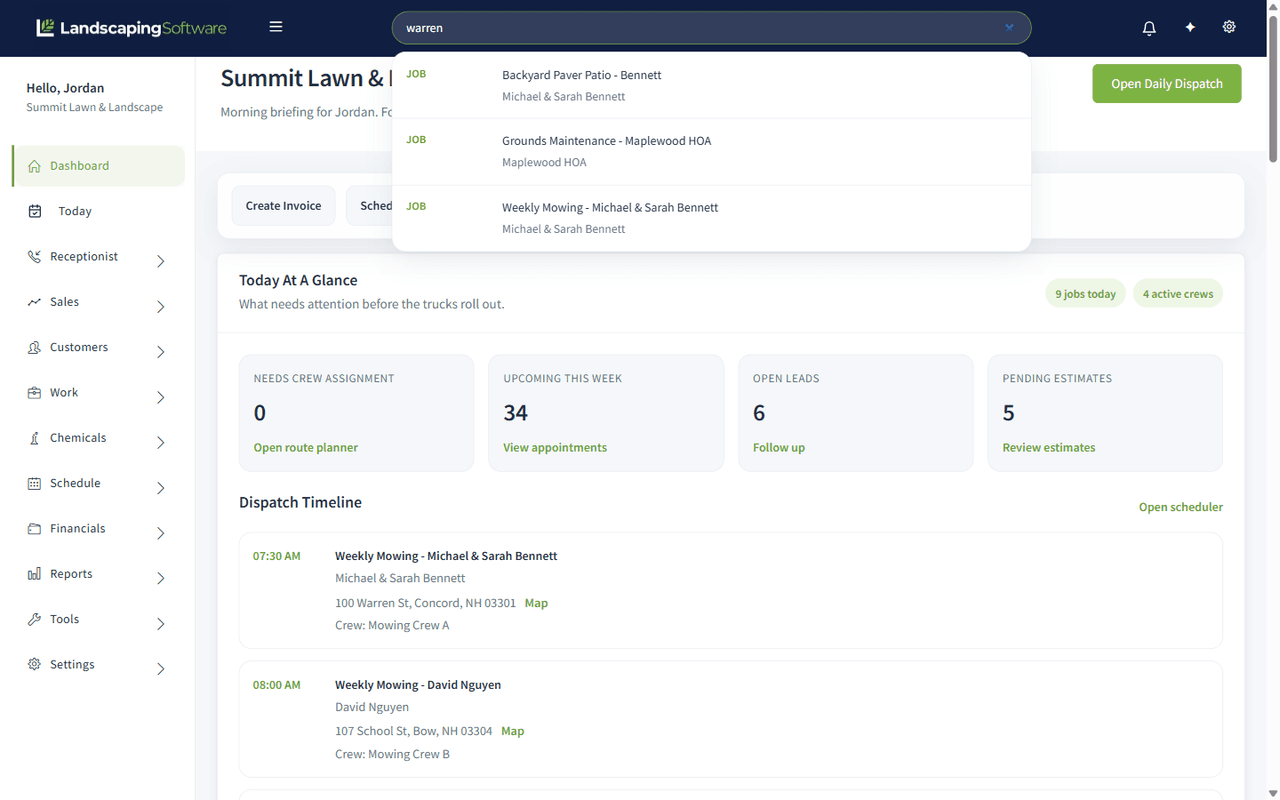
The search box in the top bar finds a record anywhere in your company without you having to remember which list it lives on. Type two characters and matches appear underneath as you type.
Search customers, jobs, invoices, leads…
How to use it
- Click the search box in the top bar and start typing. Nothing happens until you have typed two characters.
- Matches appear underneath, each labeled with what it is (Customer, Job, Invoice, Contract and so on).
- Click a result, or use the keyboard:
| Key | Does |
|---|---|
| Down arrow / Up arrow | Walk the list |
| Enter | Open the highlighted result |
| Escape | Dismiss the list |
What it searches
| It finds | By matching | Clicking it opens |
|---|---|---|
| Customers | Customer name, email address, or phone number | The customer |
| Contacts | Contact name, email address, or phone number | The customer the contact belongs to (the result shows that customer’s name) |
| Jobs | Job name, or the job site’s street address or city | The job |
| Invoices | Invoice number, or the customer’s name | The invoice |
| Estimates | Estimate name, or estimate ID | The estimate |
| Leads | Lead name, email address, or phone number | The lead |
| Contracts | Contract name, contract number, or the customer’s name | The contract |
| Crews | Crew name | The crew |
| Products & services | Product name | The product |
Searching by address is the one worth remembering. A customer calls about “the place on Mill Street” and you do not know their name. Type mill and the jobs at that address come back.
Searching by phone number works whatever the punctuation. Type the number the way it shows on caller ID: (555) 010-2030, 555-010-2030, 555.010.2030 and 5550102030 all find the same customer. You need at least four digits, and you can type just part of the number, such as the last four digits.
Contacts find the household or account behind them. Search for a spouse, a property manager or a site contact by name, email or phone, and the result takes you to the customer they are filed under.
Search matches anywhere in the field, not just the start, so smith finds “Smith”, “Smithson” and “Old Smithy Lane”.
What it deliberately does not search
- Appointments and visits. Job results already cover them, and matching every occurrence of every recurring visit would make the search slow for everybody. Use Schedule > Visits or the calendar instead. See the Visits list.
- Deleted records. Anything deleted stays out of the results.
- Leads you have already converted. Once a lead becomes a customer, search returns the customer, not the old lead, so you do not end up working from a stale record.
How many results you get
Up to four of each kind, and twelve in total. The list takes one of each kind in turn, so a contract or contact match still shows up even when lots of customers and invoices match the same word. It is a jump-to box, not a report. If what you want is not in the list, make the search more specific, or open the relevant list and filter there:
- Customers: Customers > Customers
- Contracts: Customers > Contracts
- Jobs: Work > Jobs, which filters by season, program, workflow status, unbilled and never-scheduled
- Invoices: Billing > Invoices & Payments
- Estimates: Leads & Estimates > Estimates
If search finds nothing
- Check you have typed at least two characters, or at least four digits for a phone number.
- Try a different field: a customer’s email or phone instead of a misspelled name, or the street instead of the job name.
- Remember it only ever searches your own company’s records.
If the search itself has a problem, the box simply shows no matches rather than breaking the page, so “no results” occasionally means “could not search” rather than “nothing there”. Try again, and tell support if it persists.